
Product guide · Navigation
Team
Team is where an agency turns AlmaSEO into multi-user SEO software: invite the people you work with, give each one a role, decide which client sites they can open, and see the hours everyone put in. It also holds the team’s holidays and its history.
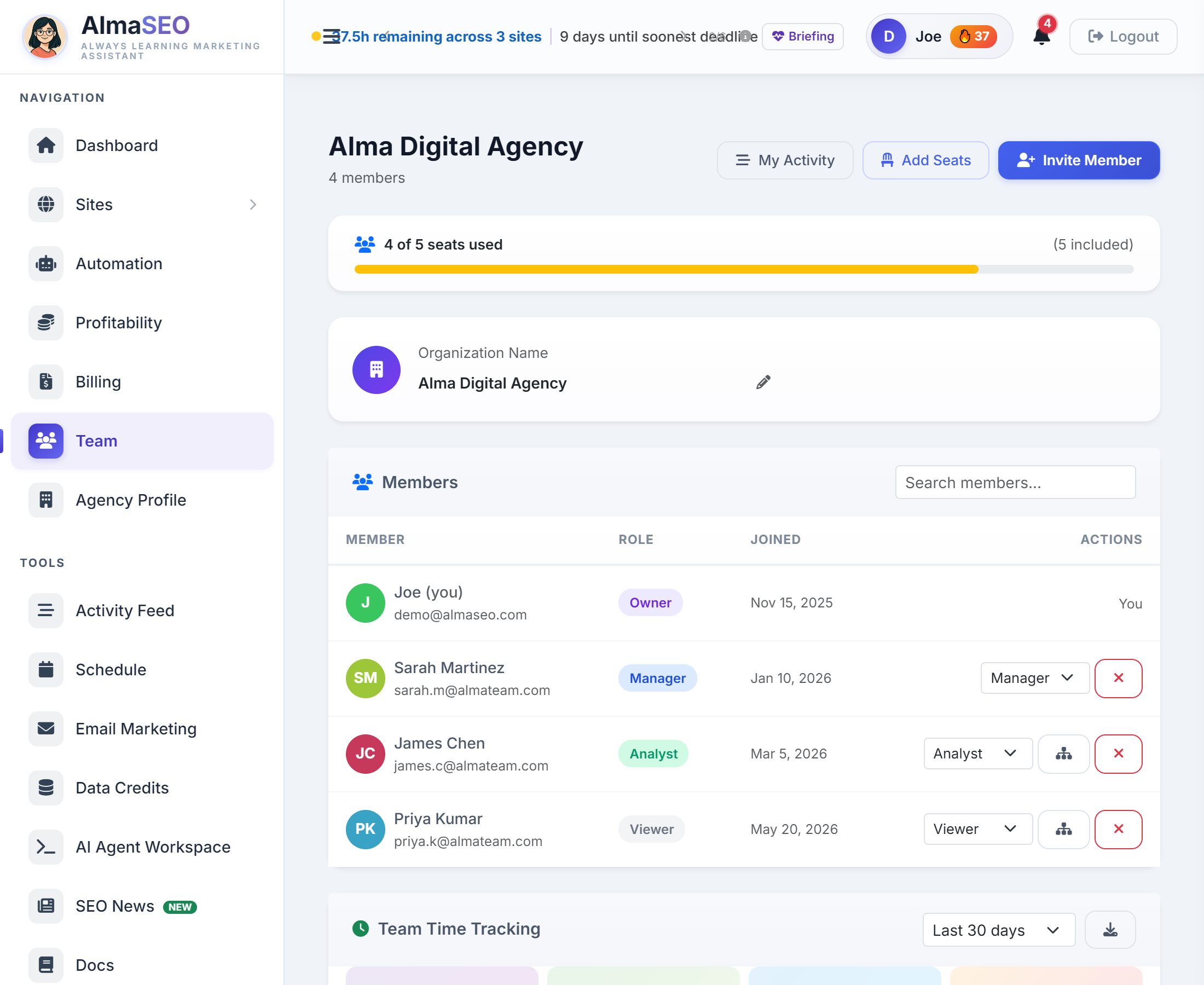
Everyone on a team works in the same AlmaSEO account: the same client sites, the same work log, the same reports. What changes from person to person is what they are allowed to do, and which clients they can see. This page is where the owner sets both.
Seats and the header
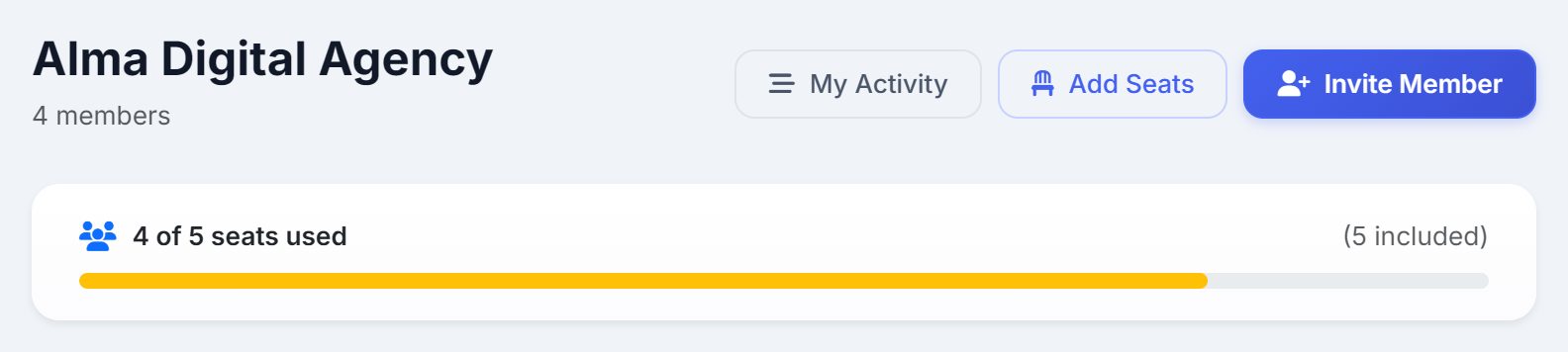
The heading is your team’s name with a member count underneath. Below it, the seat bar shows how many seats are used out of how many you have, and how many of those came with the plan. Every member counts as a seat, the owner included. Pro includes three and Agency five.
The buttons across the top depend on who is looking:
- My Activity
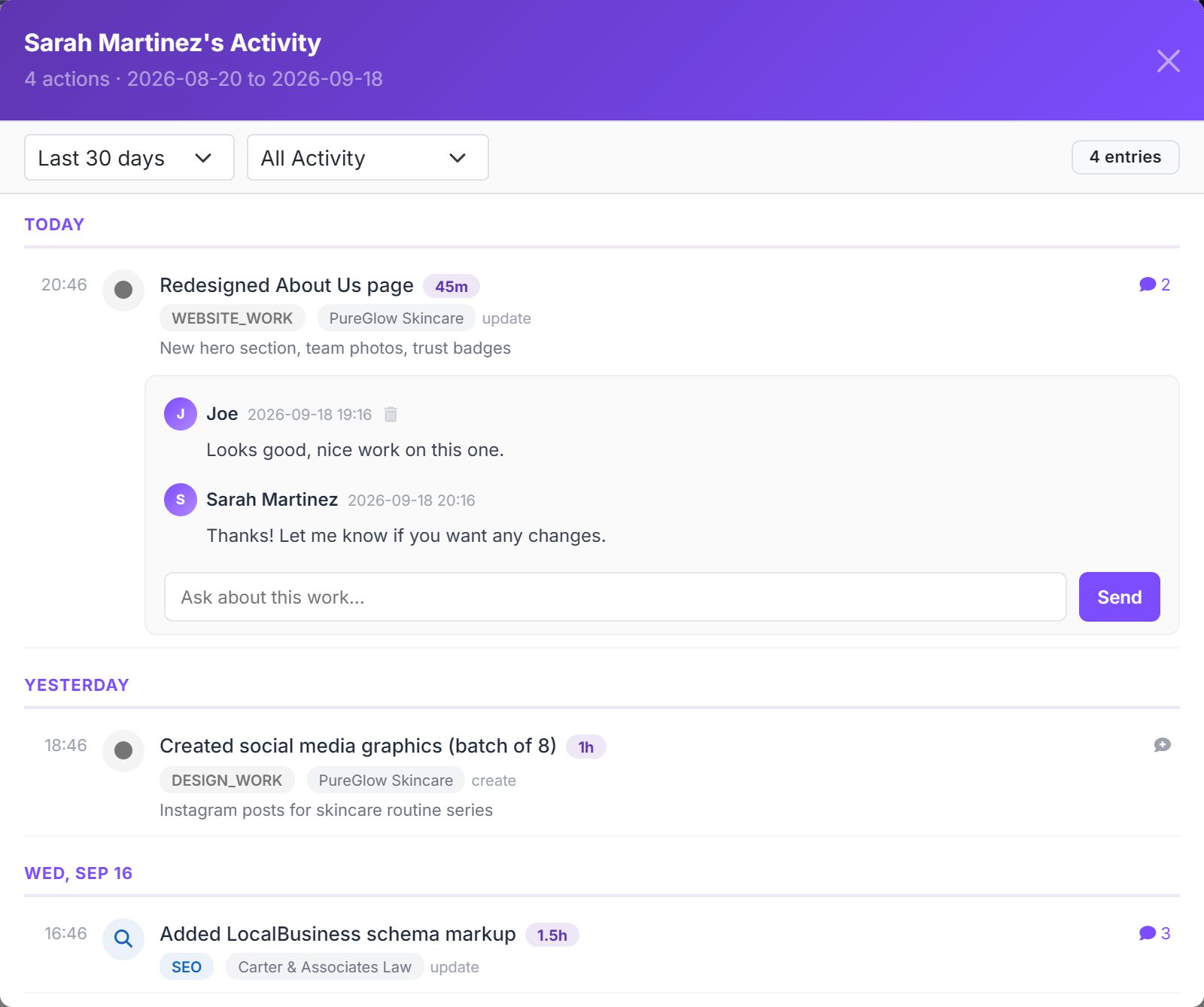
- Everyone. Every entry you have logged, with any comments on it.
- Invite Member
- Owners and managers. Opens the invite form.
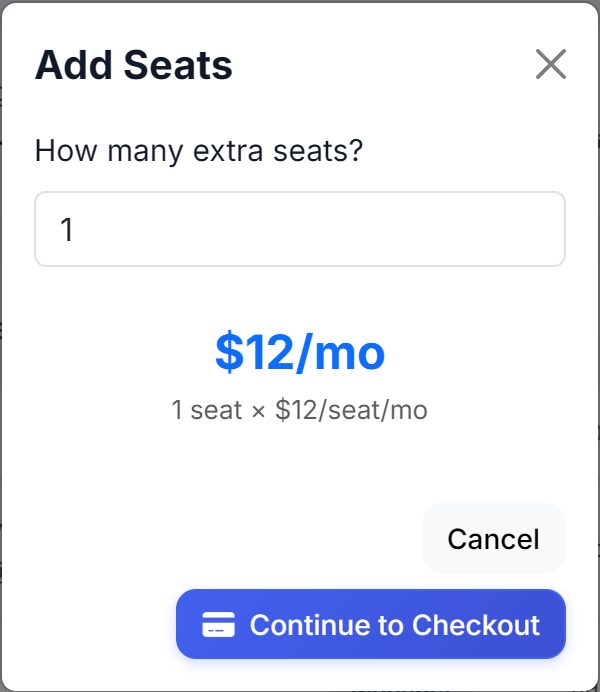
- Add Seats
- The owner, on Agency. Buy seats beyond the five included, at $12 a seat a month. Once you have extra seats, the same button changes the number.
- Leave Team
- Anyone who is not the owner. Leaving removes your access to every shared site.
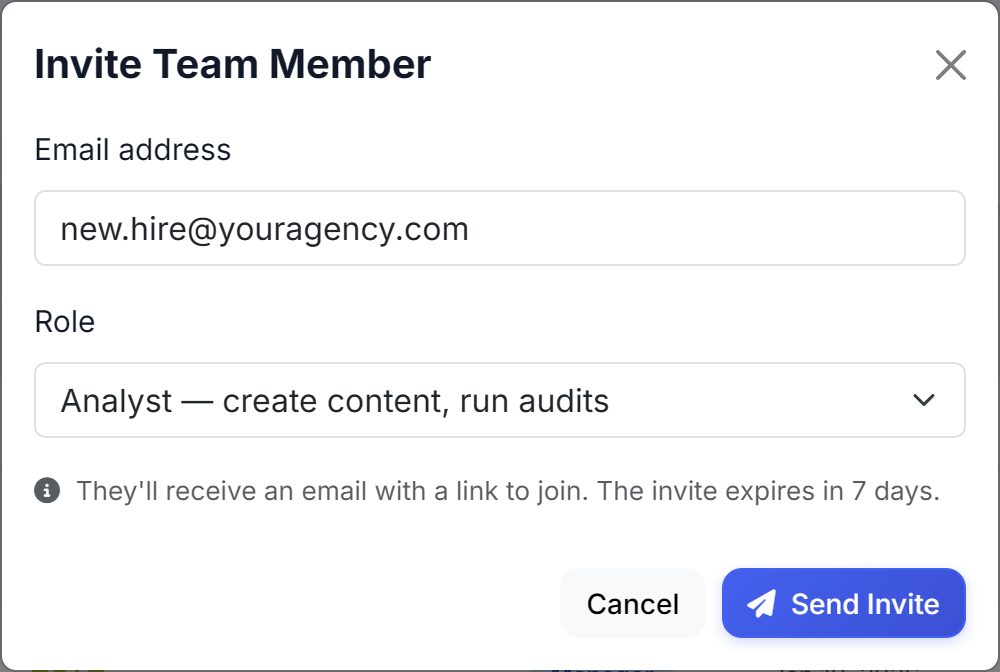
An invite is an email address and a role. The person gets an email with a link to join, and the link expires in seven days. If they don’t have an AlmaSEO login yet, the link takes them through signing up and lands them on the team at the end.
An invite waiting to be accepted doesn’t hold a seat — the seat is taken the moment someone joins. So you can have more invites out than seats left, but accepting one needs a free seat: if the team has filled up in the meantime, the person is told to ask you for more seats before they can join. Agency adds a seat, Pro moves up to Agency.
Members
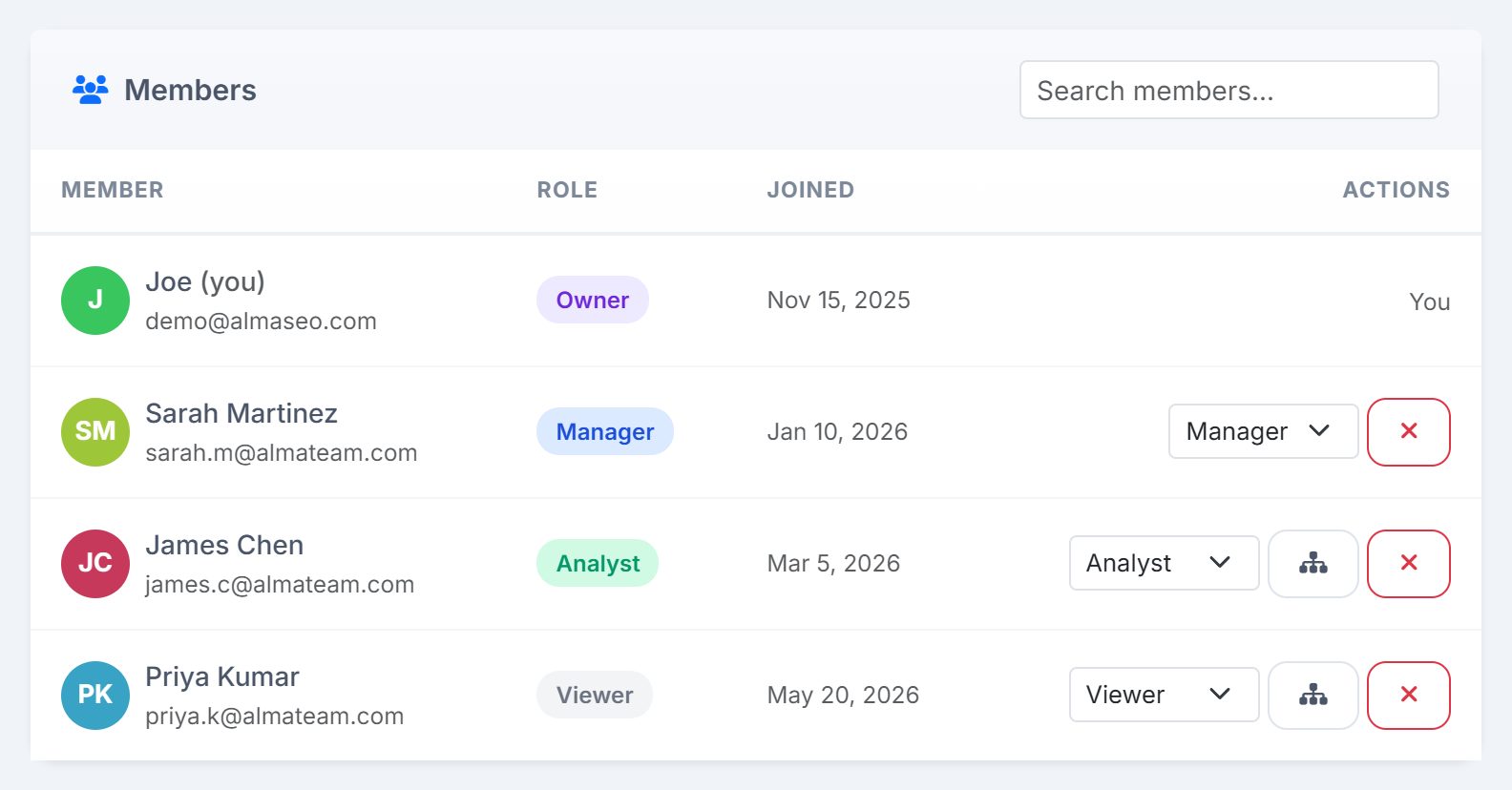
Every member in one table, searchable by name or email: who they are, their role, and when they joined. The Actions column is where the owner and managers run the team:
- Role picker
- Change someone’s role between Manager, Analyst and Viewer. It takes effect immediately. The owner’s picker also offers Owner, which hands the team over — see the roles for how that works on a paid plan.
- Site access
- On analyst and viewer rows only. Opens the list of client sites to choose from.
- Remove
- Takes the person off the team and frees their seat.
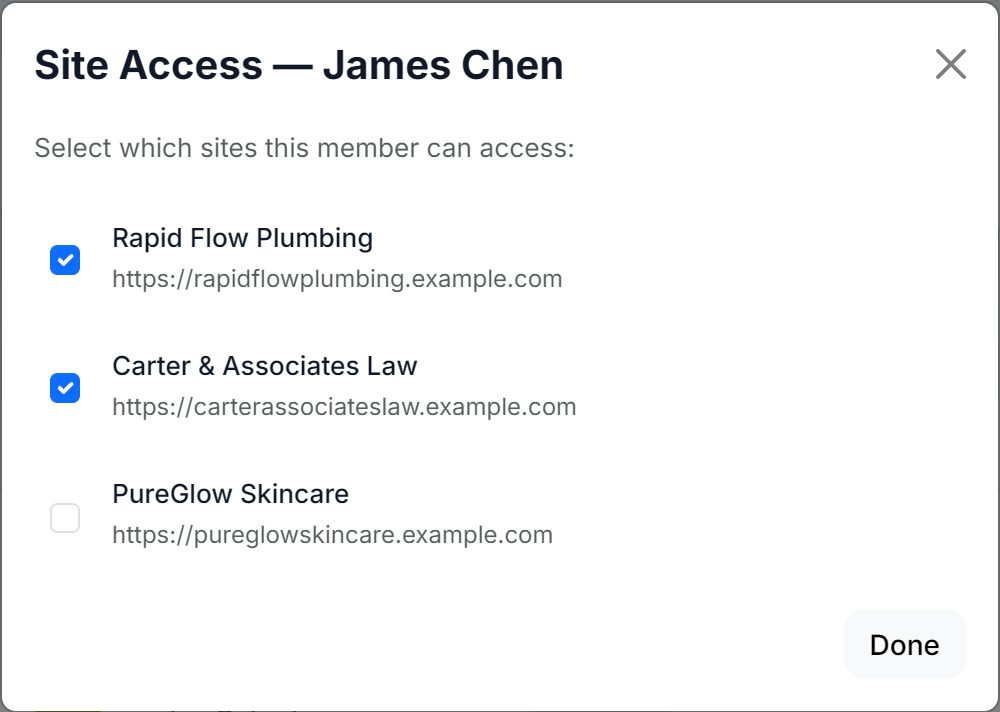
Site access is what makes a team safe to grow. Owners and managers see every client site on the team. Analysts and viewers see only the sites ticked for them; the rest of your clients never appear in their list of sites. A freelancer brought in for one client sees that one client.
The four roles
Four user roles and permissions that stack, from the one who pays to the one who only reads:
- Owner
- Everything: billing, seats, the team, every site and every setting. There is one owner, who can’t be removed or leave. To step back, the owner picks Owner in another member’s role picker: that person takes over the team, and the old owner becomes a Manager. While a paid plan is running, that handover goes through us — email support@almaseo.com and we move the subscription across with it, because the billing has to follow the ownership rather than stay with the person stepping back.
- Manager
- Runs the team day to day: manages sites, publishes, creates and deletes content, runs audits, changes settings, and invites people. Sees every site, the team’s hours and its history. A manager can invite and remove analysts and viewers, but not other managers.
- Analyst
- Does the work: creates content, runs audits and logs work on the sites they’ve been given. They can’t change site settings or WordPress details, and they can’t delete content. Sees their own activity, not anyone else’s hours.
- Viewer
- Read-only on the sites they’ve been given, with one exception: a viewer can comment on work entries. Useful for a client contact, a partner or a new hire finding their feet — they can ask about a piece of work without being able to change anything.
Team Time Tracking
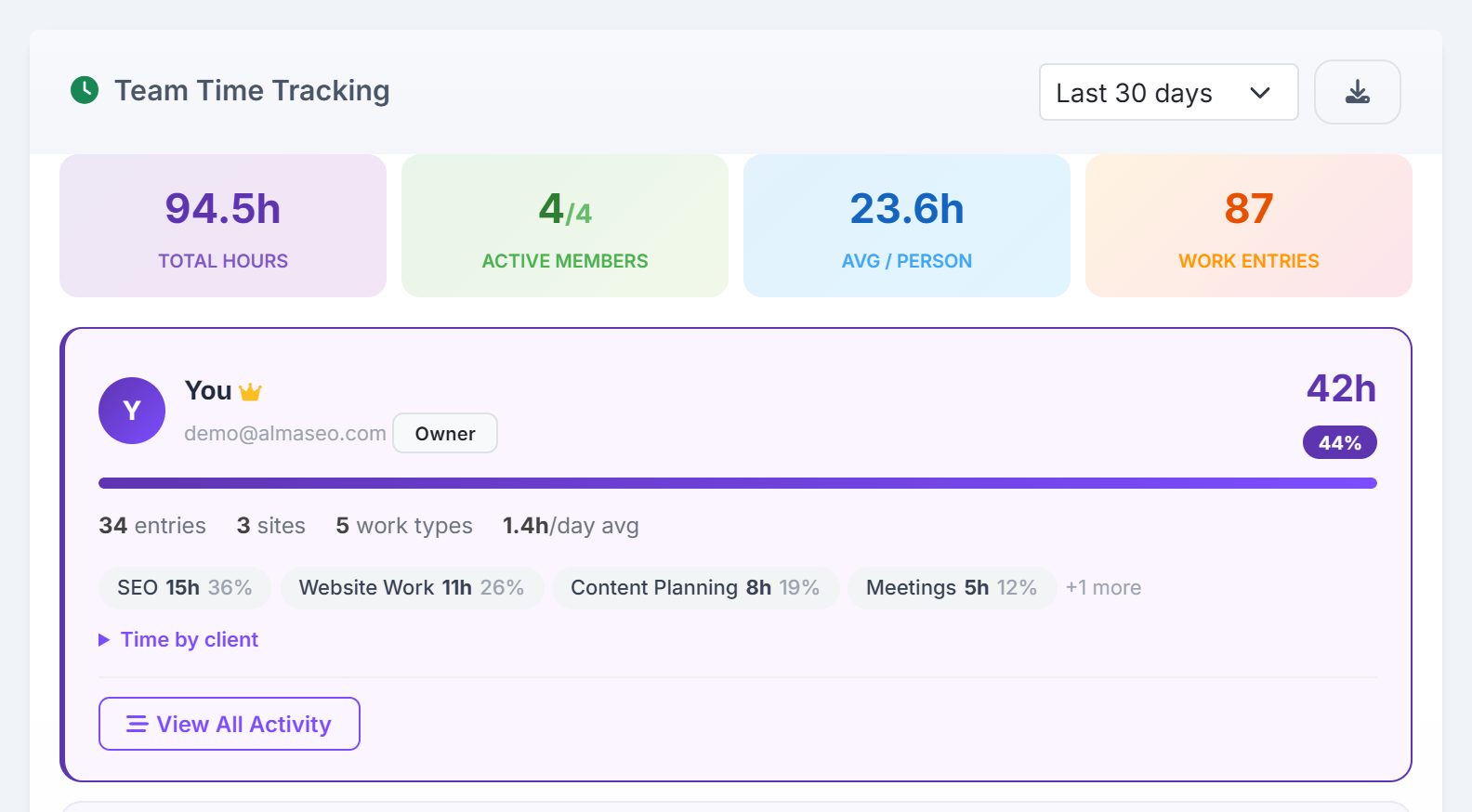
Owners and managers see where the team’s time went. Pick a range, from the last seven days to all time, and download it as a CSV with the button beside it. Across the top:
- Total Hours
- Every hour logged by the team in the range.
- Active Members
- People who logged any time, out of everyone on the team.
- Avg / Person
- Total hours divided across the team.
- Work Entries
- How many pieces of timed work were logged.
Below, one card per person, busiest first with a crown on the top card. Each shows their hours and share of the team’s total, how many entries, sites and work types that covers, their average per day, and pills for their biggest kinds of work. Time by client opens a bar for each site they worked on. Someone who has left the team still appears with a former badge, so the hours they logged don’t vanish with them.
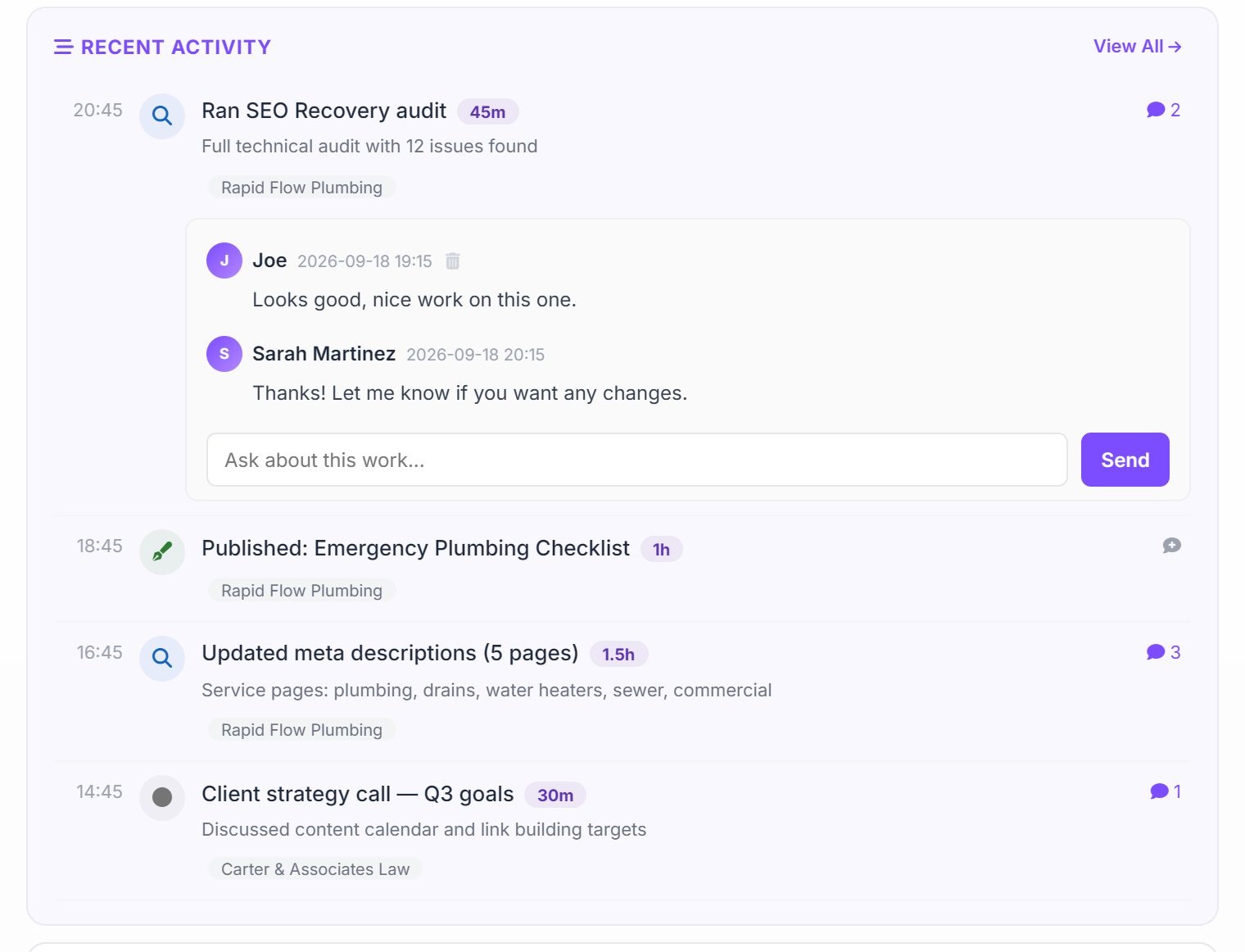
View All Activity on a card opens everything that person logged: filtered by range and by kind (timed work, content, SEO or manual logs), grouped by day, each with its duration and client. Every entry carries its own comment thread, so a question about a piece of work sits on the work itself. When an owner or manager comments, the person who did the work is notified in the app, by email, and on Slack if it’s connected. When they reply on their own entry, the owner is notified the same way.
Team History
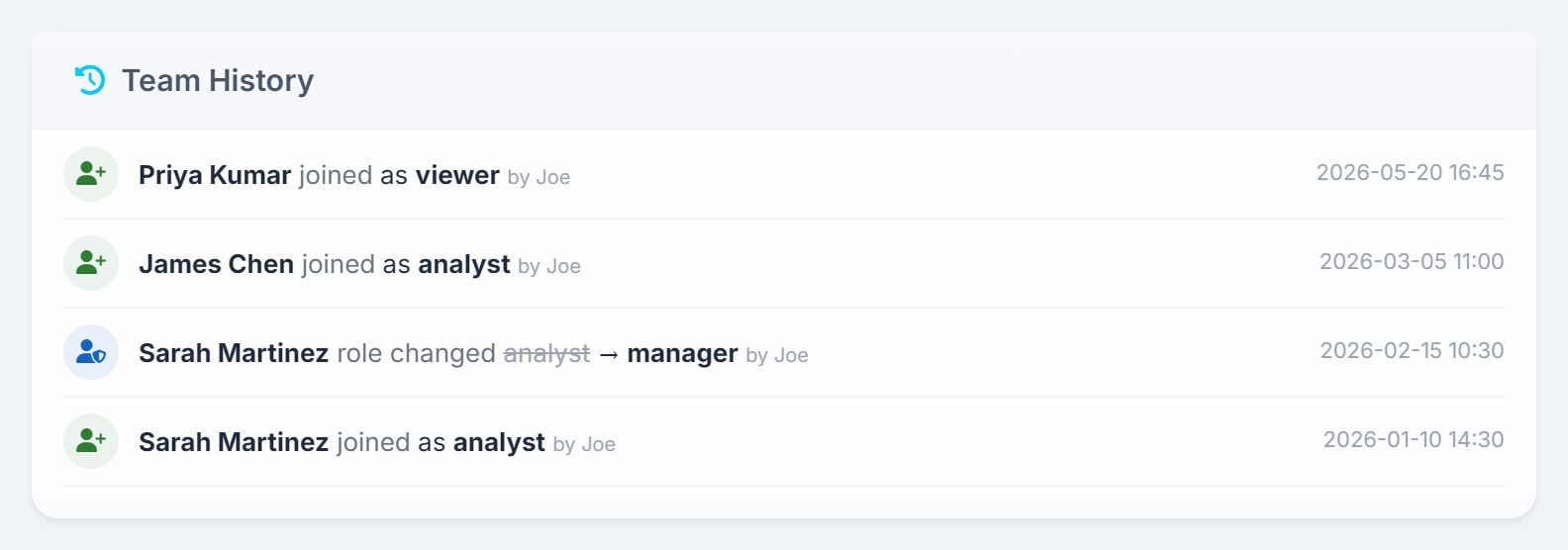
A timeline for owners and managers of every change to the team: who joined and in which role, who was removed, who left, and every role change from old to new. Each event names the person who made the change and when. It keeps the last hundred events.
Company Holidays
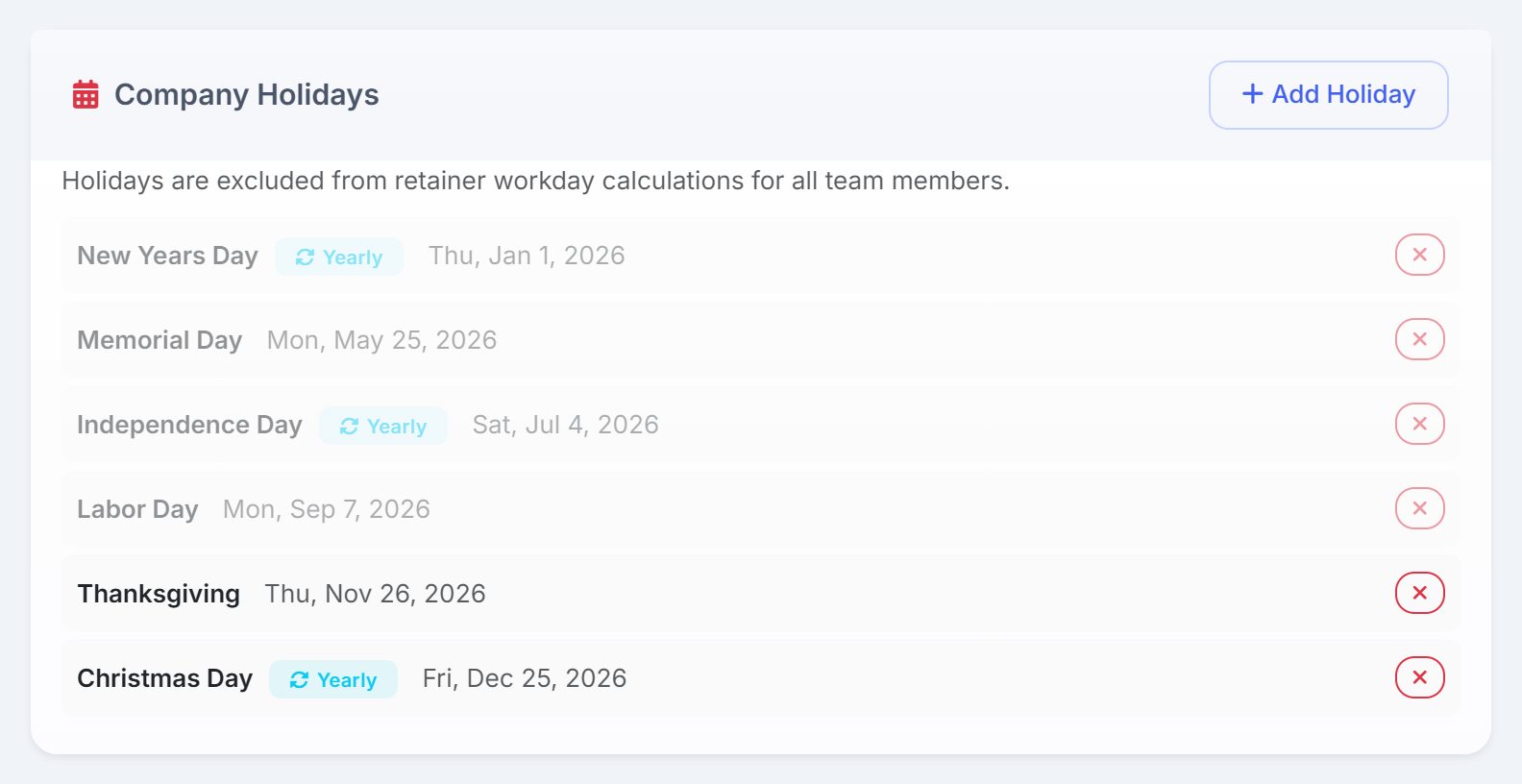
The days your agency is closed. They come out of the workday count AlmaSEO paces the work against — the Workload Planner and the burnout check — so nobody is told to spread the month’s hours across days the office was shut. They don’t change billing or a client’s retainer fee; what moves is the number of days you have left to do the work in. Everyone can see the list. Owners and managers add a holiday with a name, a date and a Repeats yearly tick, and remove one with the cross beside it.
Custom Portal Domain
Running your client portal and proposal links on your own domain, such as clients.youragency.com instead of app.almaseo.com, is coming soon. The card is off in the app until it ships; every portal and proposal link runs on app.almaseo.com in the meantime.
Pending Invites
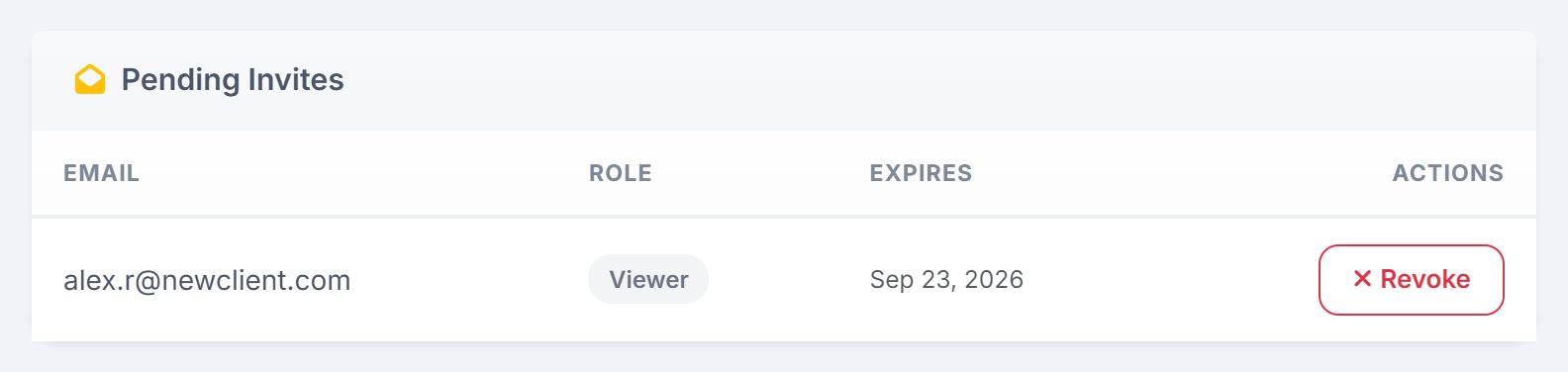
Invites that have been sent but not accepted: the email, the role it was sent with, and when it expires. The card only appears while there is at least one. Owners and managers can Revoke an invite, and its link stops working.