
Product guide · Tools
AI Agent Workspace
The AI Agent Workspace is where AlmaSEO works on a client site for you. Connect the site once, over SSH or through Cloudflare and GitHub, then say what’s wrong in plain language. The agent investigates, shows you every command, asks before it changes anything, and writes up what it did when you finish.
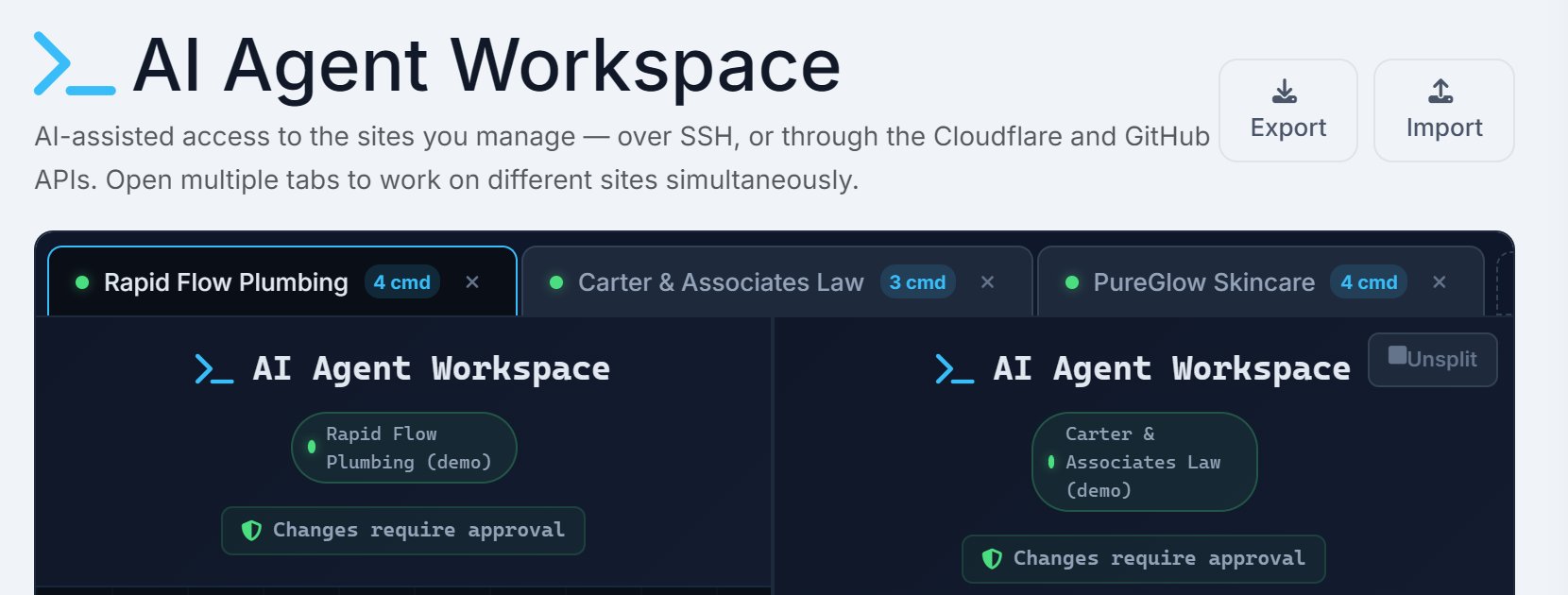
Most SEO fixes stall at the same step: someone has to get into the site and make the change. The workspace is that step. You describe the problem the way you’d describe it to a developer, and AlmaSEO does the digging and the editing, one approved change at a time.
For what the agent can do on a site, see the AI Agent Workspace page. This page covers how the screen works.
The workspace page
Each site you work on opens in its own tab, so you can investigate one client’s site while another one runs.
- Tabs
- Pick a site from Select a site to open a workspace, or press +. Sites with a saved connection carry a dot. A tab shows whether it’s connected and how many commands or findings it has so far. Double-click a tab to rename it, drag tabs to reorder them, and the workspace remembers what you had open.
- Open All Connected
- Opens a tab for every site with a saved connection.
- Split
- Shows two tabs side by side. Unsplit goes back to one.
- Portfolio overview
- Once a site is connected, a summary sits above the tabs: how many sites are connected, checks still pending, and what the agent has learned. A card for each site, plus your recent sessions. Click a site’s card to open its tab.
- Export and Import
- Export downloads a backup of your saved connections. Import restores one and skips any you already have.
Connecting a site
Open a tab for a site that isn’t connected yet and AlmaSEO asks How is this site hosted? There are two answers.
- Traditional Server
- cPanel hosting, a VPS, a dedicated server, managed WordPress — GoDaddy, SiteGround, DigitalOcean, WP Engine, Kinsta and the like. AlmaSEO connects over SSH. You give it the Hostname / IP, Port (usually 22), Username, and either a Password or an SSH Key, then choose the Environment: WordPress, a plain Linux server, or a static site. The form has a short guide to finding these details on the common hosts.
- Cloudflare Pages
- Static and serverless sites, with no server to log into. AlmaSEO works through the Cloudflare and GitHub APIs instead. You give it a Cloudflare API Token and Account ID, plus the Zone ID and Pages Project Name where you have them. The form lists the five permissions the token needs. Add a GitHub token, owner and repository if you want the agent to edit the site’s files. Without them it can still work on DNS, cache, redirects and deployments.
Either way, Test Connection checks the details before you save. You also tick a box confirming you understand that commands run on the live site. A saved connection appears under Your Saved Connections. Click it to start a session, or use the pencil to edit it.
Your Claude API key
The agent runs on Claude, using your own Anthropic API key. Paste it into Claude API Key and press Save Key. AlmaSEO checks the key, stores it encrypted, and shows only its first few characters from then on.
One key covers all your sites, and the usage is billed to your Anthropic account, not per client. The workspace spends no Data Credits.
Working in a session
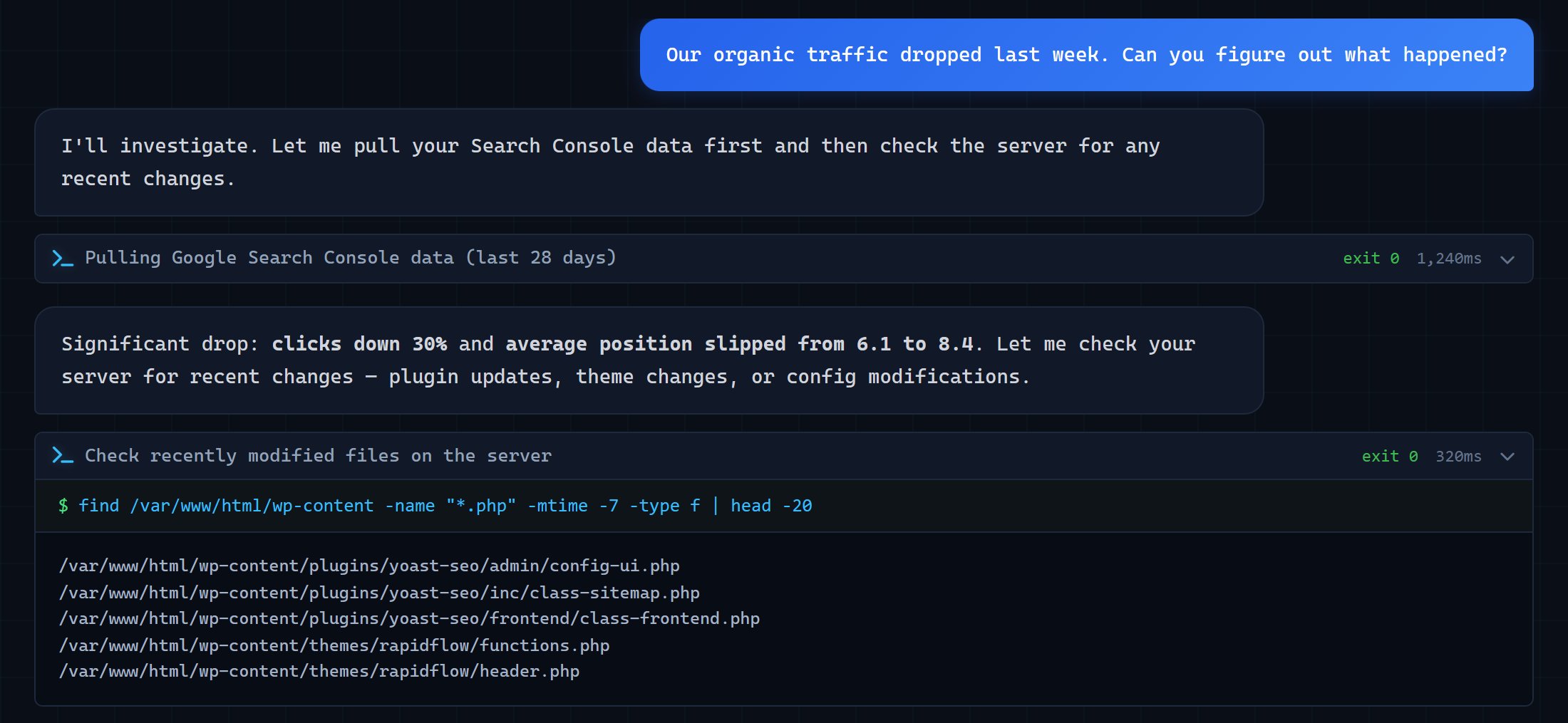
Start by asking. “Why is this site slow?” “Traffic dropped last week, what happened?” “Check the error logs.” A new session also offers quick-start cards for the common jobs: Site Running Slow, Check Error Logs, Post-Deploy SEO Check, Security Scan and more. Cloudflare sites get their own set, such as DNS & Email Audit and Deployment Status.
The agent already has the site’s background before you type: what it’s built on, its recent articles, its Search Console and analytics numbers, and what earlier sessions learned about it (what the agent knows). Here’s what you see while it works:
- Command blocks
- Every command the agent runs, with what it was for, whether it succeeded, and how long it took. Click one to see the output.
- Investigation plans
- For a bigger job the agent lays out its checks first, then ticks them off as it goes.
- Findings
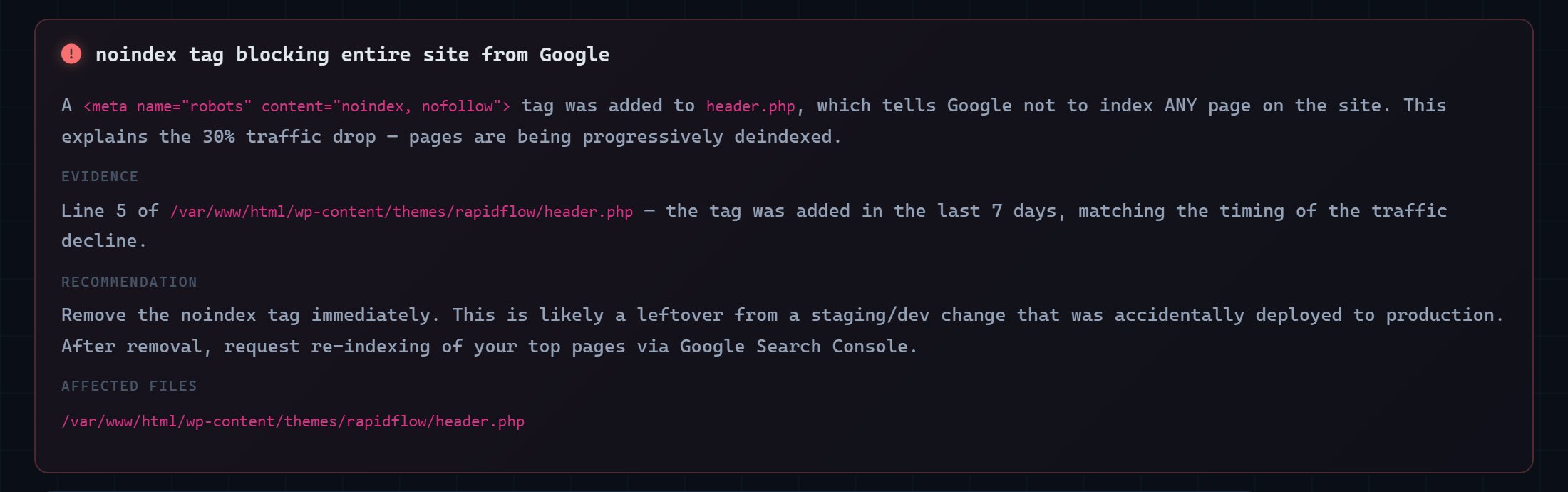
- When it finds a real problem, the agent writes it up as a finding with a severity, the evidence, a recommendation and the files involved. Use + Task on a finding to put it on your task list. Every finding also collects in the Findings panel.
- Attachments
- Drop a screenshot, a PDF or a config file onto the conversation, or use the paperclip, and the agent reads it with your message.
Approvals
Everything the agent does falls into one of three levels. The safety rules behind them are on the AI Agent Workspace page.
- Safe
- Reading files, checking logs, looking things up. These run on their own, and you see each one as a command block.
- Approval Required
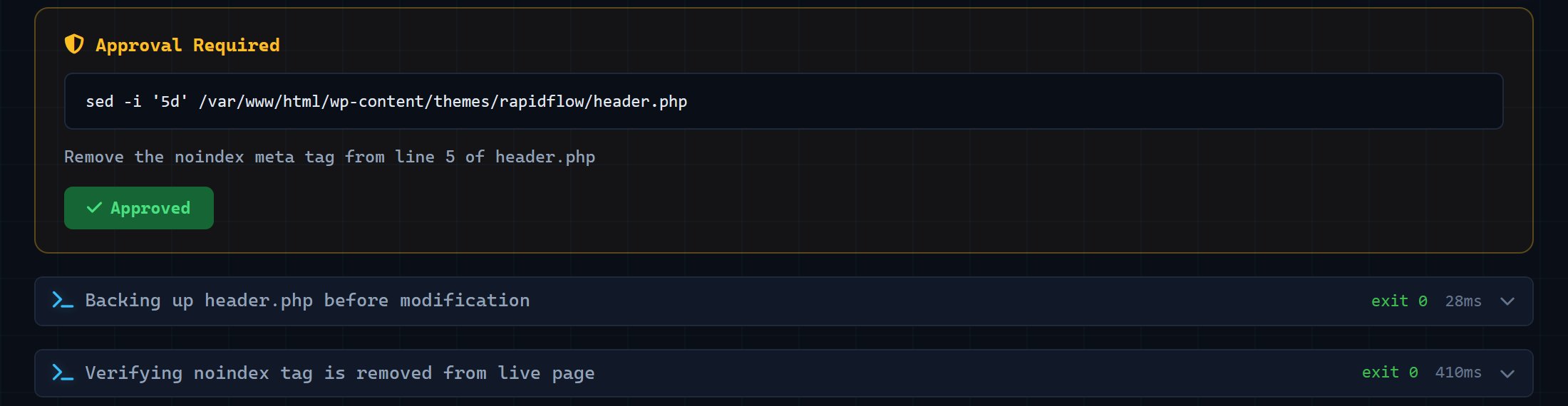
- Anything that changes the site: editing a file, updating a plugin, clearing a cache. The agent stops and shows a card with the exact command, why it wants to run it, and whether the file will be backed up first.
- High-Risk
- Deleting things, touching the database, changing credentials. The card is marked High-Risk, and these always ask.
Approve & Run runs the command. Deny stops it, and the agent looks for another way. When several commands are waiting, Approve All and Deny All handle them together. An approval left waiting for an hour expires.
Before an approved change edits a file, AlmaSEO saves a copy. The command block then says Backup taken or No backup taken, and when there is one, Restore puts the file back as it was.
- Auto-approve
- The header toggle switches from Changes require approval to Auto-approve ON. Everyday changes then run without stopping. High-Risk ones still ask.
- Kill Command and Cancel Pending
- Kill Command stops whatever is running right now. Cancel Pending clears everything still waiting for approval.
Remote and Direct
Traditional Server connections have a second toggle in the header. The AI Agent Workspace page compares the two modes side by side.
- Remote
- The default. The agent runs inside AlmaSEO and sends commands to the server one at a time, with the approval levels above.
- Direct
- Claude Code runs on the server itself. It’s faster for long jobs, but there are no approval cards and no automatic backups: commands run as Claude Code decides. It needs your own Claude Code subscription. If Claude Code isn’t on the server yet, AlmaSEO offers to install it, which takes about thirty seconds.
Suggested Fixes
Other parts of AlmaSEO send work here. Each item becomes a suggestion for that site:
- broken links and missing schema from the Full Site Crawl
- problems from SEO Recovery
- articles from the content writer that are ready to publish
- anything you’ve sent from a report inside a client site with Send to AI Agent
Suggestions show as a bar with a count, and you’ll see them before you start a session. Articles are marked as articles and everything else as a fix. Click one and the agent starts on it with the details already loaded. More on where suggestions come from.
Verifications
When the agent makes a change that should move rankings, it sets a checkpoint. Verifications in the header lists them. Each one answers two separate questions:
- Was it applied?
- Change applied once the agent has made it, or Implementation pending before then. To confirm a change on the live site, ask the agent to check it during the session, as in the example below.
- Did it help?
- After enough time has passed, Verify Now compares the page’s position and clicks in Search Console with where they started. The result is Improved, Declined or Stable, or Monitoring while the data comes in.
The window says it plainly: a ranking that moved after a change didn’t necessarily move because of it. The checkpoint gives you the before and after; the judgement is yours.
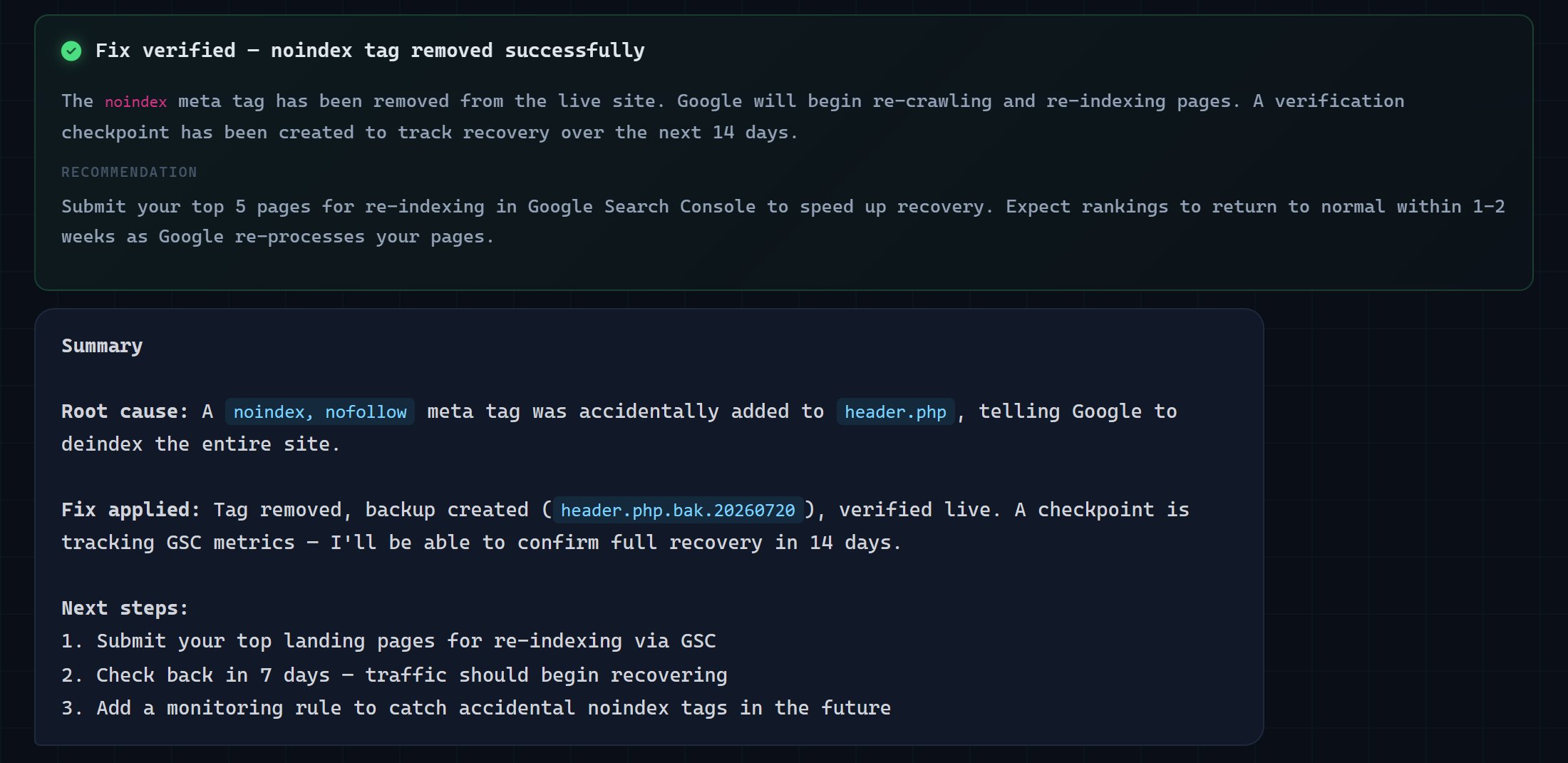
Ending a session
End Session asks AlmaSEO to write the session up: how many commands ran, what was found, what was changed, and what’s still left to do. Then you choose where it goes.
- Session Notes
- Add anything the summary should carry that the agent couldn’t know.
- Dev Handoff, Client Explanation, Claude Code Prompt
- Three rewrites of the same session: a technical note for a developer, a plain-language explanation for the client, and a prompt to continue the work in Claude Code. Each has its own Copy button.
- Export to Activity Log
- Saves the session to the client’s activity log, alongside everything else your team has done for them.
Every session is kept. Past Sessions in the header, and Session History under the saved connections, open any earlier session read-only.