
Product guide · Inside a site · SEO Intelligence
Keyword Research
Keyword Research puts every search a client site already shows up for, every content gap and every keyword idea into one list, scored by how much there is to gain. Type a topic and AlmaSEO expands it into the searches people actually type, kept local to the client’s city, then track the good ones or send them to an AI agent to act on.
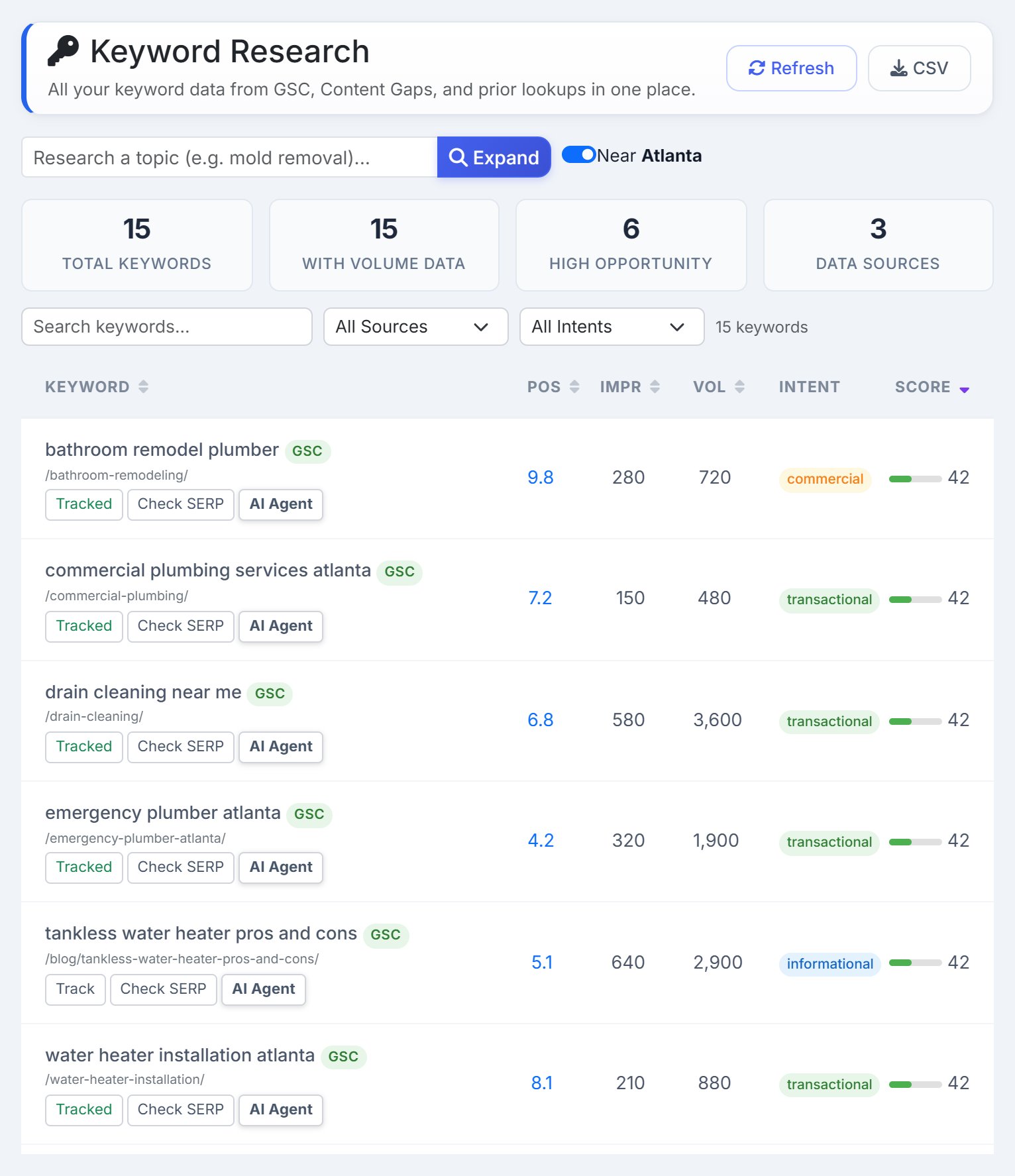
Local keyword research usually means three tools and a spreadsheet: Search Console for what the site ranks for, a suggestion tool for ideas, a volume tool for demand. Keyword Research does all three for one client site, on one screen, and keeps the ideas in the client’s own area.
The summary

- Total Keywords
- Every keyword in the list, from every source.
- With Volume Data
- How many have a monthly search volume.
- High Opportunity
- Keywords that score 40 or more.
- Data Sources
- How many of the four sources contributed.
Where the keywords come from
Each keyword carries a badge for its source. Keywords you saved with + List are marked Added. Filter by source with All Sources; pick Added by you to see only the ones you saved.
- GSC
- Searches the site appeared for in Google over the last 28 days, from Search Console, with the page that ranks for each one written under it.
- Gap
- Searches from the site’s Content Gaps analysis: topics the site has no page for, or a weak one. They carry a warning sign.
- Metrics
- Keywords whose search volume has already been looked up for this site.
- Suggest
- Google’s own suggestions, started from the site’s top searches, its services and its city. Keywords you add from the research box land here too.
Research a topic
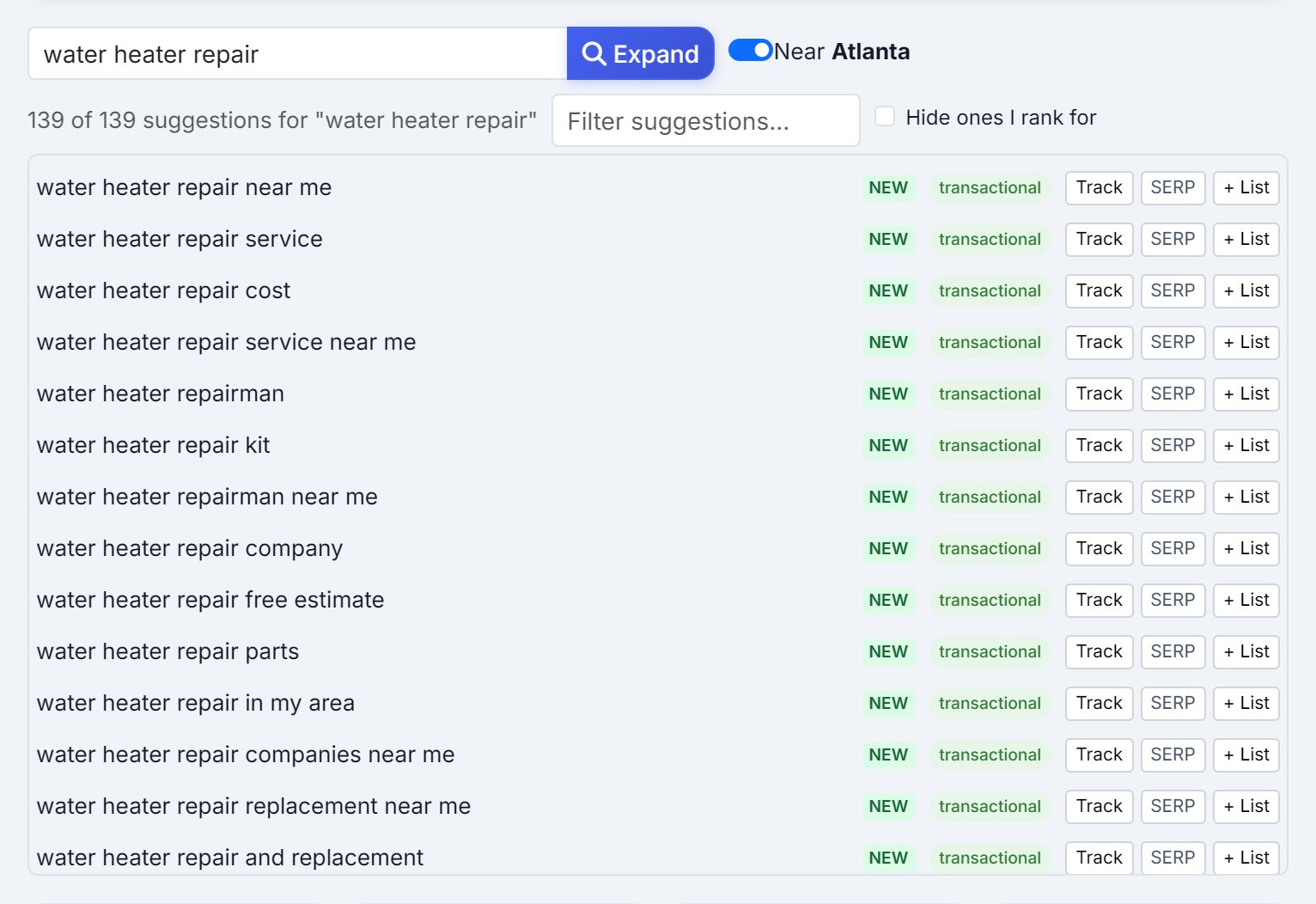
Type a topic in the box and press Expand. AlmaSEO asks Google for its suggestions on the topic and on the topic followed by every letter of the alphabet, so “water heater repair” becomes “water heater repair cost”, “… near me”, “… free estimate” and the rest of what people type. It costs nothing.
- Near city
- Shown when the site is in the US and has a city. On by default: it adds searches for the topic in the client’s city and “near me”, and removes suggestions that name a city or state somewhere else. Switch it off to research a topic nationally.
- Other places
- Suggestions that name a place outside the site’s country are always removed, so a UK client doesn’t get “divorce mediation toronto”. Searches run on the Google for the site’s country, judged from its domain: a
.co.uksite gets UK suggestions. - NEW
- The keyword isn’t in the list yet.
- Filter suggestions and Hide ones I rank for
- Narrow a long list by a word, or hide the searches the site already ranks for so only new ground is left.
- Track, SERP and + List
- Track the keyword, see today’s Google results for it, or add it to the main list, where it stays after a refresh.
The table
- Keyword
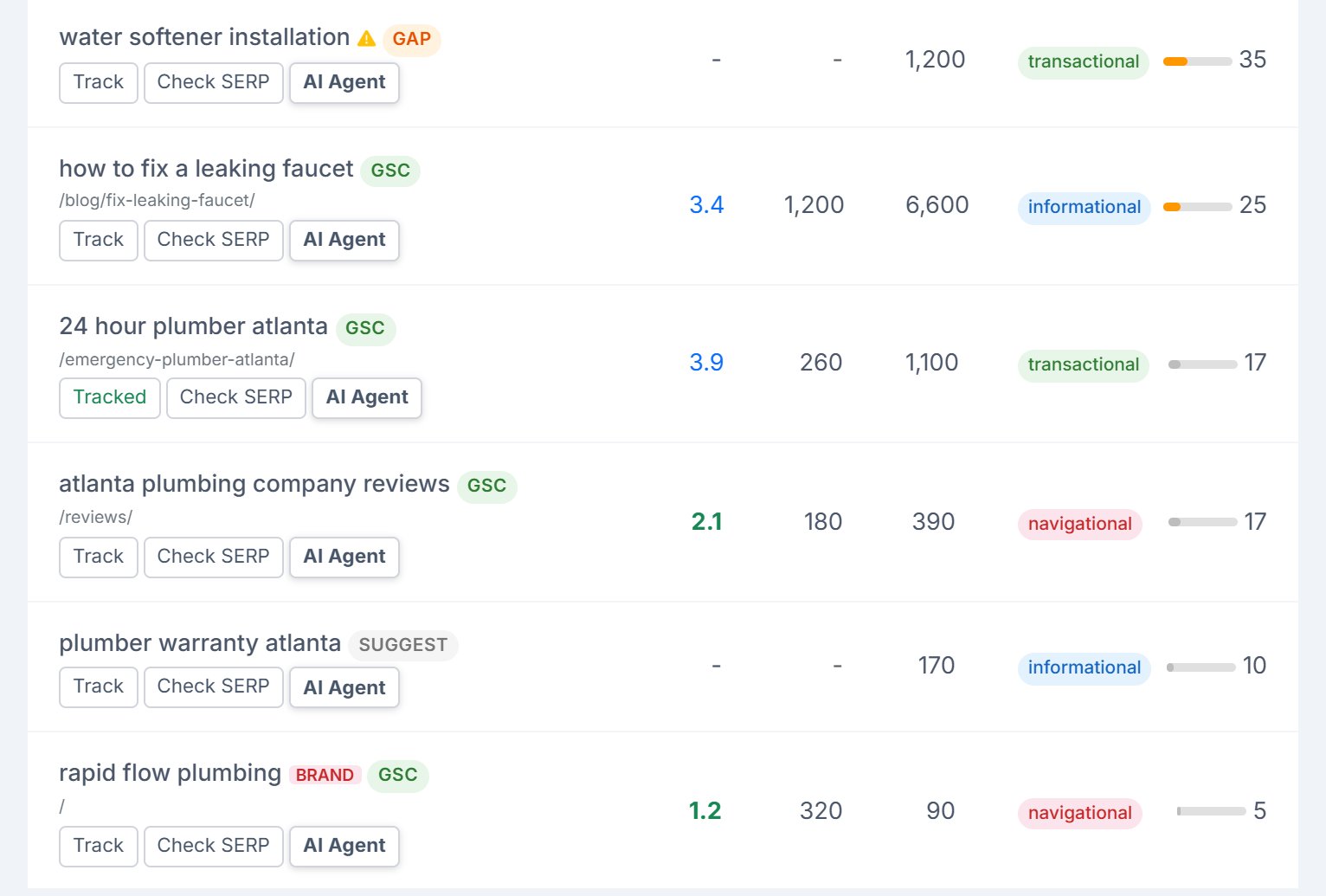
- The search, its source badge, and the page that ranks for it. Searches for the client’s own name are marked BRAND.
- Pos
- The site’s average position in Google over the last 28 days. Green is the top 3, blue the rest of page 1, amber page 2.
- Impr
- How many times the site appeared for it in those 28 days.
- Vol
- Monthly searches, once volumes have been looked up. The column appears when any keyword has one.
- Intent
- What the searcher wants. See Intent.
- Score
- How much there is to gain, from 0 to 100. The list is sorted by it; click any column heading to sort by that instead.
Use Search keywords, All Sources and All Intents above the table to narrow it.
The score
The score adds up the signs that a keyword is worth working on. Point at a score to see which parts it got.
- Position
- Positions 4 to 10 add the most, 30: the site is on page 1 but below the top three, where most clicks go. Page 2 adds 25. Deeper adds 10. The top three add only 5, because there’s little left to win.
- A content gap
- Adds 20. The site has no page that properly covers it.
- Impressions
- Adds up to 20: 1,000 or more in 28 days adds 20, 100 or more adds 12, 10 or more adds 5.
- Low click-through on page 1
- Adds 15 when the site is on page 1 with 50 or more impressions but fewer than 2% of people click. The title and description are losing to the results around them.
- Demand the site doesn’t rank for
- Adds 15 for 1,000 or more monthly searches, or 10 for 100 or more, when the site doesn’t rank in the top 50.
- Brand searches
- Always score 5. The client already gets those clicks; there’s nothing to win.
Intent
- Transactional
- Ready to hire or buy: “near me”, prices, “emergency”, or a search for the client’s own services, such as “drain cleaning” for a plumber.
- Commercial
- Comparing options: “best”, “top”, “vs”, “compare”.
- Informational
- Looking for an answer: questions and how-tos. Good for blog posts and guides.
- Navigational
- Looking for a particular business or page, including the client’s own name.
The Brand choice in the intent filter shows only the searches for the client’s own name.
Track, Check SERP and AI Agent
- Track
- Adds the keyword to Keyword Tracker so its ranking is checked over time. The button turns to Tracked once it’s saved. If the plan’s keyword limit is reached, it says so instead.
- Check SERP
- Opens Live SERP Check with the keyword filled in, to see who ranks for it today.
- AI Agent
- Sends the keyword to AI Agent Workspace with a brief that fits it: write or expand a page for a gap, strengthen the ranking page for a keyword on page 2, rewrite the title and description for a page-1 keyword few people click. Pro and Agency; on Solo the button reads AI Agent · Pro.
Get Volumes
Search Console tells you about searches the site already appears for. For everything else, Get Volumes looks up monthly search volumes for the site’s country. The button shows how many keywords have no volume yet, and each run takes the 50 highest-scoring of them.
It spends Data Credits. Before anything is spent, AlmaSEO shows your balance, how many keywords need a lookup and exactly what it will cost, and you confirm or cancel. Volumes already looked up for the site are saved and cost nothing to see again, and you’re only charged for keywords that come back with data.
Refresh, CSV and an empty list
- Refresh
- Rebuilds the list from every source. It also happens on its own when the list is more than a day old. Keywords you added yourself stay. If Search Console can’t be reached, the old list stays on screen with a note saying which date it’s from.
- CSV
- Downloads the whole list, with position, impressions, clicks, click-through rate, volume, intent, source, score, brand and ranking page for each keyword.
- No Keyword Data Yet
- The site has no Search Console data and no content gaps. Connect Search Console or run a Content Gap analysis, then refresh.