
Product guide · Tools
Schedule
Schedule is the publishing calendar for every client at once. Each site has its own window each day, when AlmaSEO writes, reviews and publishes that site’s article. This page puts those windows across the coming week on one screen, with what is queued behind them and whether the machine doing the work is up.
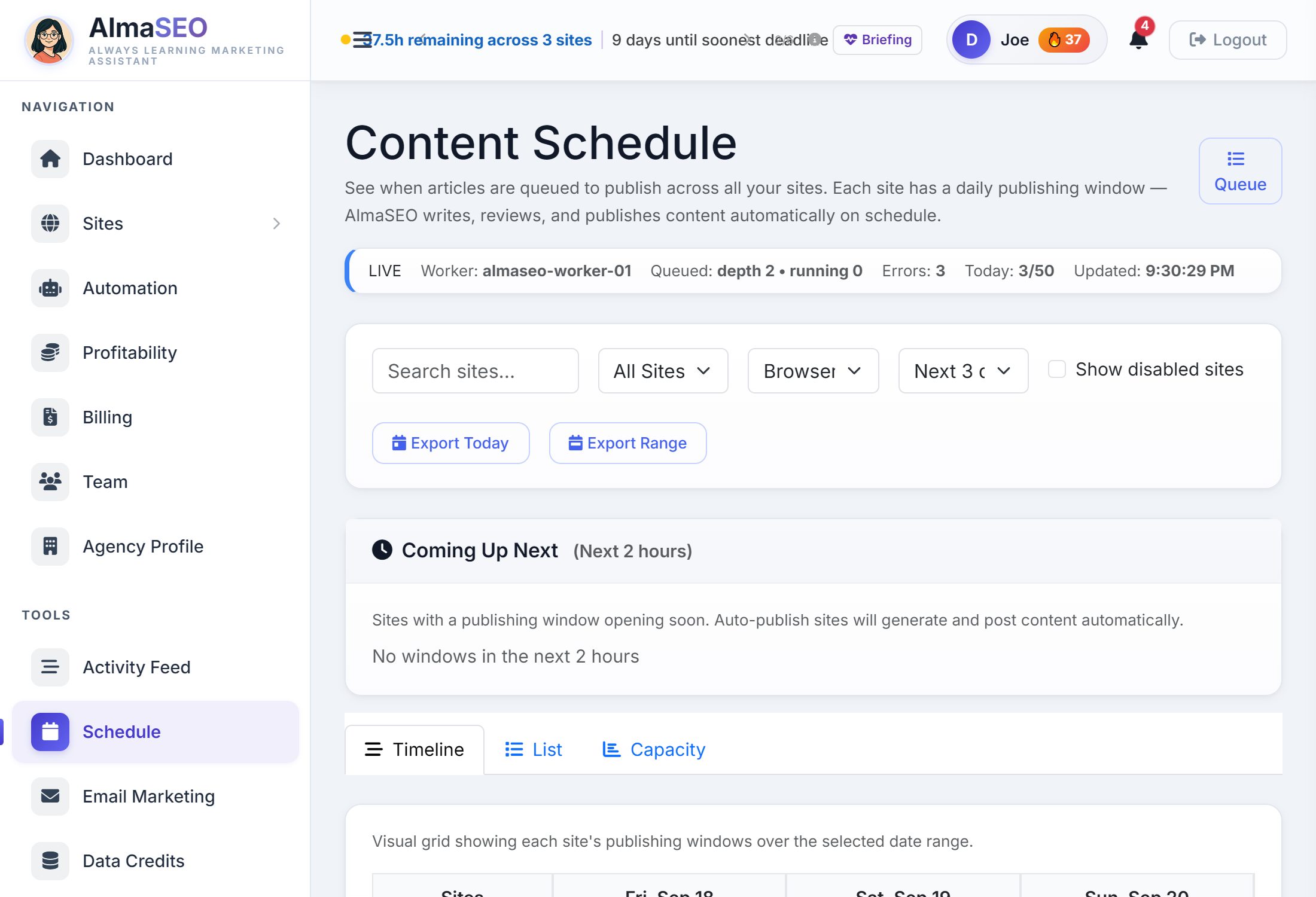
The page is titled Content Schedule, and it answers three questions in order: is publishing running, what goes out next, and is any day overloaded. It is the one page in the sidebar with no plan behind it — every AlmaSEO account has it.
Is publishing running?

- LIVE or OFFLINE
- Whether AlmaSEO’s publishing worker can be reached. If it can’t, a warning bar appears and nothing will publish until it is back.
- Worker
- The machine currently doing the work.
- Queued
- How many articles are waiting, and how many are being written right now.
- Errors
- Jobs that failed and stopped retrying. Anything above zero is worth opening.
- Today
- Articles published today against the daily cap for your whole account.
- Updated
- When these numbers were last read.
The Queue button at the top right opens the queue itself over on Automation, where each waiting job shows its topic and its site.
Filters and calendar export
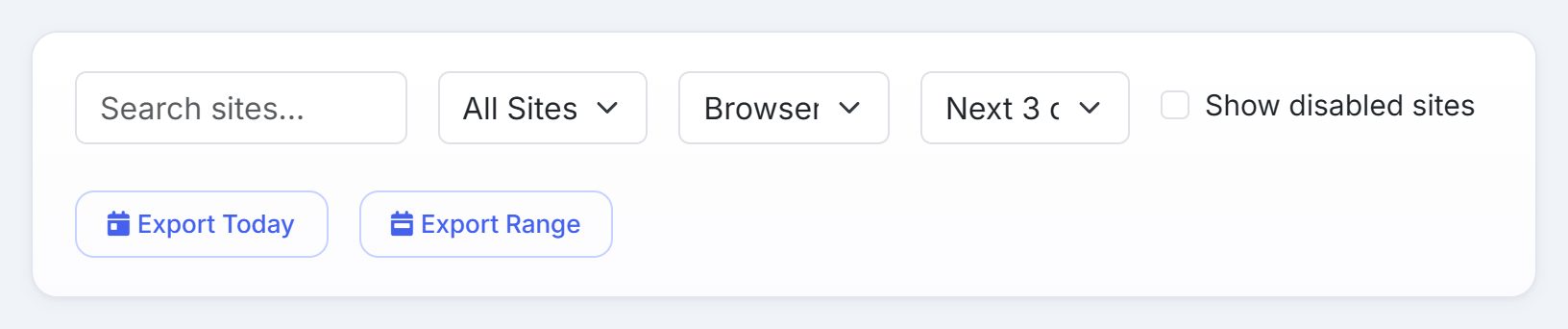
- Search and site
- Type a name, or pick one client and see only its windows.
- Timezone
- Your browser’s time, UTC, or any of the four US zones. Every time on the page moves with it, which is what makes a question from a client in another zone easy to answer.
- Range
- Today, the next three days, or the next seven.
- Show disabled sites
- Include sites whose automation is switched off. They appear greyed out.
Export Today and Export Range download the windows as a calendar file, in whichever timezone you picked. Open it in Google Calendar, Outlook or Apple Calendar and the publishing schedule sits beside your meetings. In the List view every site also has its own ICS link, so one client’s schedule can go into a shared calendar on its own.
Coming Up Next
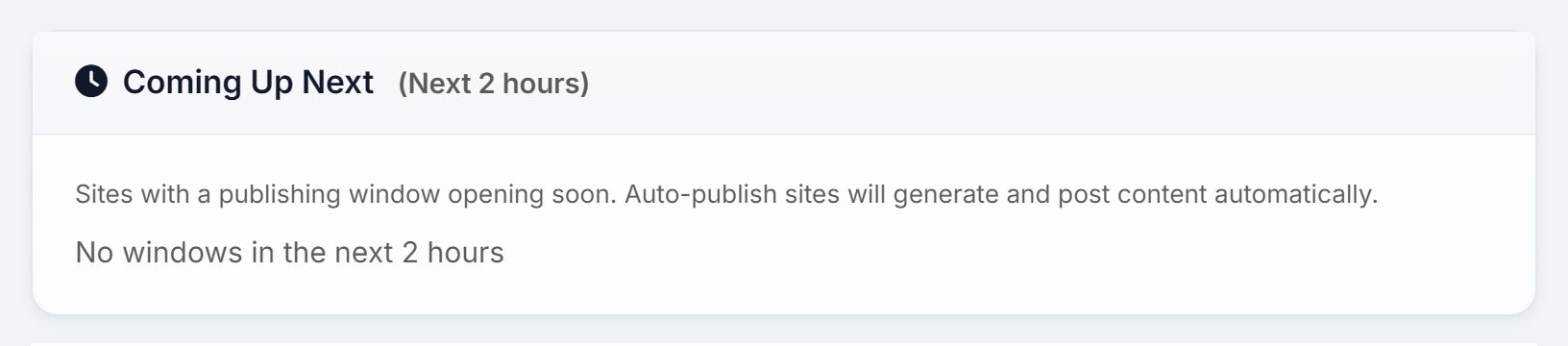
Sites whose window opens within two hours, each marked Auto On or Auto Off. Auto On means the article will be written and published without anyone touching it. Auto Off means the window passes and nothing goes out. When nothing is due, the card says so.
Timeline
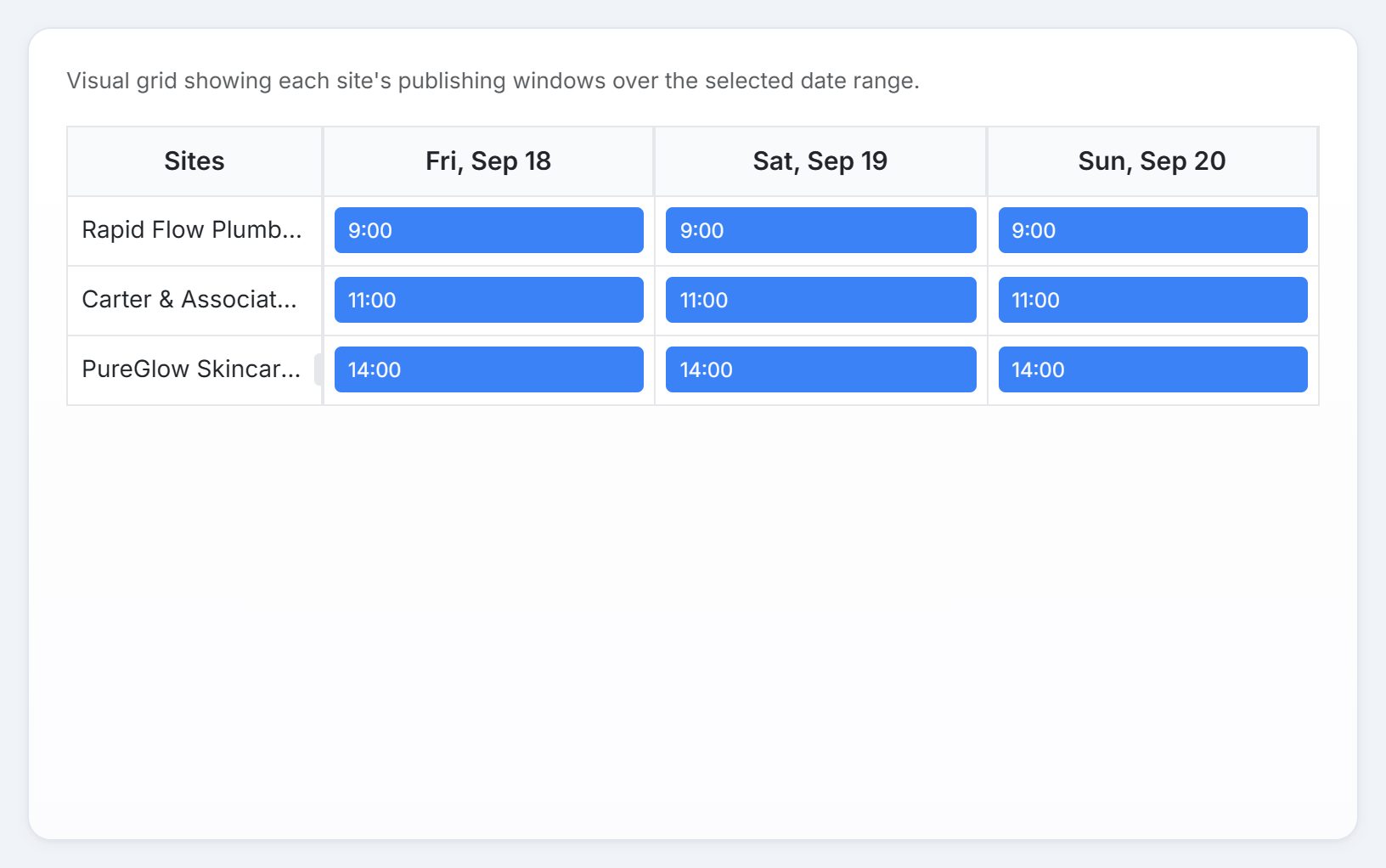
The view the page opens on, and the one to read as a calendar. Each row is a client, each column a day in your range, and each block the time that site publishes. Sites with automation switched off are greyed. Read down a column to see how one day is spread: three clients at 9:00, 11:00 and 14:00 is healthy; three clients all at 9:00 is a pile-up waiting to happen.
List
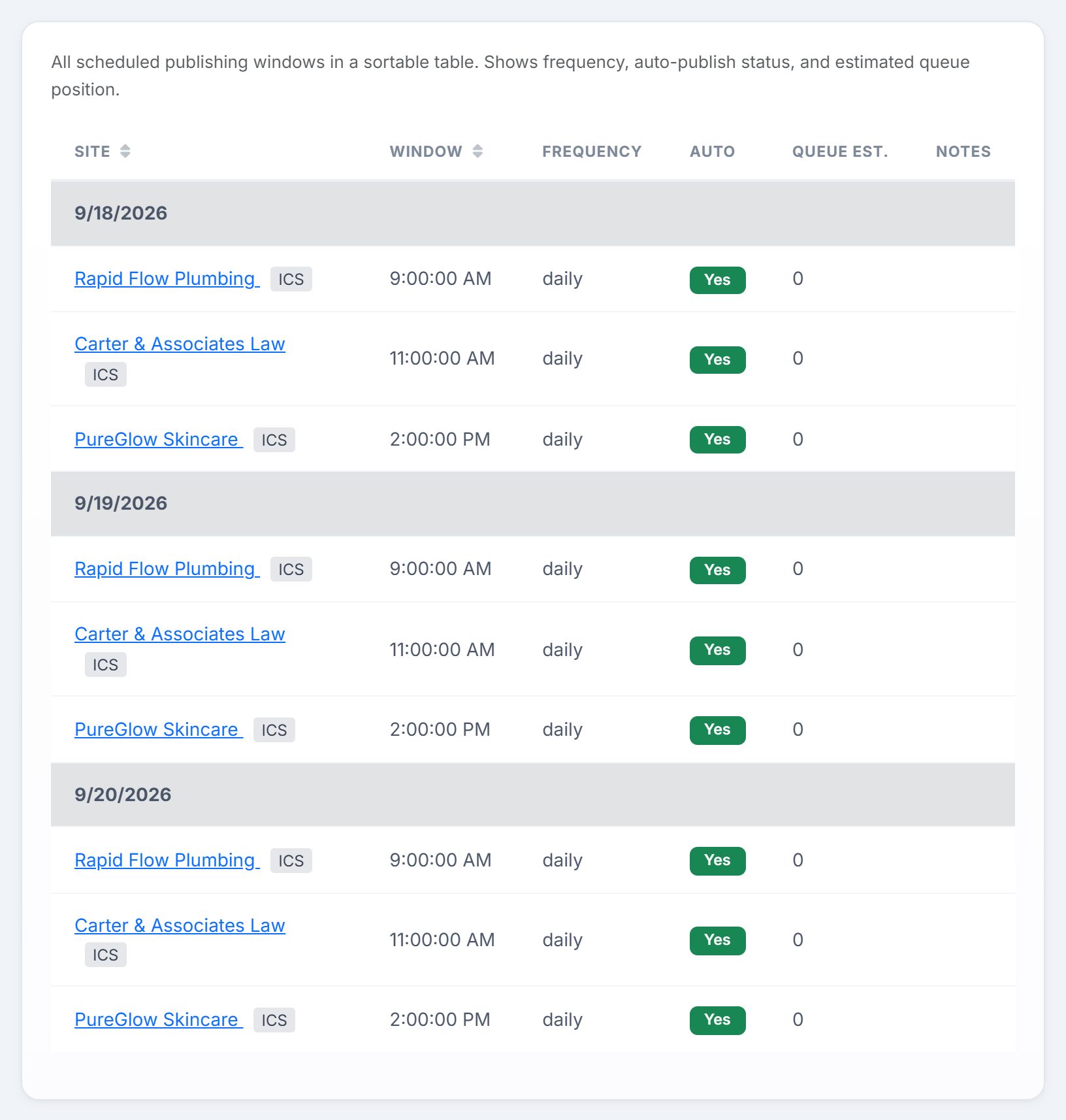
Every window as a row, grouped by date and sortable by site or by time:
- Site
- The client, with its own ICS calendar link.
- Window
- The publishing time, in the timezone you chose.
- Frequency
- Daily or weekly, as set on that site.
- Auto
- Yes when the site publishes on its own.
- Queue Est.
- How many jobs are expected to be ahead of this one when its window opens.
- Notes
- Anything else worth knowing about that window.
Capacity
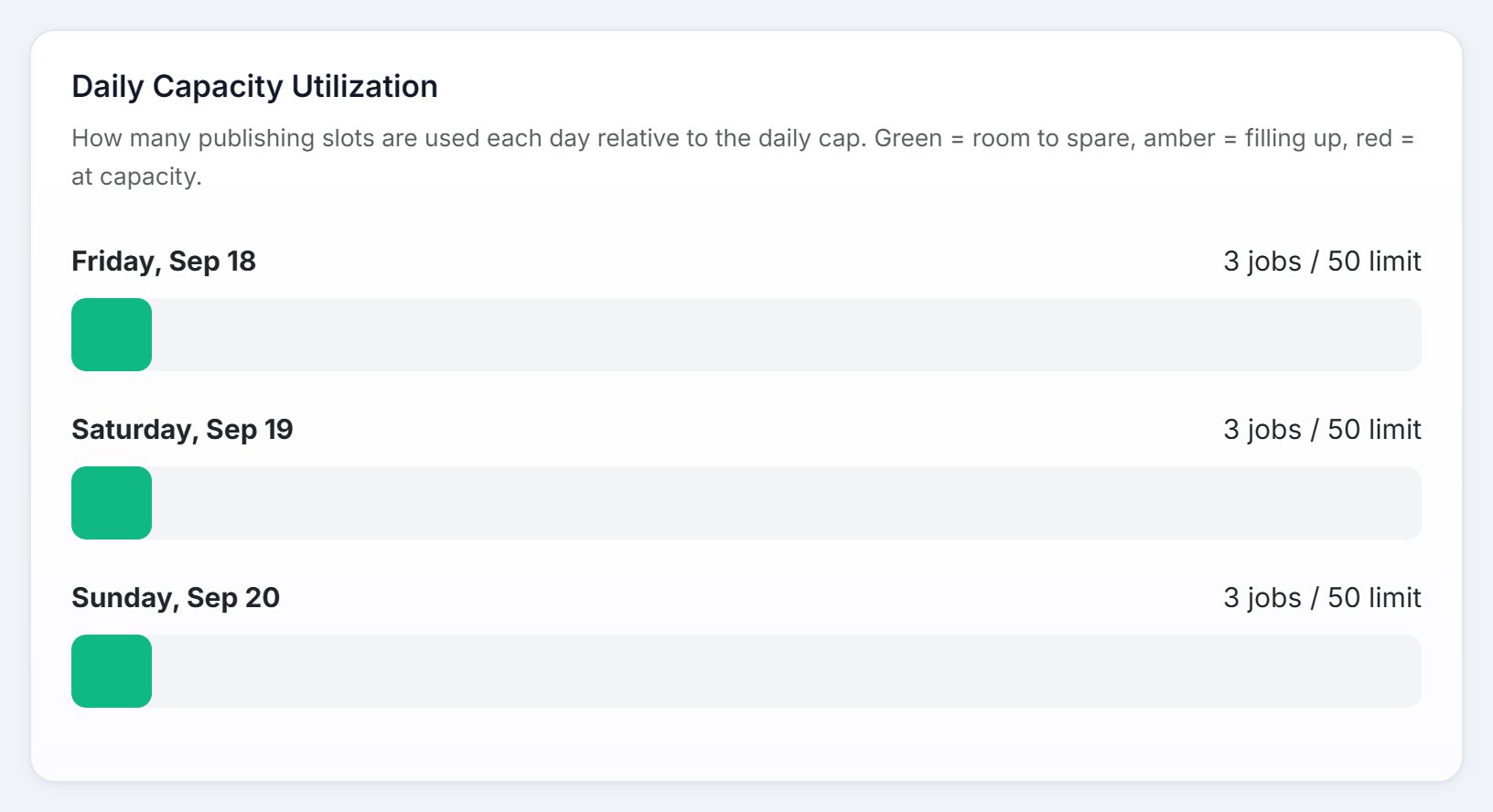
A bar for each day in the range, showing the publishing slots that day uses against your account’s daily cap. Green while there is room, amber as the day fills, red once it is at capacity. These bars are what to check before you switch another ten sites to daily: the cap is per account, not per client, so every site you add draws on the same pool.