
Why this matters
The first hire is when most agencies get sloppy with access. Everyone shares one login, a freelancer can see every client's data, and when someone leaves, nobody's quite sure what they could still get into.
The Team page fixes that. Everyone works in the same AlmaSEO account, on the same clients, with the same work log. What changes from person to person is what they're allowed to do and which clients they can see. It also shows where the team's time actually goes.
The business concept: give people only what the job needs
Security people call it least privilege: every person gets exactly the access their job requires, and nothing more. It sounds strict, but it protects everyone:
- Your clients: a contractor working on one client can't see (or accidentally change) another client's site.
- Your team: nobody gets blamed for a change they couldn't have made.
- You: when someone leaves, you remove one person, and you know exactly what they had access to.
A good habit: start people small and move them up. Invite a new hire as a Viewer on one site. When they're ready, one click makes them an Analyst or ticks another site.
The SEO concept: clients should own their own accounts
This one trips up a lot of agencies. When you take on a client, their Google Search Console, Google Analytics and Google Business Profile should be owned by the client, with your agency added as a user.
Why it matters:
- Their data is their history. If the relationship ends, they keep years of search data, reviews and rankings history.
- It protects your reputation. Agencies that "own" client accounts get accused of holding them hostage, even when they don't mean to.
- It's cleaner when staff change. Access tied to your agency's accounts is easy to update; access tied to a former employee's personal Gmail isn't.
The same principle runs through AlmaSEO: people get access to what their role needs, and ownership stays where it belongs.
Walkthrough
Where: Team, in the sidebar. Plans: Pro includes 3 seats, Agency includes 5. On Agency, the owner can buy more at $12 per seat per month. Every member uses a seat, including the owner.
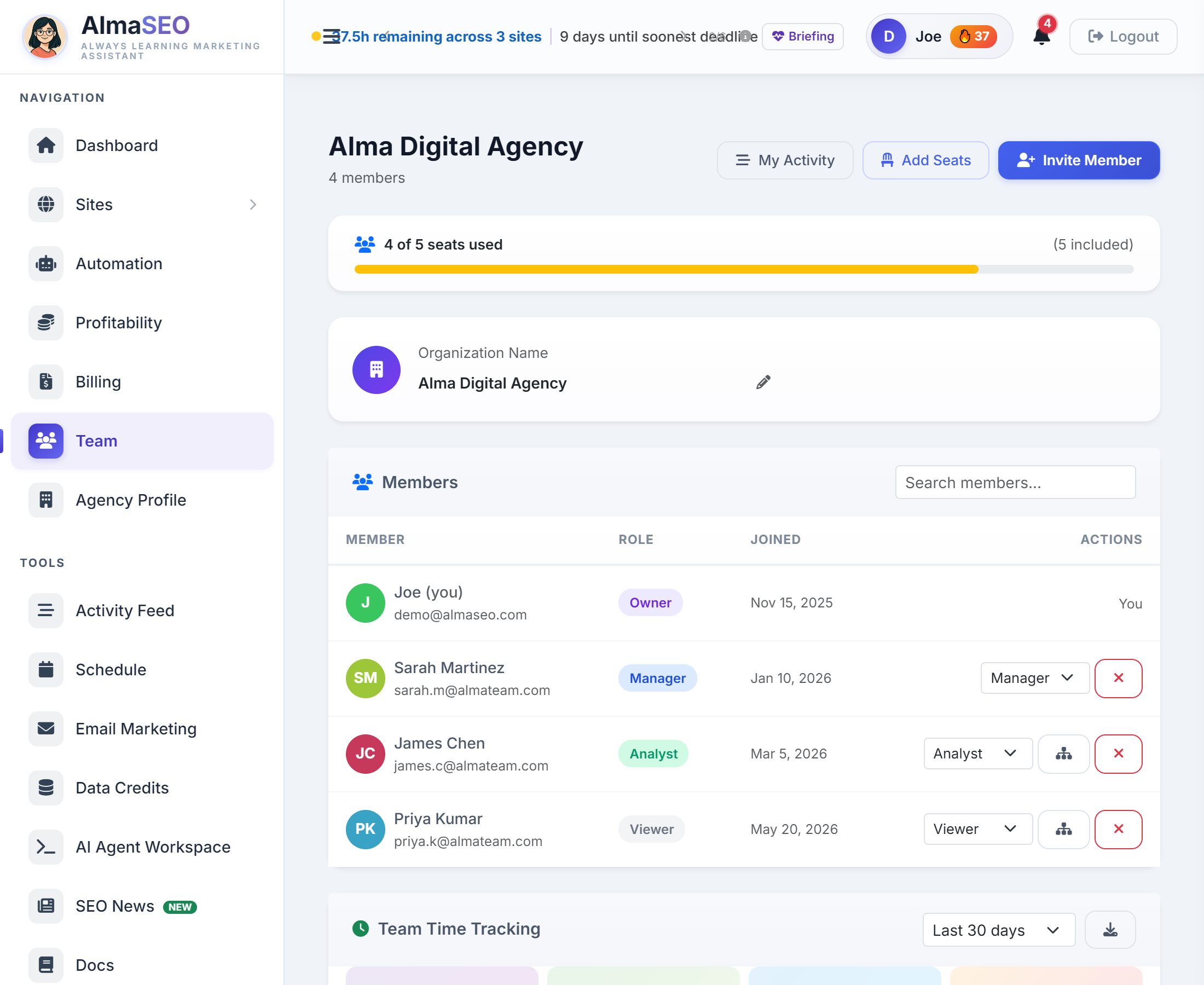
The four roles
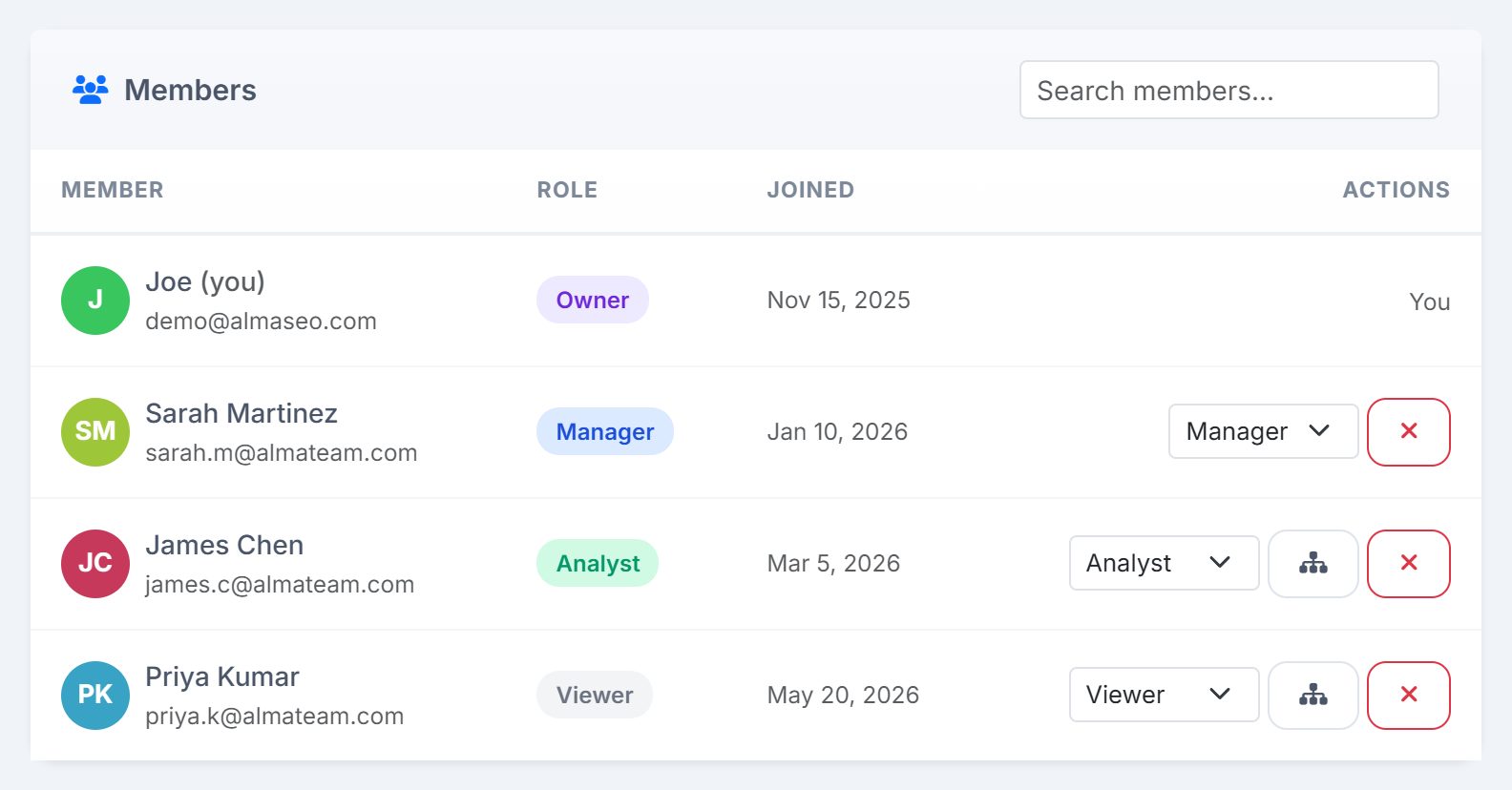
| Role | Can do | Can't do | Sees |
|---|---|---|---|
| RoleOwner | Can doEverything: billing, seats, the team, every site and setting | Can't doBe removed or leave the team | SeesEvery site |
| RoleManager | Can doRuns the team day to day: sites, publishing, content, audits, settings, inviting and removing analysts and viewers | Can't doBilling, buying seats, changing the team cost rate, adding or removing other managers | SeesEvery site, team hours and history |
| RoleAnalyst | Can doCreates content, runs audits and logs work on their sites | Can't doChange site settings or WordPress details, delete content | SeesOnly the sites ticked for them, and their own activity |
| RoleViewer | Can doReads, and comments on work entries | Can't doChange anything | SeesOnly the sites ticked for them |
Only the owner can make someone a Manager.
Inviting someone
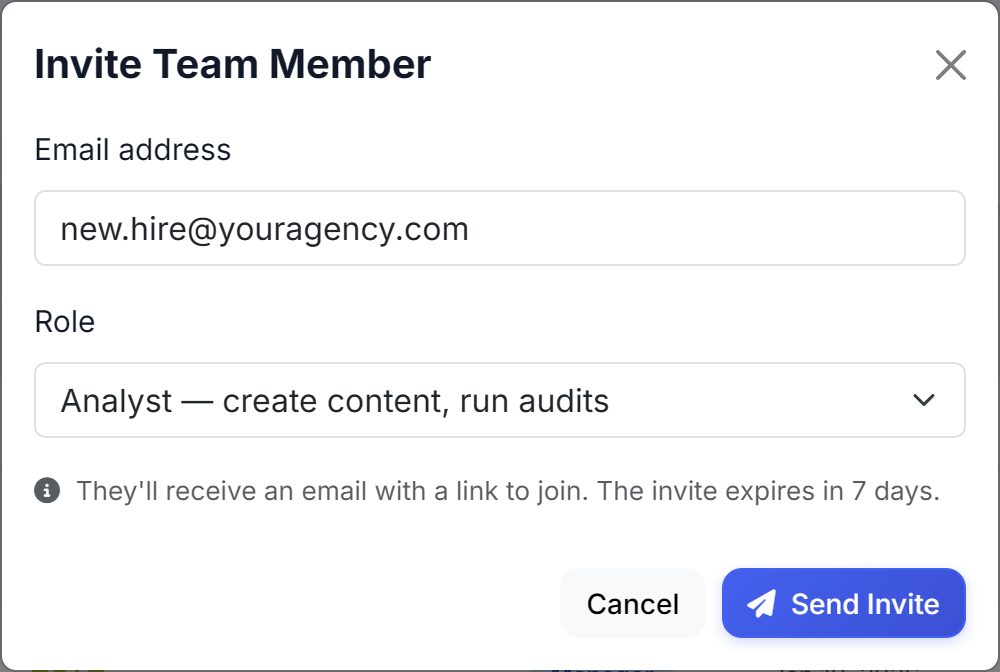
- Click Invite Member (owners and managers).
- Enter their email and choose a role. Managers can only invite analysts and viewers.
- They get an email with a link that works for 7 days. If they don't have an AlmaSEO login, the link walks them through signing up and drops them onto your team.
Seats: a pending invite doesn't hold a seat, but accepting one needs a free seat. If the team's full, the person is told to ask you for more seats. The seat bar turns yellow at 70% and red at 90%.
Pending Invites shows invites not yet accepted. Revoke cancels one and its link stops working. Sent it to the wrong address? Revoke and invite again.
Choosing which clients someone sees
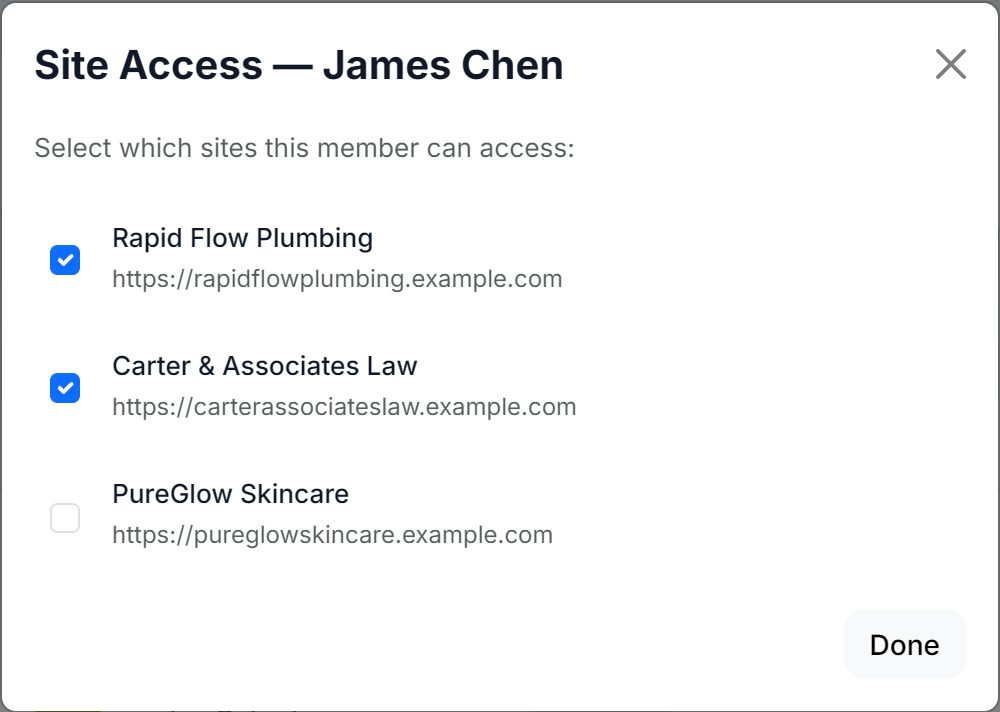
On an Analyst or Viewer's row, click Site access and tick the sites they should see. It saves as you tick. Everything else simply doesn't exist for them: it's not in their site list, and they can't open it even with a direct link. Owners and managers always see every site.
Changing roles, removing people, handing over
- Change a role: use the role picker on their row. It takes effect immediately.
- Remove someone: frees their seat and ends their access. The work they logged stays, marked former, so client history and profitability don't change.
- Leave a team: anyone except the owner can leave.
- Hand over ownership: the owner picks Owner in another member's role picker, and the old owner becomes a Manager. While a paid plan is active, this needs support's help, because billing has to move too. Contact support@almaseo.com.
Team Time Tracking
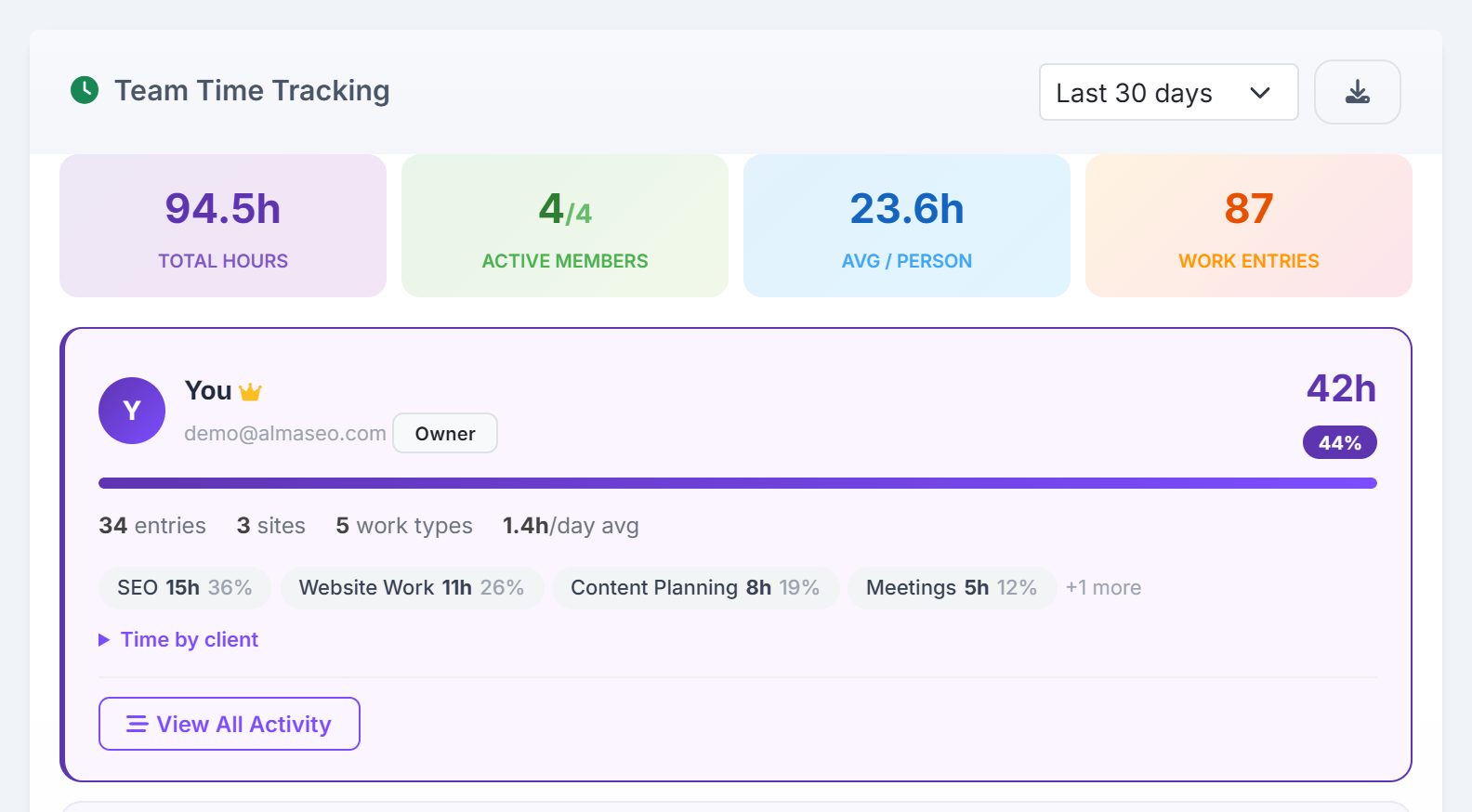
Owners and managers see where the team's time went. Pick a range and download it as a CSV if you need it.
- Total Hours, Active Members, Avg / Person, Work Entries across the top
- One card per person, busiest first: hours, share of the team total, sites and types of work, and Time by client
- View All Activity opens everything one person logged, grouped by day
Every entry has its own comment thread. When an owner or manager comments, the person who did the work is notified in the app, by email, and on Slack if it's connected. Questions about a piece of work stay attached to the work — which is what turns a time log into proof of work a client can read.
These are the same hours that drive Profitability. A team that logs its time here has retainer margins you can trust.
Team History and Company Holidays
- Team History (owners and managers): every join, removal, departure and role change, with who made it and when. It keeps the last 100 events.
- Company Holidays: days the agency is closed. They're taken out of the workday count used for workload pacing (the Workload Planner and the burnout check), so nobody looks behind on a day nobody was working. They don't change billing or retainer fees. Everyone can see the list; owners and managers add and remove days.
Custom Portal Domain (running client links on your own domain) is coming soon.
Real-world example: from solo to a team of four
You've been solo for years. This month you're growing.
- Sarah, your first employee, will run clients day to day. You invite her as a Manager. She sees every site, can invite help, but can't touch billing.
- James, a freelance writer, handles content for Lakeside Mold Pros only. Sarah invites him as an Analyst and ticks just that site. He writes drafts and logs his hours. He never sees your other clients.
- Bob, of Bob's Gardening, wants to see what you're doing. Sarah invites him as a Viewer with only his site ticked. He reads the work log and leaves a comment asking about a blog post. James gets notified and answers on the same entry.
- Three months later, James's contract ends. You remove him. His seat frees up, his access ends instantly, and his hours stay on Lakeside's record, marked former, so that client's profitability still adds up.
While onboarding Lakeside, you also noticed their Google Business Profile was owned by a previous agency. You helped them reclaim it and added your agency as a manager on it. That's the kind of thing clients remember.
Key takeaways
- Give people only the access their job needs. Start small and move them up.
- Viewer + one site is the right setup for clients who want to watch progress.
- Analysts do the work on their sites but can't change settings or delete content.
- Managers run the team but can't touch billing. Only the owner can.
- Accepting an invite needs a free seat. Pending invites don't reserve one.
- Removing someone keeps their logged hours, so your records stay accurate.
- Clients should own their own Google accounts, with your agency added as a user.
That's the last lesson in this run. The Academy index has the whole course, and a client who wants to watch progress without a seat is what white-label reporting is for.