
Product guide · Navigation
Profitability
Client Profitability puts every SEO retainer on one table: what the client pays, the hours your team actually logged this billing period, the effective hourly rate that produces, how much of the budget is used, and the margin at your team’s cost. It is the page that says which clients make money and which quietly cost you.
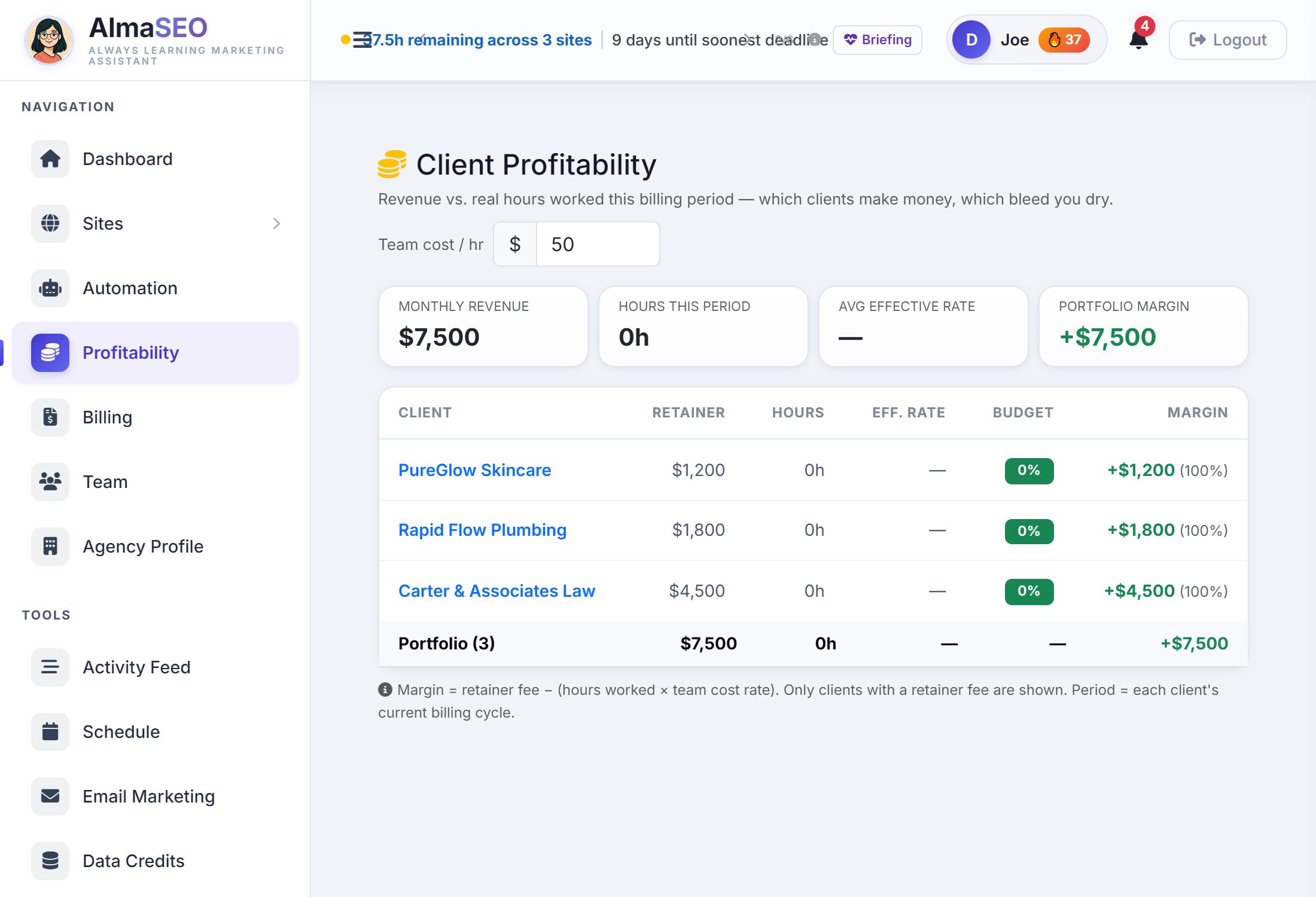
These are the same figures as the Dashboard’s Business Overview, worked out once and read by both, so the two screens always agree.
Most agency tools can tell you what a client pays. Client profitability is the harder question: what did it cost to serve them? AlmaSEO answers it with the hours your team logs against each site, so the answer moves every day as the work happens rather than once a quarter when someone builds a spreadsheet.
Team cost per hour

The single control is Team cost / hr, top right: what an hour of your team’s time costs you, in dollars. It starts at 50 and every margin on the page is computed from it, live, as you change the number. Set it once to your real blended cost and the table becomes true.
The four numbers
- Monthly revenue
- Every listed client’s retainer fee added together.
- Hours this period
- The hours logged across those clients in their current billing cycles.
- Avg effective rate
- Revenue divided by those hours: what the whole portfolio is paying you per hour worked. It shows a dash until the first hour is logged.
- Portfolio margin
- Revenue minus hours times your cost rate, across every client. Green when positive, red when the portfolio as a whole is losing money.
The client table
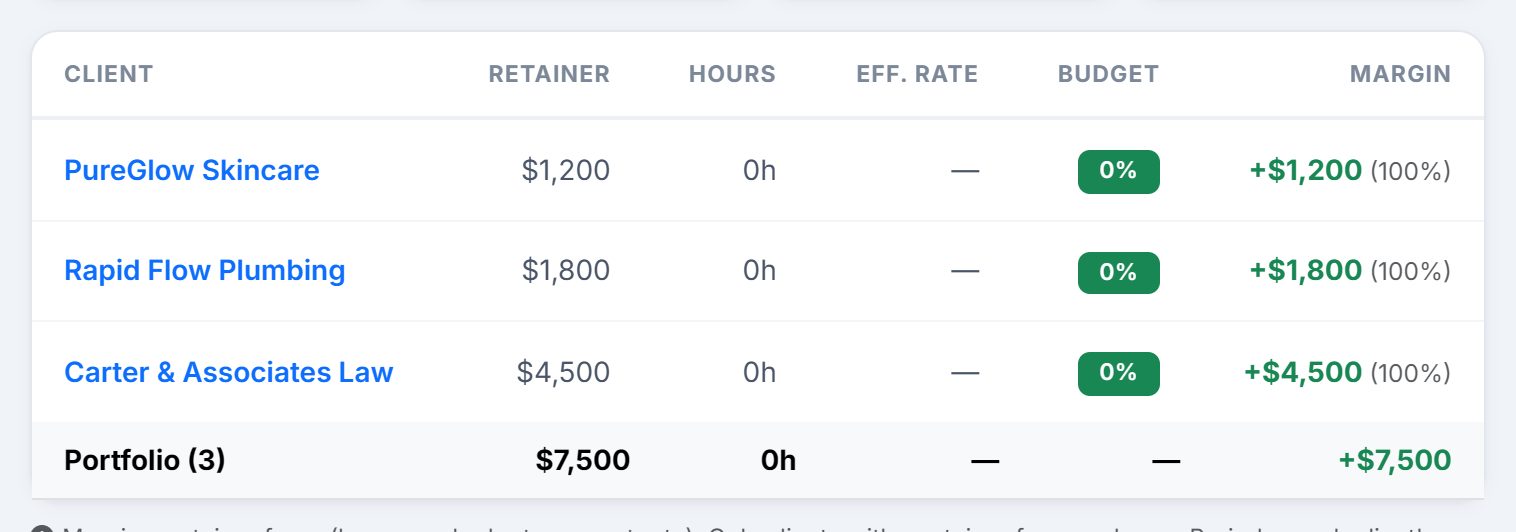
One row per client with a retainer fee. A client without a fee is not on the page at all. The columns:
- Client
- The site’s name, linked straight into the site.
- Retainer
- The monthly fee.
- Hours
- Hours logged against the site in its current billing period.
- Eff. rate
- The fee divided by those hours: the client’s effective hourly rate. A dash until hours exist.
- Budget
- Hours used as a percentage of the retainer’s hours. The badge is green while there is room, turns yellow at 85%, and red once the client is over budget. A client with a fee but no hours budget shows a dash here — it still has a row, and still has a margin.
- Margin
- The fee minus hours times your cost rate, with the margin as a percentage of the fee beside it. A client in the red is tinted red across the whole row.
Every heading sorts on click, and the page opens sorted by margin, worst first. The bottom row is the portfolio: total revenue, total hours, the average effective rate and the total margin.
Where the numbers come from
Two inputs per client, both set inside the site itself. On the site’s Activity/Logs/Reports tab, the Retainer Tracker holds the Monthly Fee, the Monthly Hours the retainer buys, and the Billing Day the cycle starts on. The hours come from the work your team logs against that site, with a duration, anywhere in AlmaSEO.
The period is the client’s own billing cycle, not the calendar month. A client billed on the 17th is measured from the 17th to the 16th, so the budget percentage always describes the cycle the client is actually paying for. A client with no billing day is measured over the calendar month to date.
Reading it
The page is a triage list for your SEO retainers, best read once a week:
- Red margin, or a red budget badge: the client is consuming more than it pays for this cycle. Either the scope has crept or the retainer is priced too low for the work. Open the site and read the work log before the next renewal conversation.
- Yellow budget badge before mid-cycle: on course to go over. Slow the discretionary work now rather than at the end of the month.
- Effective rate far above your cost rate on a green row: a healthy retainer, and the one to model the next proposal on.
- Zero hours on an active client: either nobody is logging time, or nothing is being done. Both are worth knowing before the client asks.