
Product guide · Inside a site · SEO Intelligence
Traffic Drops
Traffic Drops lists the pages on a client site that are getting fewer clicks from Google than they were, and names the likely cause of each drop: the page fell in the rankings, people stopped clicking it, fewer people searched, or it dropped out of results altogether. Open a page to see which searches it lost the clicks on.
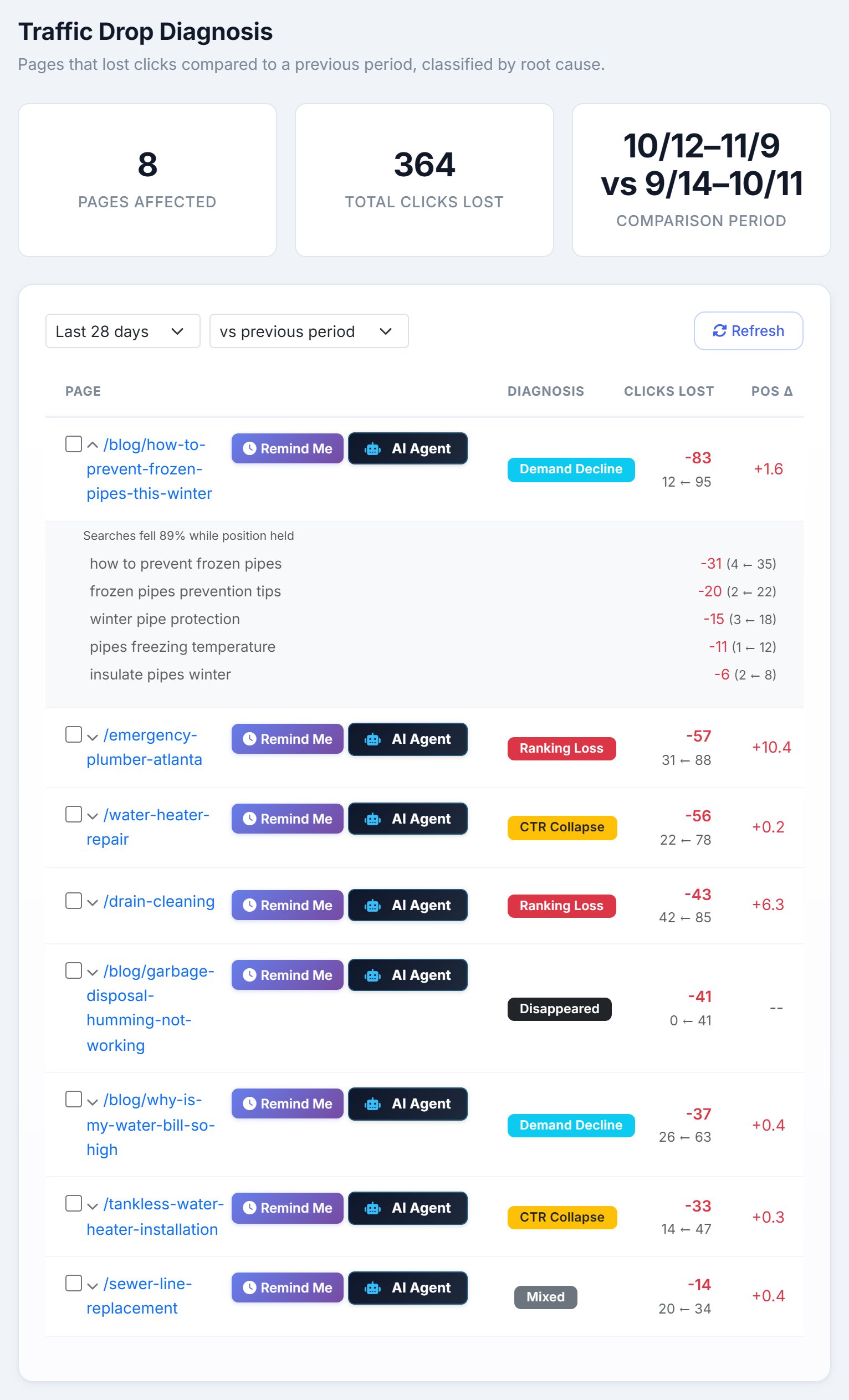
A website traffic drop is rarely one problem. One page slips a few places, another loses its clicks to a new box at the top of Google, a seasonal post fades. Traffic Drops splits the drop into pages and gives each page its own cause, so you fix the right thing on each.
The summary
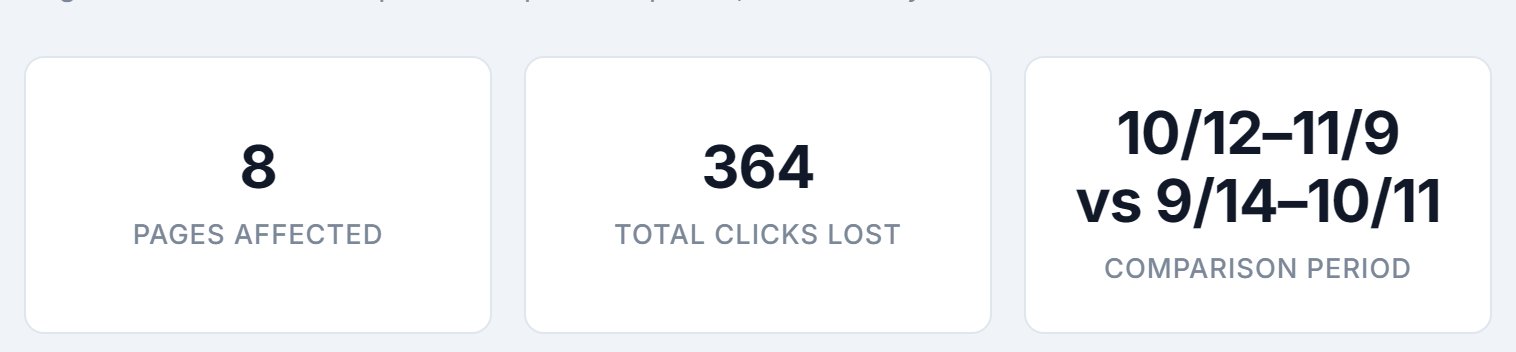
- Pages Affected
- How many pages lost clicks. The table shows the 20 that lost the most.
- Total Clicks Lost
- The clicks lost across every affected page, not just the 20 on screen.
- Comparison Period
- The period you’re looking at, and the period it’s compared with.
Range and comparison

- Last 7, 28 or 90 days
- The period to look at. 28 days is the default.
- vs previous period
- Compares with the same number of days just before. Good for spotting something that changed recently.
- vs same period last year
- Compares with the same dates a year earlier. Use it for anything seasonal: a heating post in spring or a pool post in autumn will always look like it’s dropping against the month before.
- Refresh
- Pulls the numbers from Search Console again. It costs nothing.
The six causes
A page with no data at all in the current period is Disappeared or Moved?. Every other page that lost clicks is checked against the first four rules, in order, and gets the first cause that fits. Position means the page’s average position, so a higher number is worse.
- Ranking Loss
- The page’s average position got worse by more than 2. Something now outranks it: check who, then refresh the content and strengthen its internal links.
- CTR Collapse
- The position held, within 2 places, but its click-through rate fell below 70% of what it was. People still see it and choose something else, often because Google added a box above it or a competitor’s title got better. Rewrite the title and meta description.
- Demand Decline
- Position and click-through rate held, but impressions fell by more than 30%: fewer people searched. Check whether it’s seasonal before changing anything.
- Mixed
- The page lost clicks, but no single one of the above explains it. Look at its position, click-through rate and impressions together.
- Disappeared
- The page had no impressions at all in the current period. Check that it’s still indexed and still returns a page, not a 404 or a redirect to the wrong place.
- Moved?
- The page disappeared, and a page with the same address ending appeared, such as
/frozen-pipesand/frozen-pipes-2026. AlmaSEO names the new page under the old one. Check that the old address redirects to the new one.
On the screen, point at a cause to see a one-line reminder of what it means.
The table
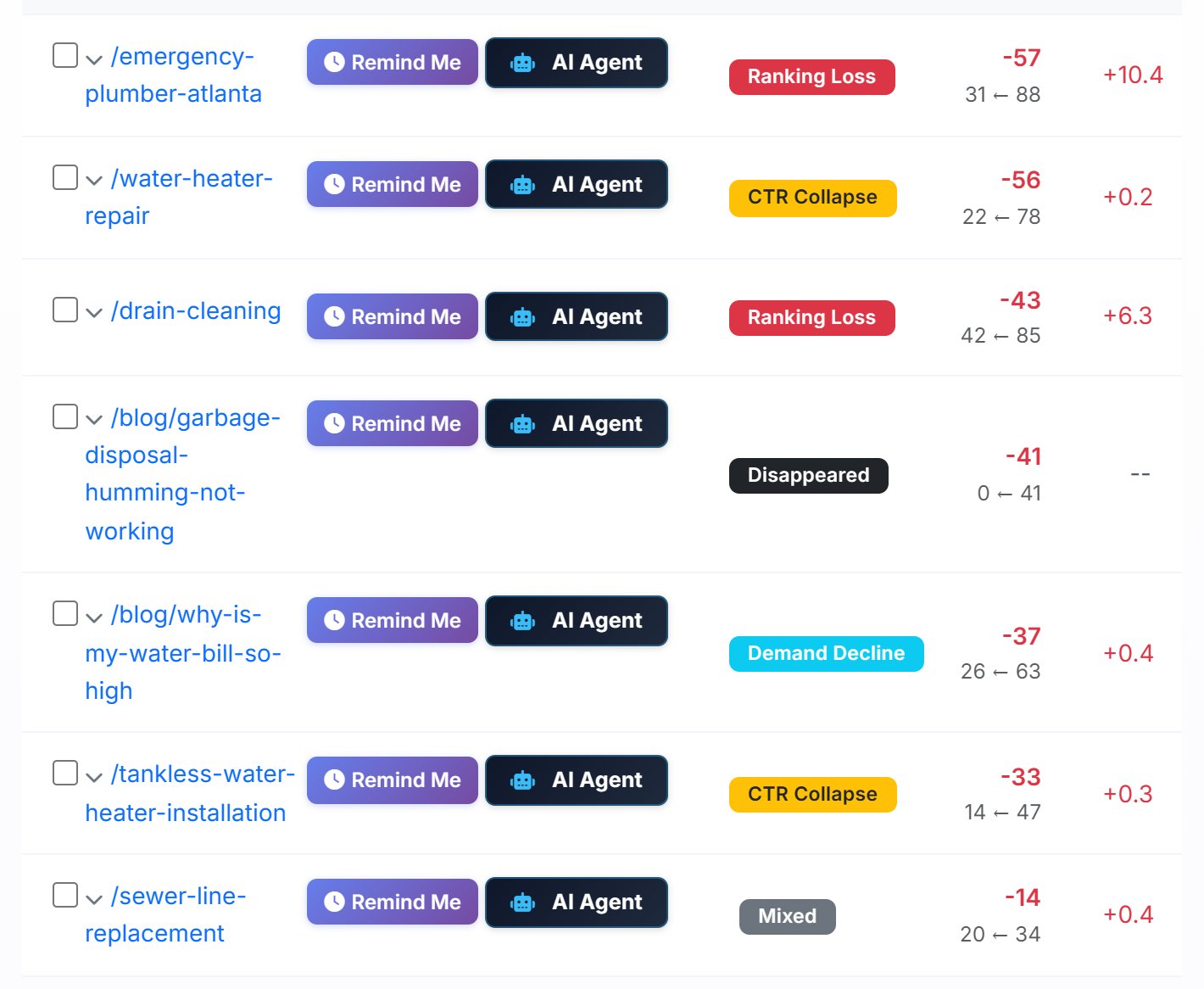
- Page
- The page that lost clicks, with a tick box before it and the Remind Me and AI Agent buttons beside it.
- Diagnosis
- The cause, as above.
- Clicks Lost
- The change in clicks, with the clicks now and before underneath: “31 ← 88” means 88 before, 31 now.
- Pos Δ
- The change in average position. +10.4 means it fell more than ten places; a dash means it has no position now.
The searches behind a drop
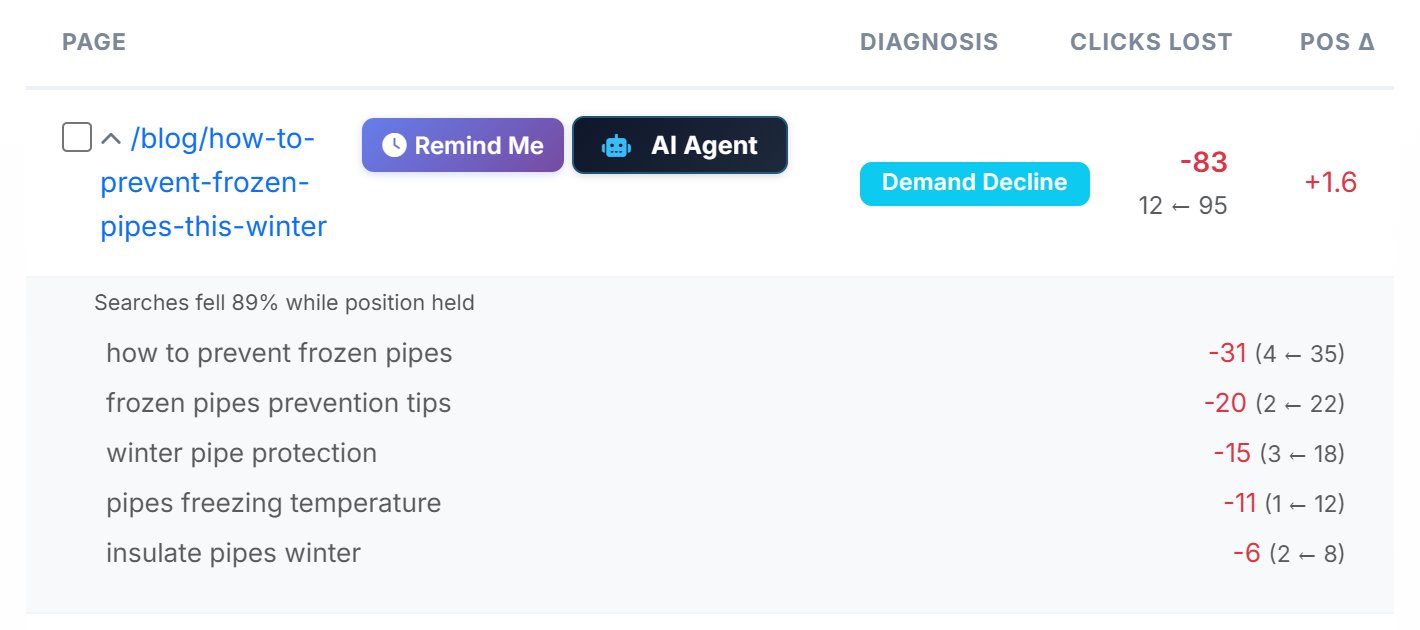
Click the arrow beside a page to open it. It starts with one sentence explaining the drop in that page’s own numbers, such as “Searches fell 89% while position held”, then lists the five searches that lost the most clicks, each with its clicks now and before. Google doesn’t report rare searches one by one, so on a small site the listed searches can add up to less than the page lost; when they do, a line under them says how many of the lost clicks came from searches Google doesn’t report individually. That usually tells you more than the cause alone: one big search falling points to a single competitor or a new Google feature, while every search falling a little points to the page as a whole.
Tick, Remind Me and AI Agent
- The tick box
- Tick a page once you’ve dealt with it. The row is struck through, and the tick is saved for everyone on the account.
- Remind Me
- Opens a reminder set four weeks out, with the page’s clicks before and now, its position change and its cause written in, so you can check whether it recovered.
- AI Agent
- Sends the page to AI Agent Workspace with a brief that matches its cause: who outranks it for a ranking loss, a title rewrite for a CTR collapse, an indexing check for a page that disappeared. Pro and Agency; on Solo the button reads AI Agent · Pro.
When the list is empty
An empty list means no page with at least 10 clicks in the earlier period lost clicks. Smaller pages aren’t checked. If Search Console returned no data for the current period at all, the tab shows an error and asks you to try again, rather than reporting every page as gone. If Search Console isn’t connected, it says so and links to connect it.
The site’s SEO Recovery tab runs the same check, using the last 28 days against the 28 before.