
Product guide · Navigation
The Dashboard
The first screen after you sign in to AlmaSEO. Every client site you manage, the health of the whole portfolio, and what is due this week — before you open a single site.
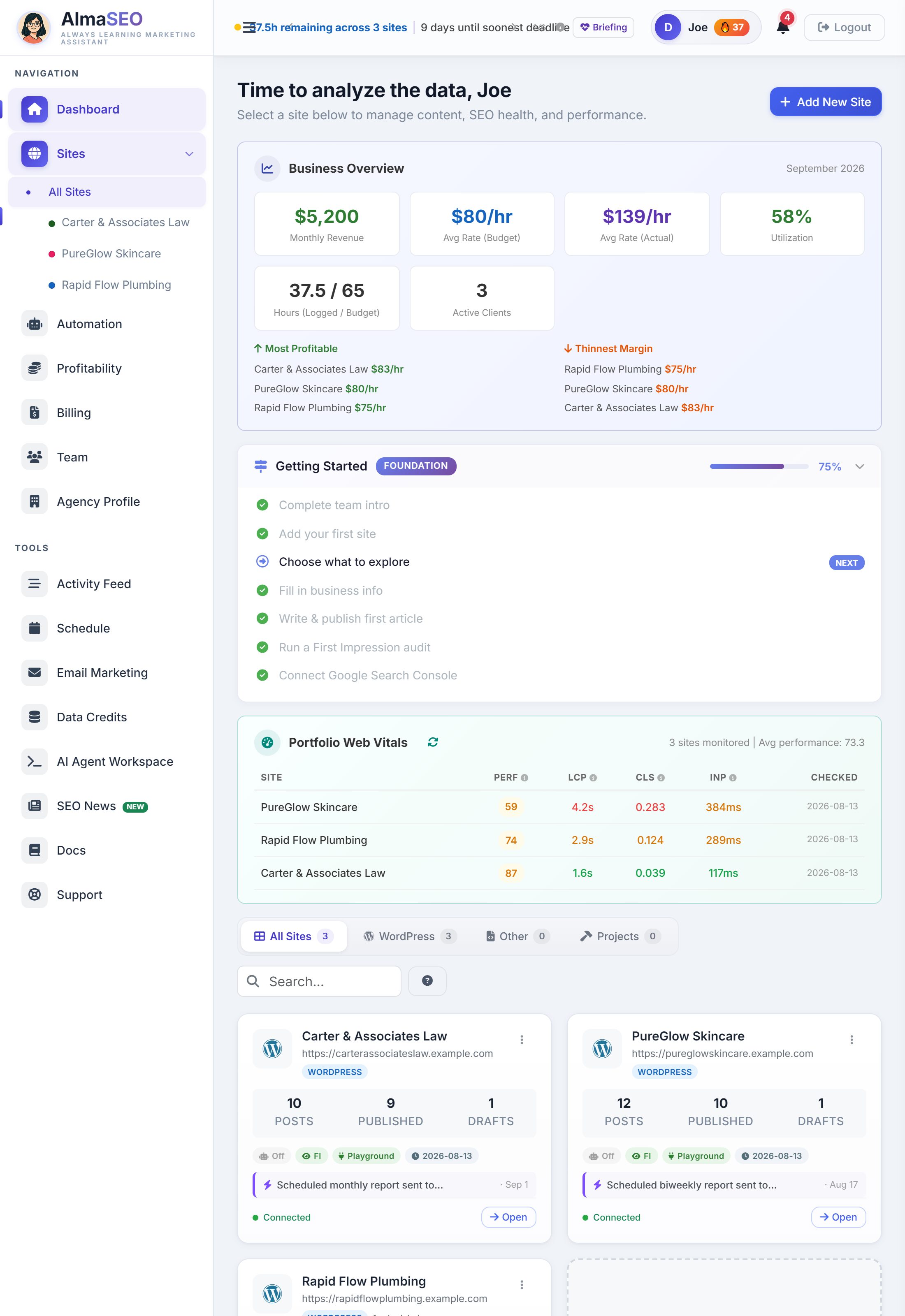
AlmaSEO opens on the Dashboard every time you sign in, and two links bring you back to it: Dashboard at the top of the sidebar, and All Sites under Sites. It is the portfolio view an SEO agency runs its day from. Each client site gets one card, and a few panels that read across every site sit above the cards.
Top to bottom, an account with sites sees five things:
- A banner for strategy tasks due this week, only when something is due.
- Business Overview: this month’s revenue, rates, utilization and hours across every client. Agency plan.
- Getting Started: the account’s setup checklist, until it is finished.
- Portfolio Web Vitals: one row of Core Web Vitals per site.
- The site cards, with tabs, search and a filter above them.
Panels with nothing to say stay out of the way. The strategy banner is absent when nothing is due, Getting Started disappears once you have finished it, and Business Overview only appears on the Agency plan. A brand-new account sees none of them, just the invitation to add a first site.
Strategy tasks due this week
When any site has strategy tasks due this week, a banner appears at the very top of the page. It reads like “4 strategy tasks due this week (1 overdue)”, and it is the only place in AlmaSEO that totals those tasks across every site. Everywhere else they are per site.
Click the banner to expand it. For each site you get the domain, how many tasks are due and how many are overdue, the task titles with the overdue ones flagged, and a View tasks link that opens that site’s Project Tasks tab, where the work actually gets done.
When nothing is due, the banner is not there at all. That is the design, not a bug: an empty banner would train you to ignore it.
Business Overview
Agency plan, and shown to the account owner and to managers. Analysts and viewers don’t get it — the money view stays with the people running the business. It answers one question for the month so far: is the retainer work paying what it was sold for?
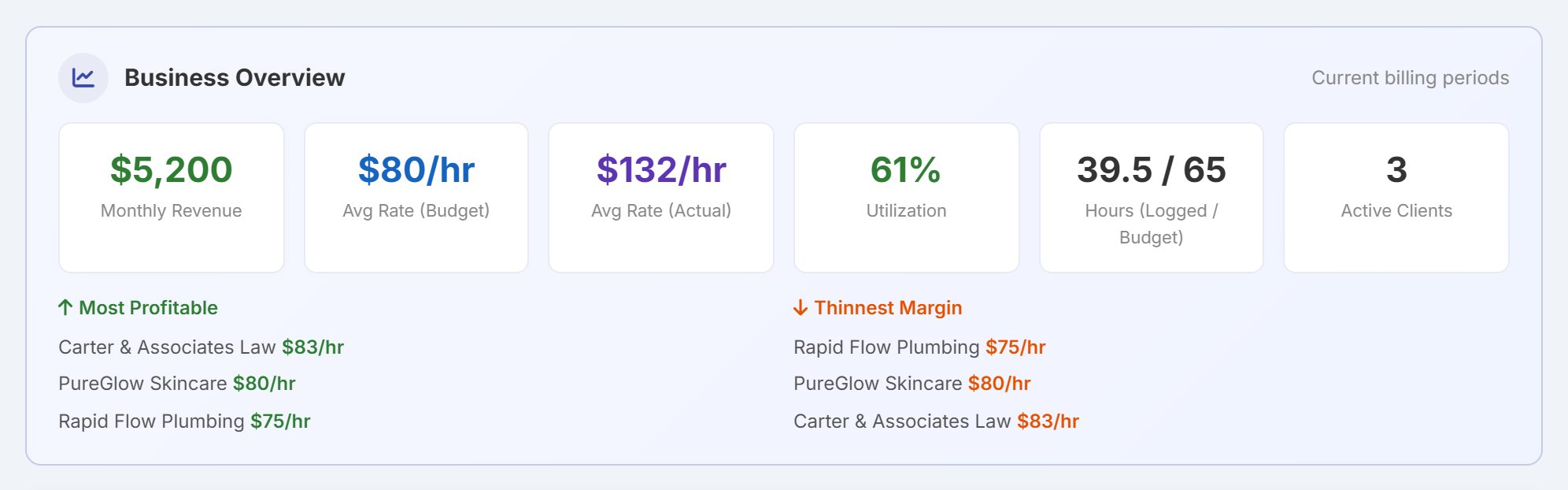
Six figures, each measured over the client’s own current billing period — from its Billing Day, or the calendar month when no billing day is set. The corner of the card says Current billing periods, because two clients billed on different days are being measured over different stretches at the same time.
- Monthly Revenue
- The retainer fees of every active client added together. A client counts once it has a Monthly Fee set.
- Avg Rate (Budget)
- Revenue divided by the hours you sold. What an hour is worth if you work exactly the retainer.
- Avg Rate (Actual)
- Revenue divided by the hours logged so far this month. It shows N/A until the first hour is logged, starts high, and falls through the month. Where it lands is your real hourly rate.
- Utilization
- Hours logged as a percentage of hours budgeted, across all clients.
- Hours (Logged / Budget)
- The same two numbers as hours.
- Active Clients
- How many sites have a Monthly Fee.
Under the figures, Most Profitable and Thinnest Margin list the top three and bottom three clients by their budget rate, each with the rate beside the name. When a client’s logged hours pass its budget, a warning line appears above those lists naming how many clients are over and how much revenue that puts at risk.
Where the numbers come from: the Monthly Fee, Monthly Hours and Billing Day set in each site’s Retainer Tracker, on its Activity/Logs/Reports tab, and the hours logged against each site during the month. The Profitability page takes the same inputs further, client by client.
Getting Started
A setup checklist for the account, in the order that gets you to a working site fastest. AlmaSEO ticks each milestone itself when it sees the thing done; there is nothing to check by hand.
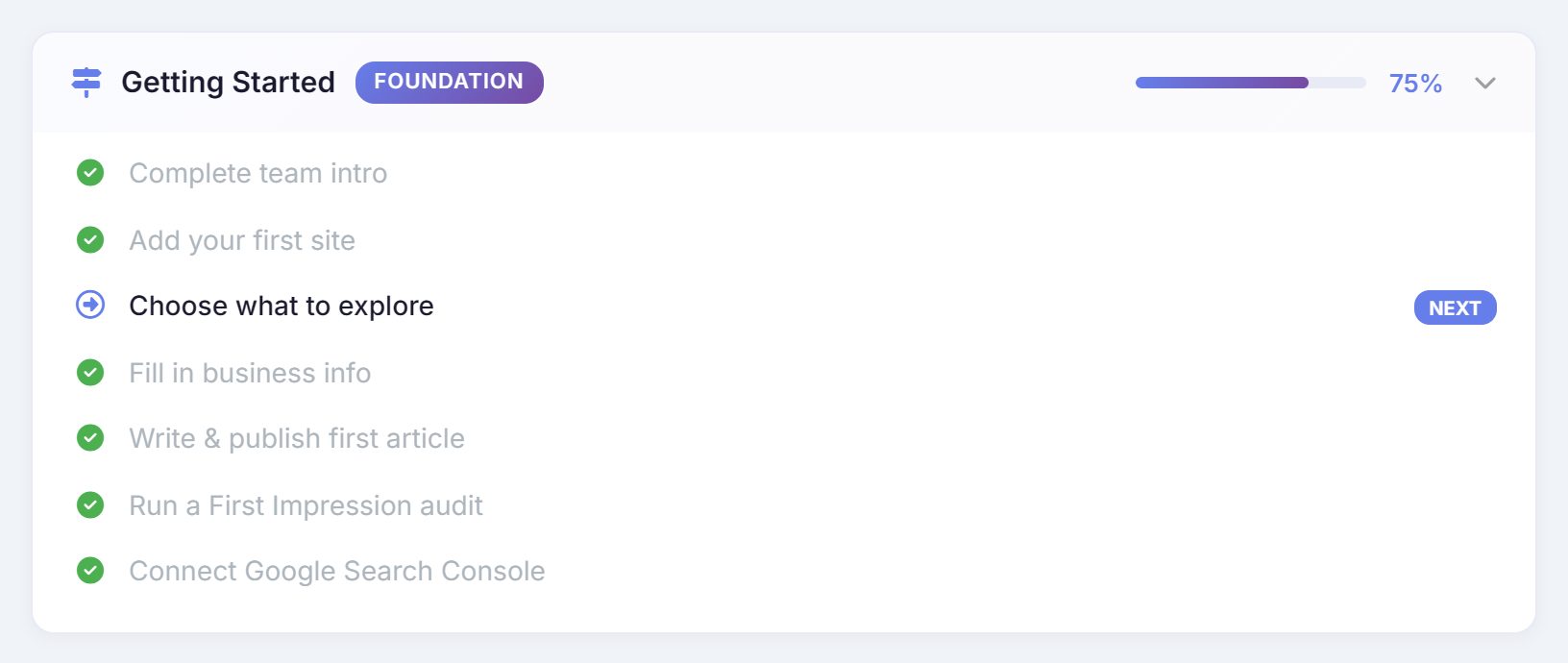
The milestones run in four phases. The badge in the header names the phase you are in, and the percentage is progress across the whole list:
- Foundation
- Complete team intro · Add your first site · Choose what to explore · Fill in business info
- First Value
- Write & publish first article · Run a First Impression audit · Connect Google Search Console
- Power Features
- Set up content automation · Log your first work entry · Upload your logo
- Stickiness
- Publish 5+ articles · Connect Google Analytics
Click the header to collapse or expand the list. Once every milestone is done, or once you are past the third phase, the panel leaves the Dashboard for good.
Portfolio Web Vitals
One row per site with its latest Core Web Vitals, so a slow client site shows up here before the client mentions it.
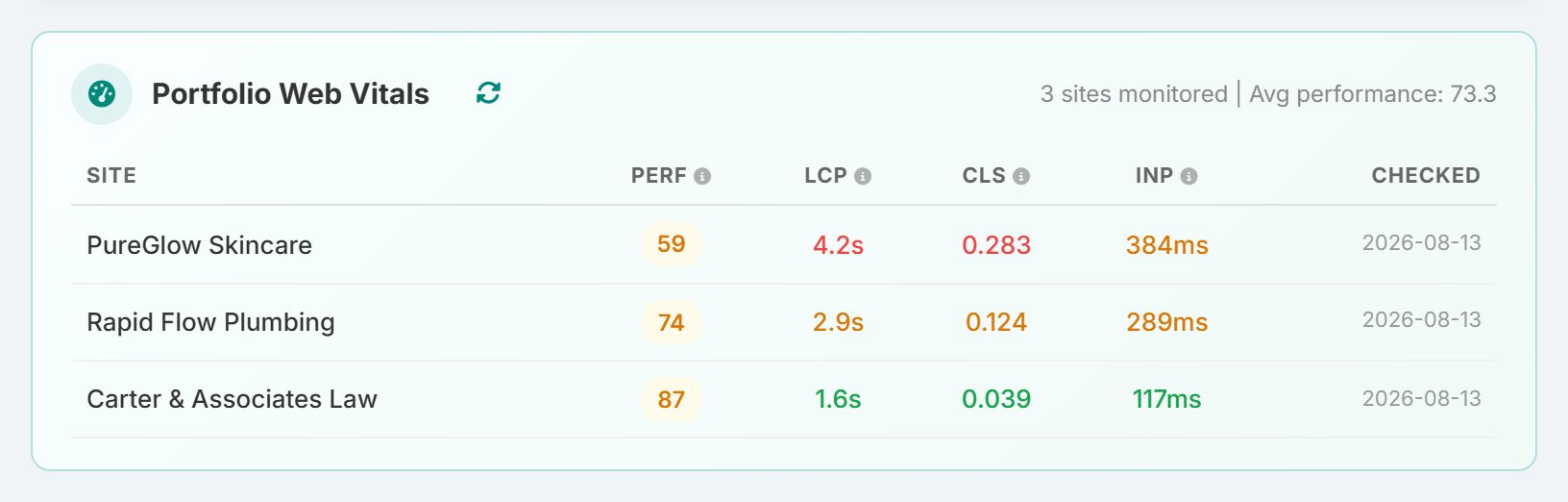
The columns:
- Perf
- The performance score out of 100. Green at 90 and above, orange from 50 to 89, red below 50. A red arrow beside the score means it fell more than five points since the previous check.
- LCP, CLS, INP
- The three Core Web Vitals: Largest Contentful Paint (how long the main content takes to appear), Cumulative Layout Shift (how much the page jumps around), and Interaction to Next Paint (how quickly it responds to a tap or click).
- Checked
- The date of the reading you are looking at.
The line in the header sums it up: how many sites are monitored, the average performance score, and how many need attention. The circular arrow runs a fresh PageSpeed Insights check for every site, in the background, and costs no Data Credits. With a long list a Show all toggle appears under it.
AlmaSEO checks every site automatically each Sunday. A site that has never been checked is not in the table yet; run its first check from the site’s Technical SEO tab and it joins the list.
Site cards
The rest of the page is the portfolio itself: one card per client site, and an Add New Site card at the end. Four tabs above the grid (All Sites, WordPress, Other, Projects) filter by type, the search box matches on name and URL, and the question-mark button at the end of the bar opens a short Getting Started guide.
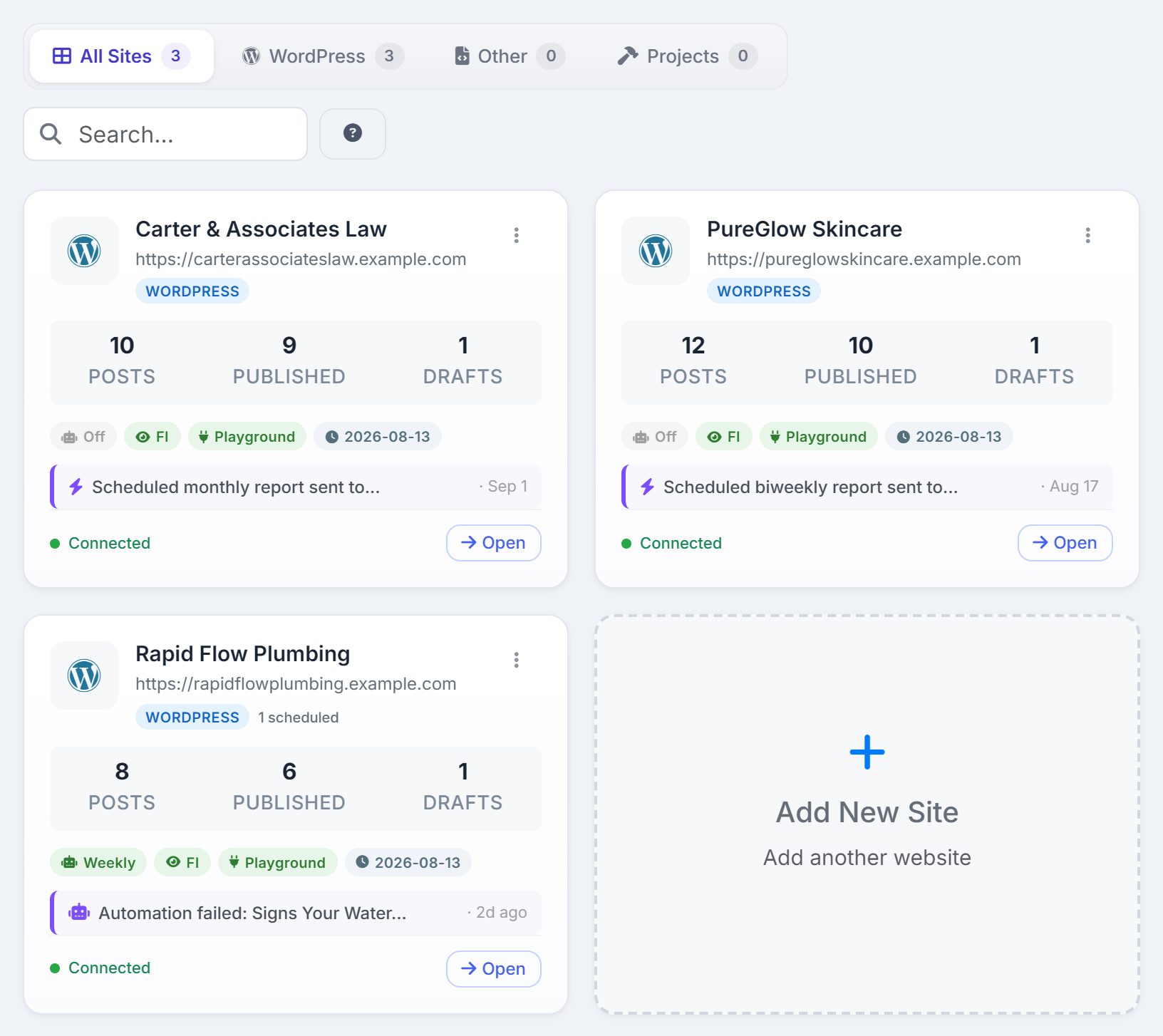
A card is a summary and a door. It shows what the site is, what it has published, what is connected and the last thing that happened; Open takes you inside. The cards have their own page in this guide: Sites reads a card line by line, and covers the card menu, the Add New Site wizard, the three site types and the Trash.
If the Dashboard looks different
- No sites yet
- The panels are gone and the page is a single invitation: enter your URL, publish your first article, watch it rank. Get Started opens the Add New Site wizard.
- “Waiting for site access”
- You have been invited to a team but not yet given any sites. The account owner assigns them from the Team page; the cards appear as soon as they do.
- A purple banner about your first article
- It shows right after the first site connects, with a Write Article button. Dismiss it or use it; it does not come back.