
Product guide · Start here
Connect Google Search Console, Bing Webmaster Tools and IndexNow
Three connections, about fifteen minutes in all. Once they’re made, AlmaSEO can read how your site does in Google and Bing, tell the search engines about every new article, and show you which pages Google has indexed. This page walks through each one, and what to do when it doesn’t go smoothly.
Why connect all three
- Google Search Console
- The one that matters most. It’s where AlmaSEO reads your clicks, rankings and which pages Google has indexed, and every tool under SEO Intelligence runs on it. None of that spends Data Credits.
- Bing Webmaster Tools
- Bing’s version of Search Console. Bing’s index also feeds Microsoft Copilot. Once it’s connected, AlmaSEO sends each new article straight to Bing and shows your Bing clicks next to Google’s.
- IndexNow
- A shared doorbell for Bing, Yandex, Seznam, Naver and the other engines that use it: one message tells them all a page is new or has changed. Google doesn’t use IndexNow, which is why you connect Search Console as well.
Where to see what’s connected
Open your site and go to its Overview. The Connections card shows each connection with a badge: Connected, Not Connected, or Reconnect needed when Google access has run out. The link beside a badge takes you to the place to fix it.
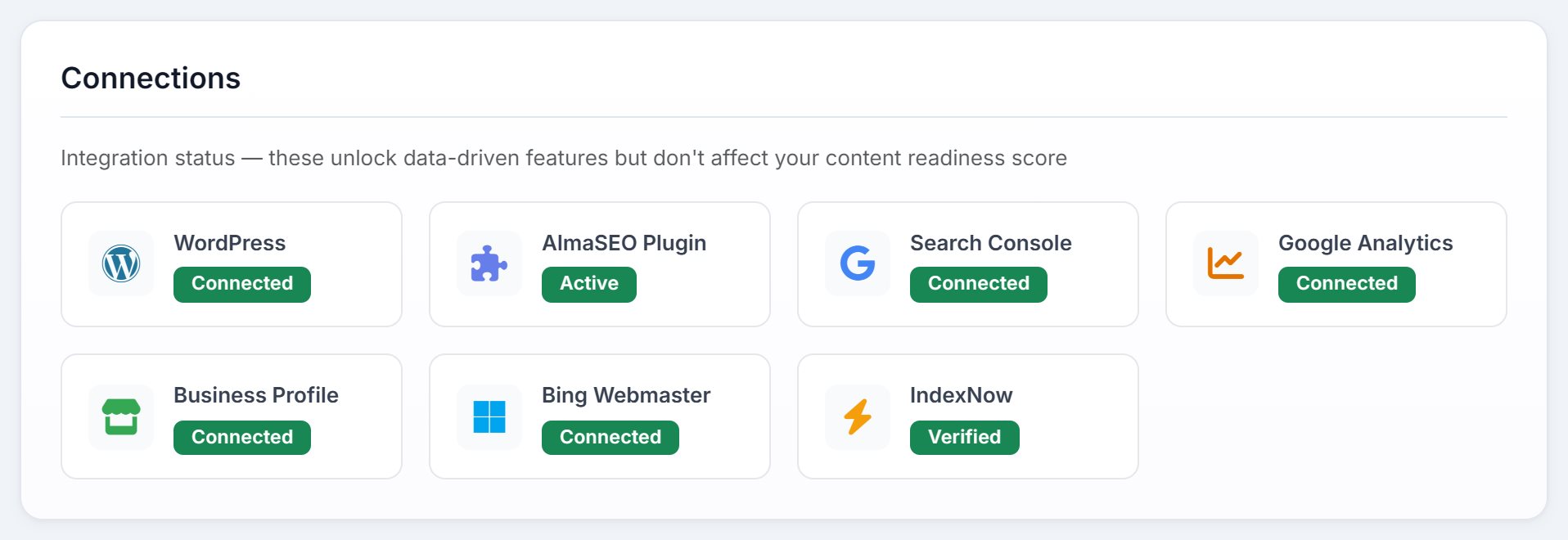
Bing Webmaster and IndexNow are on the card too. IndexNow reads Verified once its key file is in place.
Google Search Console
Before you start, the site needs to be in Search Console already, under a Google account you can sign in with. If it isn’t, add it at search.google.com/search-console and verify it first. A Domain property is verified with a DNS record and covers every version of the site. A URL prefix property is quicker to verify but covers only the exact address you enter.
- Open your site in AlmaSEO, then its Search Console tab. Or click Connect beside Search Console on the Connections card.
- Click Connect Search Console, and sign in with the Google account that has the site in Search Console.
- Google asks whether AlmaSEO may see your Search Console data. Allow it.
- Back in AlmaSEO, Select Search Console Property lists every property that Google account can open. AlmaSEO puts the best match for your site at the top with a green Recommended badge. Click it, then Connect Property.
Which property to choose. The same site often appears more than once: with and without www, http and https, or as a Domain property (it starts sc-domain:). Choose the Domain property when there is one, because it counts traffic to every version of the site. That’s the one AlmaSEO marks Recommended.
Once it’s connected, the top of the Search Console tab shows the property in use, with three buttons:

- Change Property
- Opens the property list again, for when you picked the wrong version of the site.
- Reconnect
- Runs the Google sign-in again. Use it when AlmaSEO says Google access has expired, for example after access to AlmaSEO is removed in your Google account settings.
- Disconnect
- Removes the connection. The tools that read Search Console stop until you connect again.
If your site isn’t in the list
The list only holds properties the Google account you signed in with can open. When your site isn’t there, AlmaSEO says so: None of these properties match your site, or No Search Console Properties Found when the account has none at all. There are three usual causes:
- The wrong Google account. Cancel, and connect again with the account that owns the site in Search Console.
- The site isn’t in Search Console yet. Add and verify it there first, as above.
- It’s a client’s site. The client adds you in Search Console under Settings › Users and permissions, with your Google address and Full or Owner permission. Then connect again. Restricted access isn’t enough to read the data.
Bing Webmaster Tools
Open your site’s Bing Webmaster tab. Until it’s connected, the tab shows four steps:
- Create or sign in to your Bing Webmaster Tools account at bing.com/webmasters. A Microsoft, Google or Facebook account works.
- Add your site and verify ownership. Already verified in Google Search Console? Bing’s Import from Google Search Console copies your sites and their verification over in one go, and is much the quickest way. Otherwise, add the site by hand and verify it with one of Bing’s methods.
- Copy your API key. In Bing Webmaster Tools, open Settings › API Access › API Key. One key covers every site in your Bing account, so an agency only does this once.
- Paste your API key into the box on the tab and click Connect.
AlmaSEO checks the key with Bing straight away. It accepts the site with or without www, on http or https. Two messages mean a step in Bing isn’t finished yet:
- Your Bing account doesn’t have …
- The key works, but the site isn’t in that Bing account. AlmaSEO lists the sites it did find, which usually shows whether it’s the wrong account or a different address. Add the site in Bing, then connect again.
- … is in your Bing account but not verified
- Bing won’t share any data for a site until it’s verified. Finish verification in Bing Webmaster Tools, then connect again.
IndexNow
IndexNow works with a key: a random string of letters and numbers. Your site hosts it in a small text file, and that file proves to the search engines that the messages really come from you.
On WordPress, with the AlmaSEO Connector
There’s nothing to do. Once the site is connected, AlmaSEO makes a key and the Connector puts the key file on your site. Check the IndexNow card on the site’s Overview: when it reads Verified, IndexNow is set up. If it says Not Verified, click Verify Key. AlmaSEO also tries again on its own every day.
On any other site
- On the site’s Overview, find the IndexNow card and click Generate Key.
- Copy the key. Create a plain text file named after it, ending in
.txt, with the key as its only contents. The card shows you the exact file name. - Upload the file to the top level of your site, so it opens at the address the card shows, like
https://example.com/<key>.txt. - Click Verify Key File.
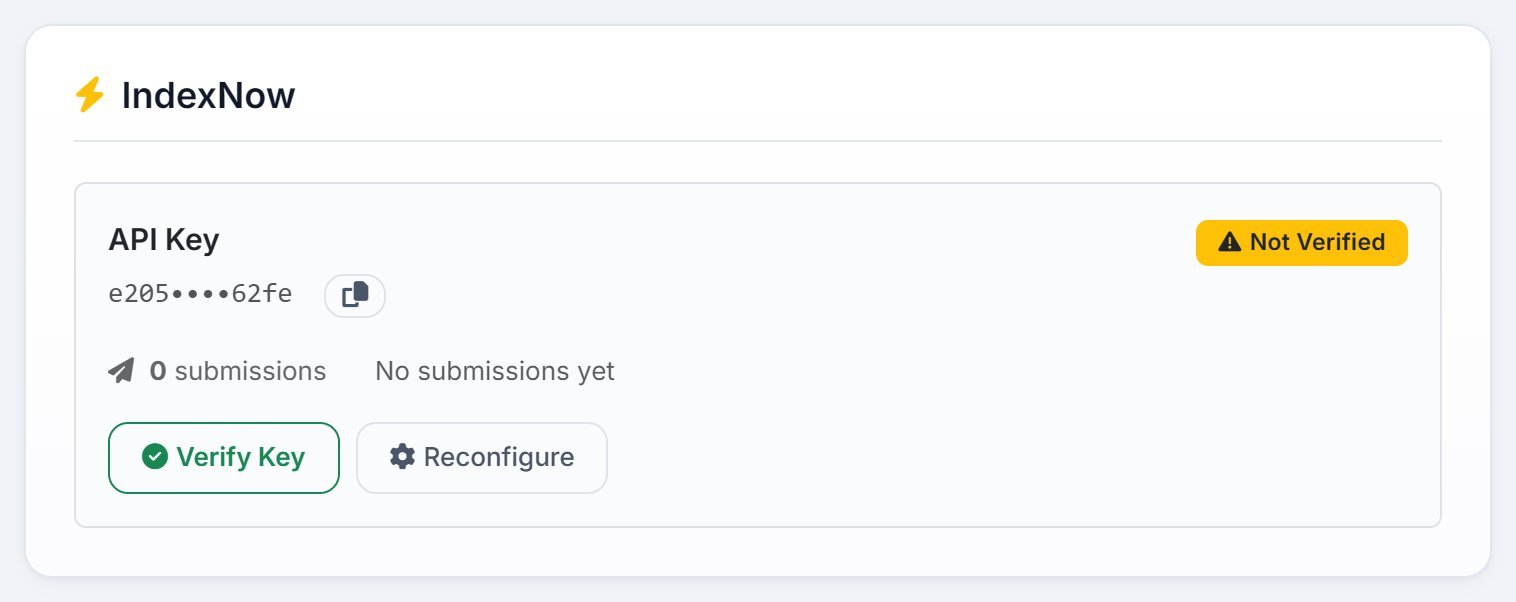
Where the file goes depends on the host. With cPanel or FTP, put it in the same folder as your home page, usually public_html. On Netlify or Vercel, put it in the folder your site publishes from. On Cloudflare Pages, the build output folder.
Wix, Squarespace and Shopify can’t host a file at the top of your site, so IndexNow isn’t possible there. Skip it: connecting Bing Webmaster Tools still sends every new article straight to Bing.
If verification fails, AlmaSEO says why:
- File not found at …
- The file isn’t at that address. Check the name matches the key exactly and that it’s in the top folder, not a subfolder.
- File found … but contents don’t match the key
- The file has something besides the key in it, or an old key. It should hold the key and nothing else.
- Timed out, or could not connect
- The site didn’t answer. Check it’s online, then try again.
What happens once they’re connected
When you publish an article from Create Post, AlmaSEO sends it out without being asked: IndexNow and Bing get its address, and Google gets your sitemap resubmitted, so it sees there’s something new. On a site that isn’t WordPress, the same happens when you paste the article’s live address into Where did this article go live? on the article’s page. Getting started shows both.
Google is the one engine nobody can push. AlmaSEO checks whether it has the page, and opens it in Search Console, where you can click Google’s own Request indexing button. To find every page Google has left out and fix the reason, follow the tutorial Find pages Google hasn’t indexed.