
Product guide · Navigation
Automation
The Automation Center is the one screen that shows automated article publishing across every client site: how many are publishing on their own, what is waiting in the queue, what went out this month, and each site’s schedule on a single row.
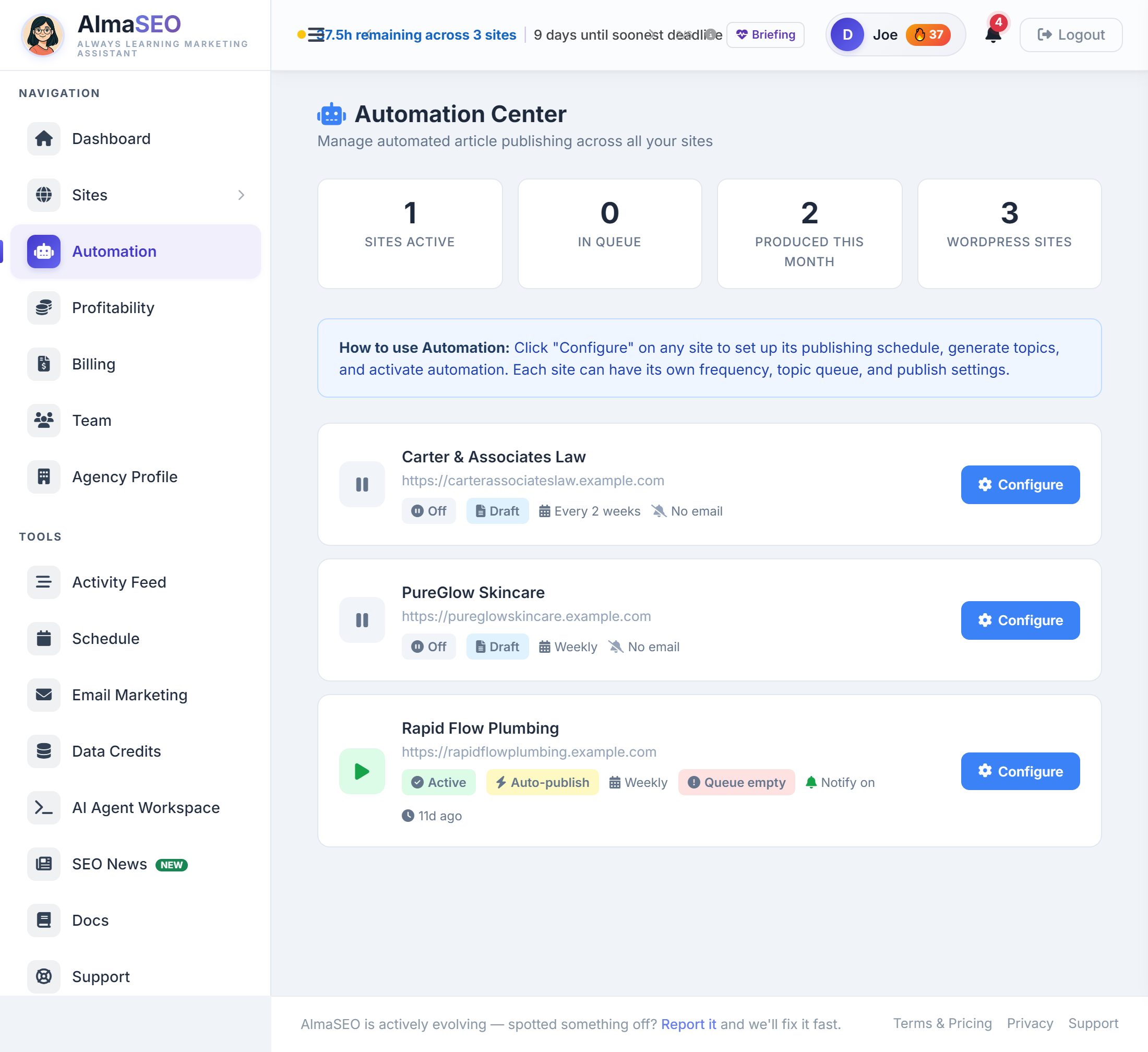
Automation in AlmaSEO is set up per site: each site has its own publishing frequency, its own queue of topics, and its own choice of whether finished articles go live on their own or wait as drafts. The Automation Center is the view across all of them. It does not change any setting itself; it shows the state of every site and hands you to the right place to change it.
The four numbers

- Sites Active
- How many of your sites have automation switched on.
- In Queue
- Articles waiting to be written and published, added up across every site.
- Produced This Month
- Articles automation has finished since the first of the month, across every site — including the ones sitting as drafts for review.
- WordPress Sites
- How many WordPress sites are on the account. Those are the sites automation can work on.
One row per site
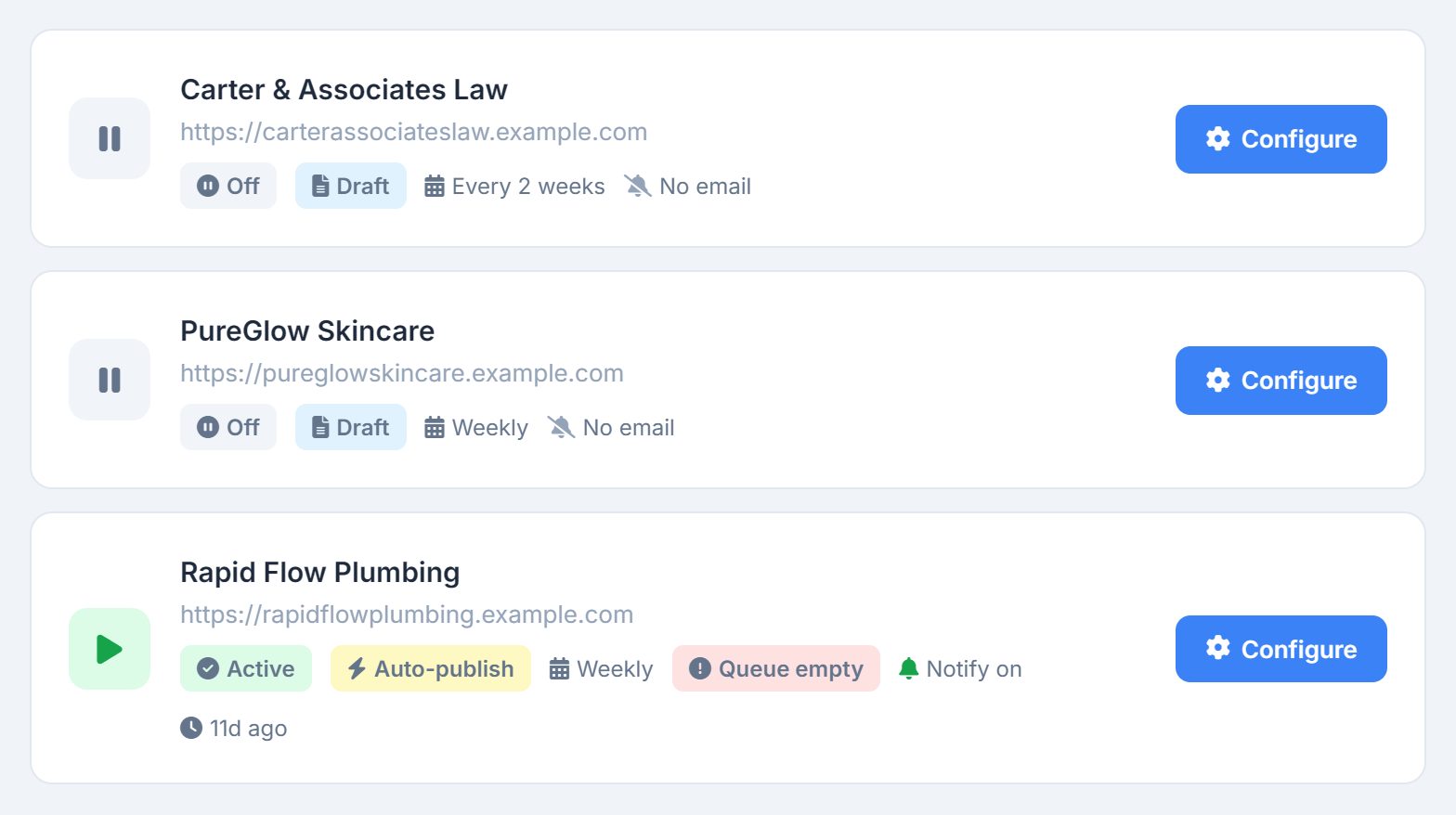
Under the banner, every WordPress site gets a row: the icon, the name and URL, a line of badges, and Configure. Only WordPress sites appear here, because automation publishes through the AlmaSEO Connector; an Other site or a Project has nowhere for it to post. The badges are the row’s whole message:
- Active or Off
- Whether automation is switched on for the site. The icon on the left goes green with it.
- Auto-publish or Draft
- What happens to a finished article. Auto-publish sends it live; Draft parks it in WordPress for someone to review first.
- Frequency
- How often the site publishes: Daily, 2x/week, Weekly, Every 2 weeks or Monthly.
- Queue
- N queued when articles are waiting to be written, or Queue empty on an active site with nothing lined up. An inactive site shows neither.
- Notify on or No email
- Whether a notification address is set for the site, so someone hears when an article goes out.
- Last activity
- When the site’s automation last finished a job: hours or days ago when recent, the date when older. Absent until the first run.
Configure
Configure on any row opens that site’s Automations tab, where every setting for that site lives:
- Schedule
- How often the site publishes, and the date the schedule starts.
- Draft or Auto-Publish
- Whether a finished article waits in WordPress for review or goes straight live.
- Daily limit
- One to three articles a day, so a catch-up run can never flood a site.
- Notification emails
- Where the alerts go, with a Send Test button to prove the address works before you rely on it.
- Content style
- Who the articles are for, the tone of voice to write in, and guidance keywords to steer them.
- Topics
- Generate topics, pick the ones worth writing, and put them in the order they should go out.
The banner at the top of the Automation Center says the same thing in one line: click Configure on a site to set up its schedule, generate topics and activate automation.
If an article fails three times in a row, AlmaSEO emails the site’s notification address — or the account owner when none is set — so a run that keeps failing doesn’t go unnoticed.
Before the first site
With no sites on the account, the Automation Center replaces the rows with a single message, No sites connected yet, and an Add Your First Site button. Automation needs a WordPress site to publish to, so add the site first, then come back here.