
Product guide · Navigation
Sites
Every client site you manage, one card each. A card is the summary and the door: what the site is, what it has published, what is connected, and the last thing that happened on it. Open takes you inside.
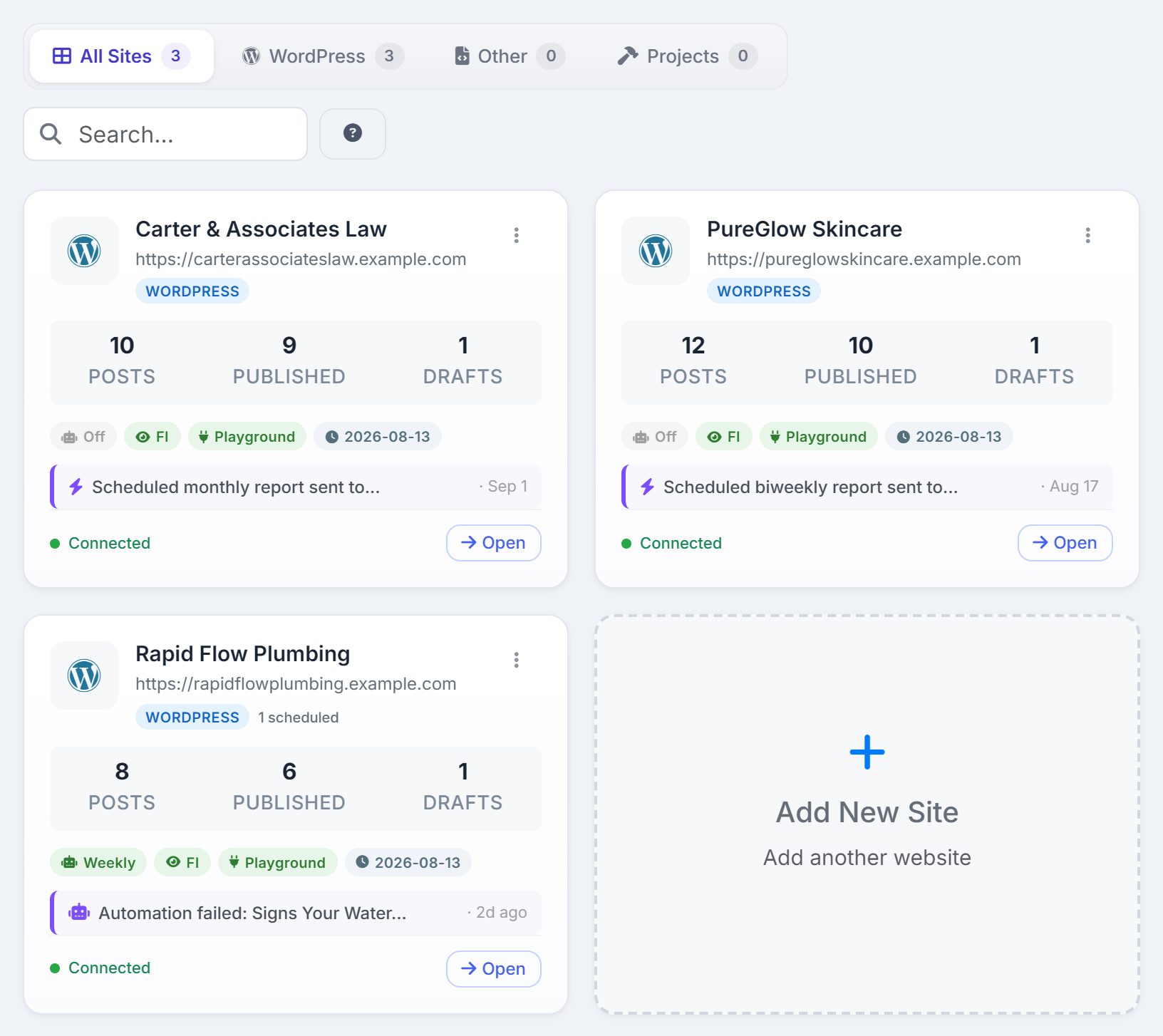
The Sites menu
Sites in the sidebar expands into All Sites and one link per site. All Sites is the Dashboard; the cards fill its lower half, below the portfolio panels. A site’s own link skips the cards and opens that site directly, where every tab lives.

Reading a card
Top to bottom, a card carries nine things. Most of them are conditional, so a sparse card is telling you something too.
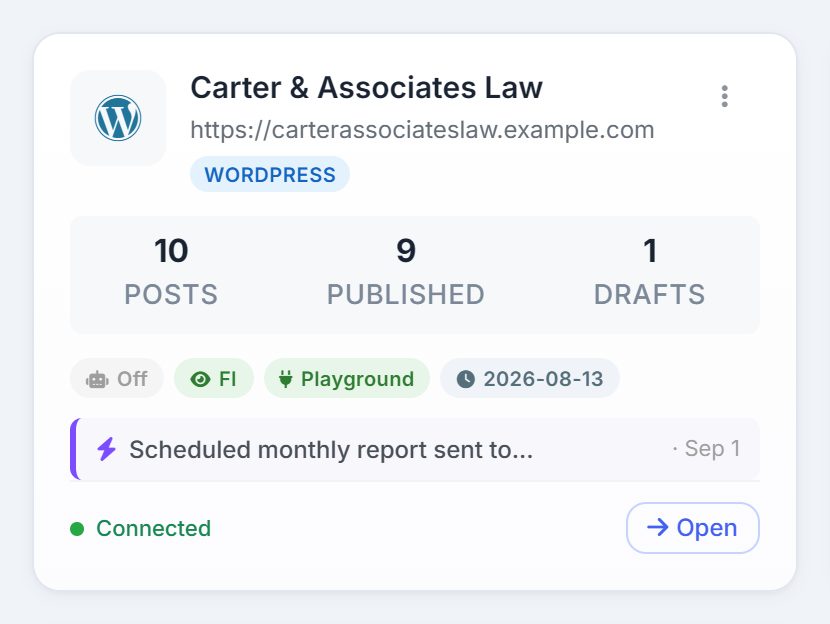
- Logo
- The logo you uploaded through Edit Site or the site’s Branding tab. Until then, the platform icon: WordPress, a page icon for Other, a hammer for a Project.
- Name
- The site’s name, as you entered it when you added the site or last edited it.
- URL
- The address you entered, shortened to fit.
- Type badge
- WordPress, Other or Project. What the card shows and what the site can do follow from this; see the three site types.
- Published and scheduled
- A badge such as 6 published · 2 scheduled: posts published in the last seven days and posts scheduled for the next seven. It only appears when one of the two is above zero, so its absence means a quiet week.
- Posts, Published, Drafts
- Everything AlmaSEO holds for the site, how many of those are live, and how many are still drafts. A Project card shows Tasks, Complete and Overdue here instead.
- Feature pills
- Each pill appears only when it is true. Automation in green with its frequency (Daily, Weekly) when the content robot is on, and a grey Off when it is set up but switched off. GSC when Google Search Console is connected. Citations when the site’s directory listings have been scanned. FI when the site has First Impression reports. On a WordPress site, Connector or Playground in green when the AlmaSEO plugin is active, or a grey Inactive when it is installed but not switched on. And a clock with the date of the last published post.
- Latest activity
- The newest entry from the site’s activity log, with how long ago it happened. The icon tells you the kind: a clipboard for logged work, a page for content, a bolt for something automated.
- Connection and Open
- Connected, Error or Not tested. For a WordPress site this is the link publishing depends on. Open goes into the site.
Finding a site
Four tabs above the grid, each with a count: All Sites, WordPress, Other and Projects. The search box matches on name and URL as you type. When a search or the tabs leave nothing, the page says so and offers Clear Filters.
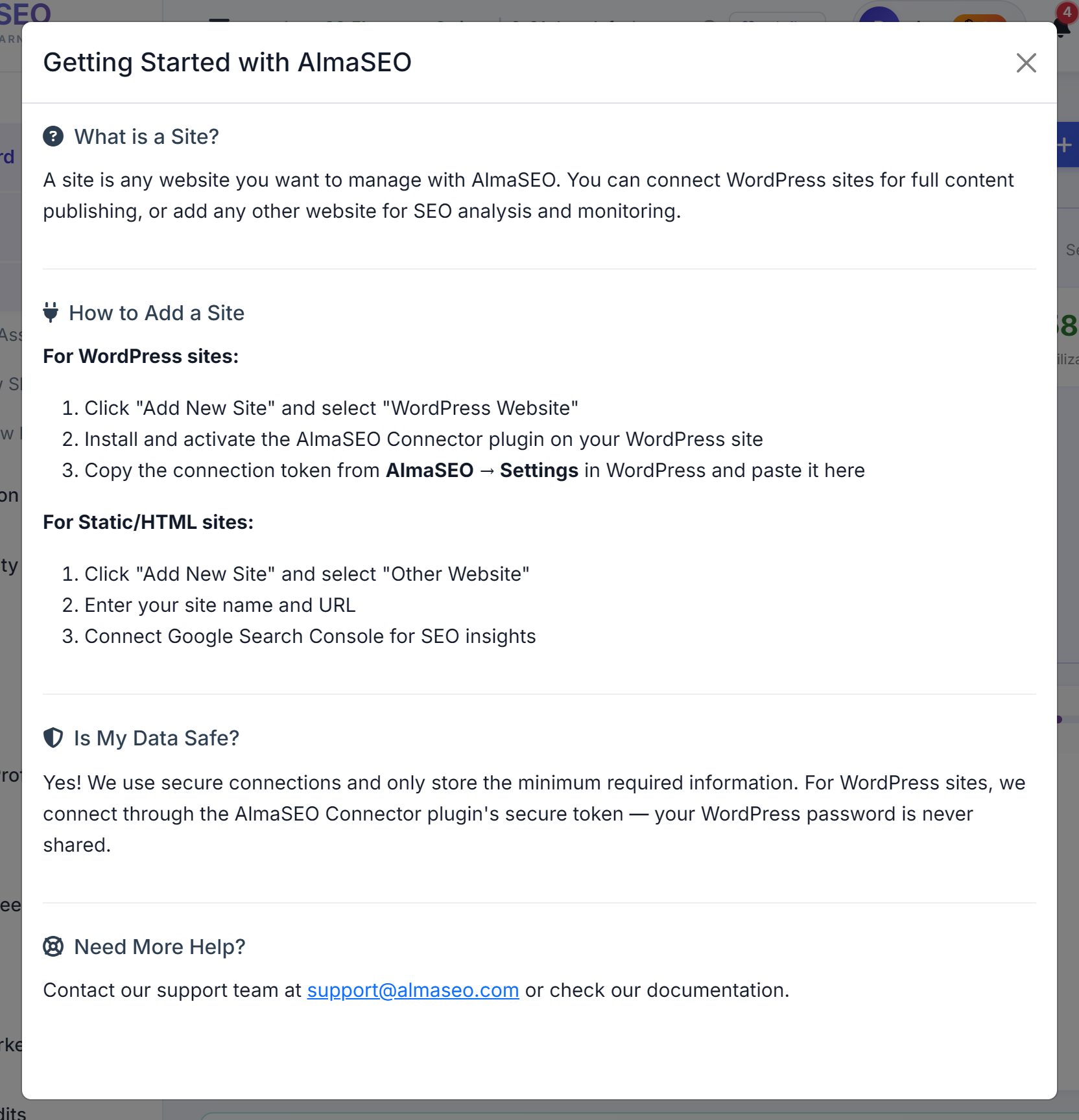
The question-mark button at the end of the bar opens Getting Started with AlmaSEO: what a site is, the three steps to add a WordPress site (add it, install and activate the Connector, paste the connection token) or an Other site, a note on how the connection is secured, and where to get help.
Cards can be dragged into any order by the grip at the top-left corner, and the order is saved, so the clients you open most can sit first.
Edit, Test Connection, Delete
The three-dot menu in a card’s corner holds the three things you do to a site without opening it.
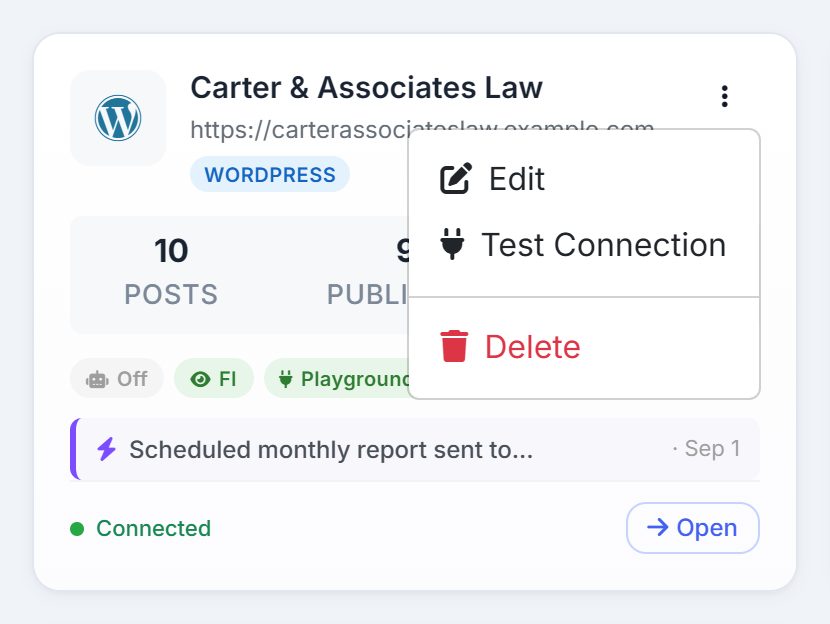
- Edit
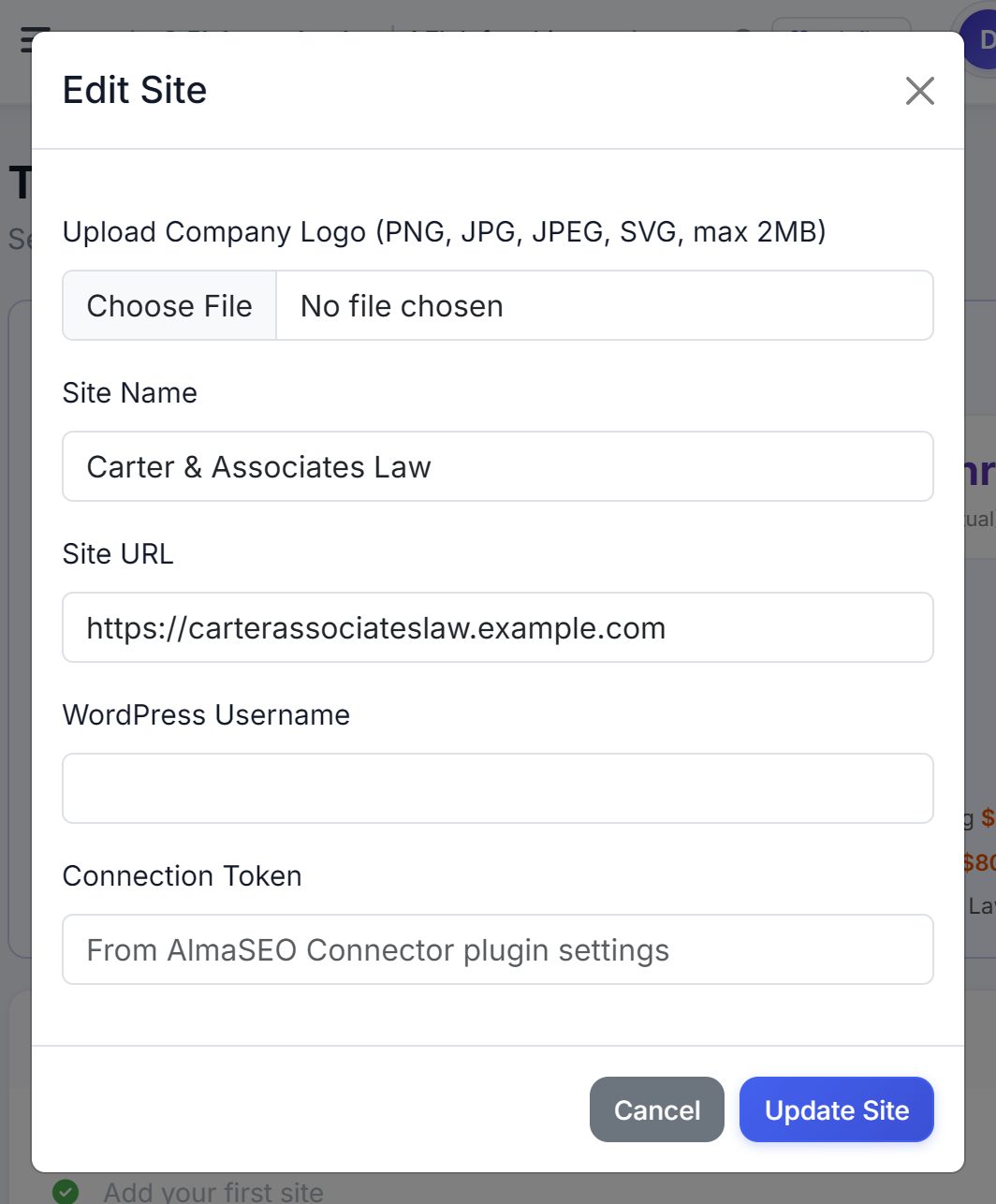
- Opens Edit Site: a logo upload (PNG, JPG, JPEG or SVG up to 2 MB, with a Remove Logo button once one is set), Site Name, Site URL and, for a WordPress site, the WordPress Username and the Connection Token, the same token the Add New Site wizard asks for. An Other site does not show the credential fields. Update Site saves.
- Test Connection
- Checks the WordPress connection again and updates the status at the bottom of the card.
- Delete
- Moves the site to the Trash, where it can be restored for 30 days before it is deleted for good.
Add New Site
The Add New Site button in the page header and the dashed card at the end of the grid open the same wizard. Its first step decides what the site can do:
- WordPress Website
- Full integration: content publishing, post scheduling and SEO optimization straight into the site.
- Other Website
- Any non-WordPress site: Wix, Squarespace, Weebly, custom-built or static HTML. AlmaSEO analyses and audits it; it cannot publish to it.
- Website Build Project
- For a site that does not exist yet. Track the build with tasks, milestones and work logging; the SEO tools stay hidden until there is a site to point them at.
Then the steps run. Not every type sees every step:
- Site Info. A name and the URL. A project can be created without a URL.
- Scanning. AlmaSEO reads the site’s pages and pulls out services, credentials, tone of voice and contact details. It usually takes 20 to 40 seconds, and only runs when there is a URL.
- Review. What the scan found, including the detected logo and any credentials or certifications, ready to correct before it is saved.
- Plugins. WordPress only. AlmaSEO detects the SEO plugins already installed, which keep managing on-page optimization while AlmaSEO handles content. If none is found, it offers the free SEO Playground plugin, or you continue without one; AlmaSEO works either way. This step also has the AlmaSEO Connector plugin: download it, upload it in WordPress under Plugins → Add New → Upload Plugin, and activate it.
- Connect. WordPress only. Your WordPress username plus the Connection Token, copied from AlmaSEO → Settings inside WordPress once the Connector is active. The connection is tested on the spot.
- Success. The confirmation names the mode: WordPress Connected, Analysis Mode Active for an Other site, or Project Created.
- Extras. An offer of the AlmaSEO Playground, with a headline analyzer, SEO previews and AI content testing. Take it with Try Playground or skip with Maybe Later.
The three site types
- WordPress
- The full product. The card shows post counts, the feature pills and the WordPress connection. Inside, everything is available, including the tabs that only make sense with WordPress: Content Freshness and the WordPress integration.
- Other
- Analysis mode. The card shows post counts and pills, but there is no WordPress connection to test and Edit Site hides the credential fields. Inside, the analysis, audit and Search Console tools work as normal; publishing does not.
- Project
- A build workspace. The card shows Tasks, Complete and Overdue instead of posts, and no feature pills. Inside, the project tools take the place of the SEO tools. When the site launches, open Edit on its card and change the type to WordPress or Other. It stays the same site, so its tasks, work logs and history carry over — don’t add it again as a new site.
Trash
Deleting a site puts it in the Trash for 30 days. A View Trash button appears below the grid as soon as something has been deleted, with the number waiting in it; open it to see deleted sites and deleted posts, each with a Restore button that puts it back where it was and a countdown of the days it has left. The countdown is green above 14 days, orange at 14 or fewer, and red at 7 or fewer. When it runs out, the site or post is deleted for good.