
Why this matters
In AlmaSEO, a site is the unit everything hangs on. Every article, audit, ranking, task and hour logged belongs to one site. Get a site set up properly and the rest of the platform has what it needs. Set it up half-way and features quietly stay empty.
This lesson covers three things: how to add a site the right way, how to read a site card at a glance, and how to manage sites over time (editing, reconnecting, converting and deleting). It picks up where the Dashboard lesson left off — at the moment you click into one site.
The SEO concept: Google Search Console is your source of truth
Most SEO tools estimate your traffic and rankings from their own crawls and data panels. Google Search Console (GSC) is different: it's Google telling you directly how your site performs in its search results.
- Clicks and impressions: how often you showed up, and how often people clicked
- Queries: the actual searches people used to find you
- Average position: where you tend to rank for each query
- Indexing: which pages Google has and hasn't included in search — and why a page can be crawled but not indexed
GSC only shows data for sites you've proven you own, and it keeps about 16 months of history. It only starts collecting once the site is verified, so if a client has never set up Search Console, set it up on day one. Every day you wait is data you'll never get back.
The SEO concept: tell Google who the business is
Google tries to understand a business as a real-world thing (an "entity"): its name, address, phone number, services, service areas, credentials and reputation. The more clearly and consistently that information appears across the website, its structured data (schema), its Google Business Profile and directory listings, the more confident Google can be about who it's dealing with. That consistency is most of what local SEO is.
That's why the Review step when adding a site matters. AlmaSEO scans the site and pulls out the business details once, and you correct them. From then on, the articles it writes, the schema it generates and the recommendations it makes all draw from that same record, so they stay consistent.
Walkthrough
Where: Sites in the left sidebar expands into All Sites (the card grid on the Dashboard) and one link per site that opens that site directly. The Sites page of the product guide documents every field in the wizard; this lesson is about the order to do them in.
The three site types
You choose a type when adding a site. It decides what AlmaSEO can do:
| Type | For | What works |
|---|---|---|
| WordPress | WordPress sites | Everything, including publishing and scheduling content directly to the site |
| Other | Wix, Squarespace, custom or static sites | Analysis, audits and Search Console. No publishing. |
| Project | A site that doesn't exist yet | Task tracking and work logging for the build. SEO tools stay hidden. |
When a Project launches, don't add it again. Open Edit on its card and change the type to WordPress or Other. It stays the same site, so its tasks, work logs and history carry over.
Adding a site
Click Add New Site (top of the page, or the dashed card at the end of the grid). The steps:
- Type: WordPress, Other, or Website Build Project.
- Site Info: name and URL. A Project can skip the URL.
- Scanning: 20 to 40 seconds. AlmaSEO reads the site and pulls out services, credentials, tone of voice and contact details.
- Review: check and correct what the scan found. Take your time here.
- Plugins (WordPress only): shows any SEO plugins already installed (they keep working alongside AlmaSEO), gives you the AlmaSEO Connector plugin to download and install, and offers the free SEO Playground plugin.
- Connect (WordPress only): your WordPress username plus the Connection Token, copied from AlmaSEO → Settings inside WordPress once the Connector is active. The connection is tested right away.
- Success, then an optional offer of the SEO Playground plugin.
Order matters on WordPress: install and activate the Connector during step 5 before reaching step 6, or you'll have no token to paste.
Reading a site card
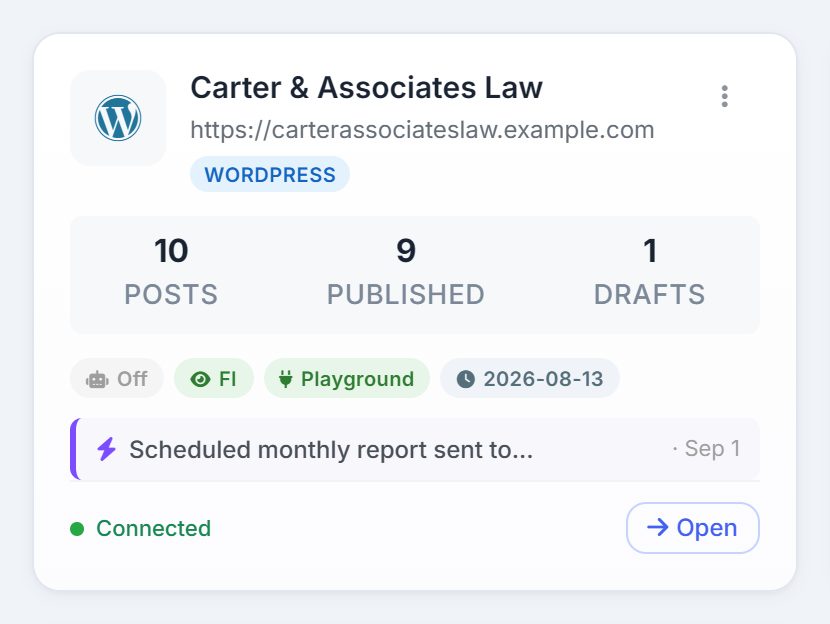
Most of what's on a card only appears when it's true, so a sparse card is telling you something.
- Logo, name, URL and type badge (WordPress, Other or Project)
- Activity badge, such as 6 published · 2 scheduled: posts published in the last 7 days and scheduled for the next 7. Missing means a quiet week.
- Posts, Published, Drafts (Projects show Tasks, Complete, Overdue instead)
- Feature pills:
- Automation: green with its frequency when content automation is on; grey Off when set up but switched off
- GSC: Google Search Console is connected
- Citations: directory listings have been scanned
- FI: a First Impression report exists
- Connector or Playground (green): the AlmaSEO plugin is active. Inactive (grey): installed but not switched on.
- Clock: date of the last published post
- Latest activity: the newest entry from the site's activity log
- Connection: Connected, Error or Not tested. For WordPress, publishing depends on this.
Finding a site

Tabs above the grid filter by type (All Sites, WordPress, Other, Projects), each with a count. The search box matches name and URL as you type. Drag a card by its grip to reorder; the order is saved.
Edit, Test Connection, Delete
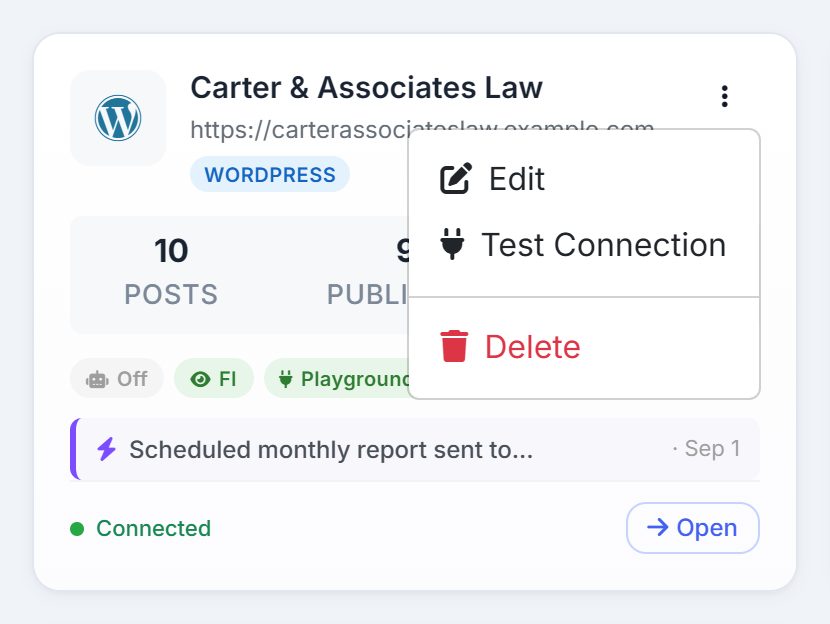
The three-dot menu on each card:
- Edit: logo (PNG, JPG or SVG, up to 2 MB), name, URL, and for WordPress, username and Connection Token. The credential fields always open empty; leave them blank to keep what's stored. This is also where you change a Project's type.
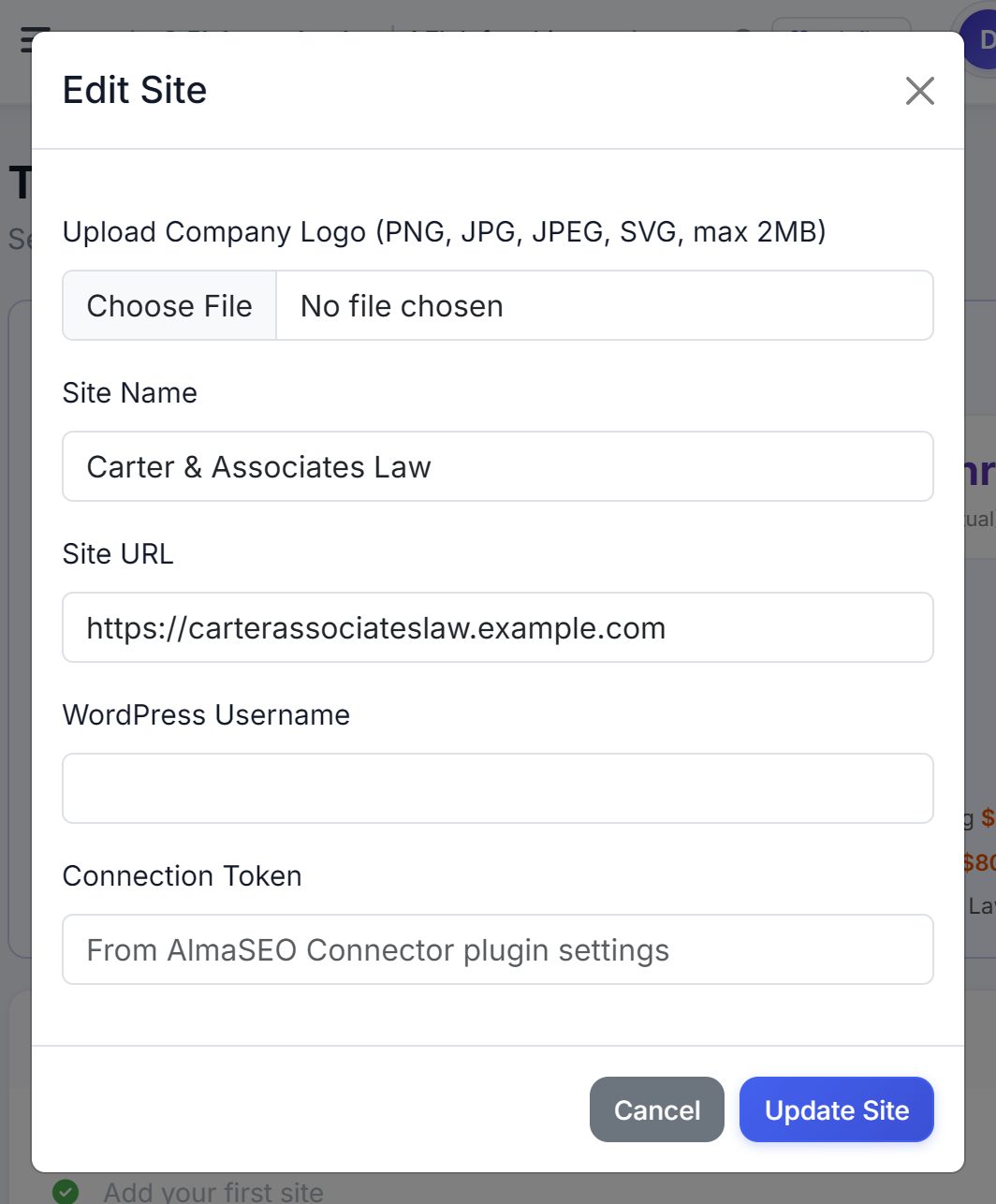
Trash
Deleted sites and posts stay in the Trash for 30 days, then they're permanently deleted. A View Trash button appears below the grid when something's in it. Each item has a Restore button and a countdown: green (more than 14 days left), orange (14 or fewer), red (7 or fewer).
After restoring a WordPress site, run Test Connection from its card menu. If it shows Error, paste the Connection Token again through Edit.
When a connection breaks
A WordPress card flipping from Connected to Error means publishing has stopped. Changing a WordPress password does not cause this. The usual reasons:
- The Connector plugin was deactivated or removed (a client's developer "cleaning up plugins" is a classic)
- The token was regenerated or revoked in WordPress, which cancels the old one
- A security plugin or host is blocking the WordPress REST API, the doorway AlmaSEO uses to publish
- The WordPress user was deleted or lost permission to edit posts
- The site's URL or SSL certificate changed or broke
Fix the cause, then Edit → paste a fresh token if needed → Update Site → Test Connection.
Real-world example: a new client, start to finish
You sign Lakeside Mold Pros. Their current site is a slow Wix build, and you're rebuilding it on WordPress.
- Day 1: you add them as a Website Build Project. No URL yet. You track the build tasks and log your hours against it, so you know exactly what the build cost you.
- Same day: you check whether they have Google Search Console. They don't. You set it up on the old Wix site now, so data starts collecting before the rebuild.
- Launch day: you open Edit on the Project card and switch it to WordPress. The build history stays attached.
- You install and activate the Connector plugin, copy the token from AlmaSEO → Settings in WordPress, and connect. The card shows Connected and a green Connector pill.
- You connect Search Console. The GSC pill appears.
- You open Business Information and confirm the services, service areas and license numbers, since that record now feeds everything AlmaSEO writes for them.
A healthy card for them now reads: Connected, green Connector, GSC, and soon a green Automation pill and a recent publish date.
Key takeaways
- Choose the right site type. It decides what AlmaSEO can do.
- Don't rush the Review step. The business details saved there feed everything else.
- On WordPress: activate the Connector plugin first, then copy the Connection Token from AlmaSEO → Settings.
- Scan the grid for missing GSC pills. Each one is a site AlmaSEO can't read Google data for.
- Projects convert in place when the site launches. Never add them twice.
- Deleted sites can be restored for 30 days. After that, they're gone.
- An Error card is usually a deactivated plugin, a regenerated token, or a blocked REST API, not a password change.
With a site connected and Search Console reading, the next lesson — Automation — is about letting AlmaSEO publish to it without losing control of what goes out.