
Why this matters
One client publishing once a week is easy to keep in your head. Ten clients, some daily and some weekly, each at its own hour, is not. That's when a client asks "when does my next post go out?" and nobody can answer without opening five screens. Or three clients pile up on the same morning and the queue backs up.
Content Schedule puts every client's publishing windows on one calendar. It answers three questions, in order: is publishing running, what goes out next, and is any day overloaded? It's included on every plan.
The business concept: capacity planning
Every AlmaSEO account has a daily cap: a limit on how many publishing jobs can run in one day, shared across all your clients. Think of it like a kitchen with a fixed number of burners. Each new client set to daily publishing takes one more burner every day.
That turns publishing into a capacity question, the same one any service business has:
- Before you sell more, check you can deliver it. Ten new daily clients are ten more jobs a day from the same pool.
- Spread the load. Clients at 9:00, 11:00 and 14:00 run one after another without waiting. Three at 9:00 queue behind each other.
- Make the schedule visible. A client who can see their publishing dates in their own calendar asks fewer "is anything happening?" questions.
The SEO concept: steady beats bursty
Google has no ideal publishing frequency, and the hour a post goes live doesn't matter to rankings. What Google does watch is why pages are being made. Its spam policies name scaled content abuse: lots of pages produced mainly to rank, rather than to help someone.
A calendar doesn't make content good. But a steady, planned cadence, reviewed as it goes, is the opposite of a sudden flood of pages. It also gives you something honest to point to: a client can see their content arrive week after week, and you can see every week whether it did. The Automation lesson covers keeping that content worth publishing.
Walkthrough
Where: Schedule, in the sidebar under Tools. The page is titled Content Schedule. Plans: every plan.
1. Check publishing is running

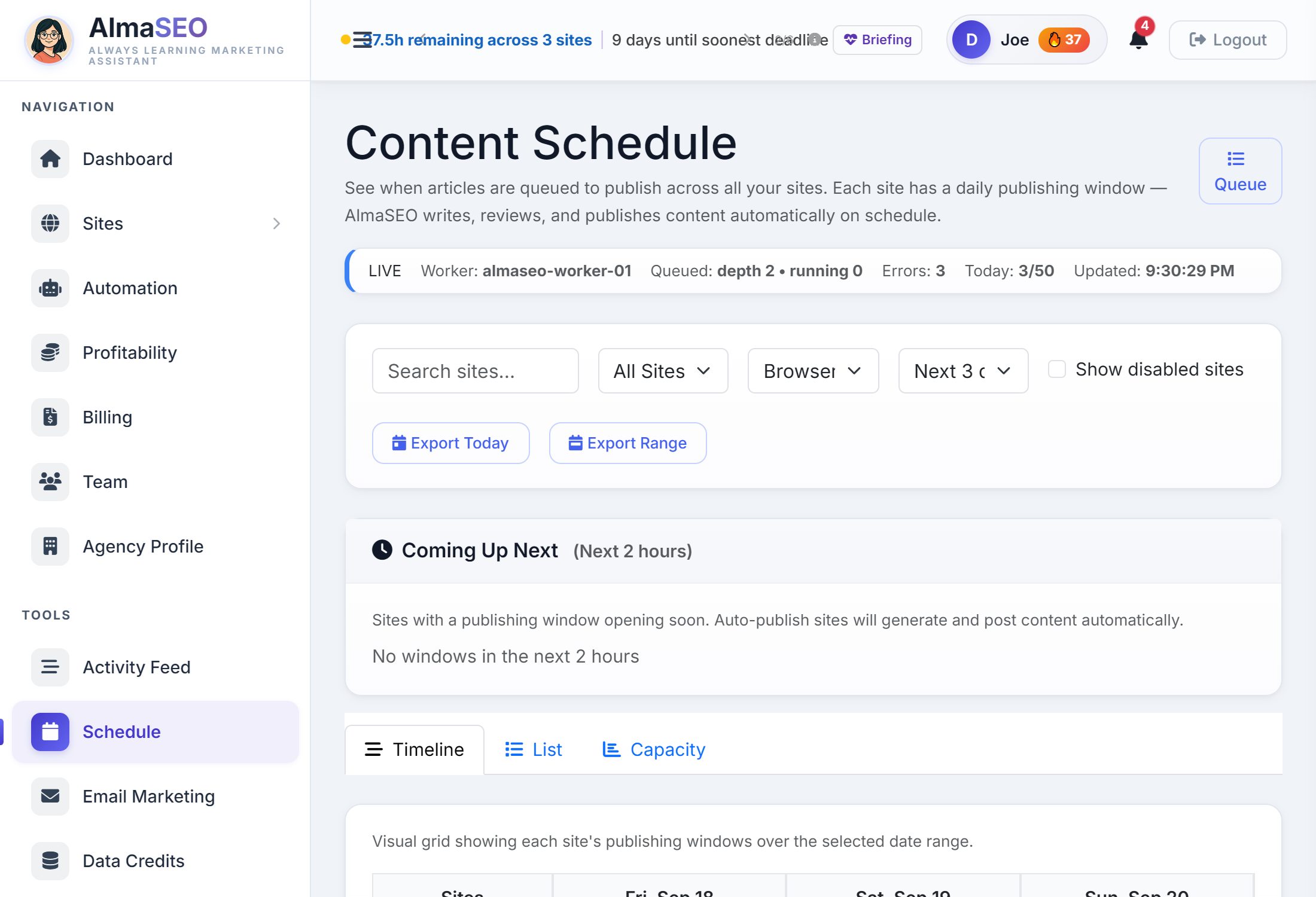
The strip under the title tells you whether anything will publish today:
- LIVE or OFFLINE: whether AlmaSEO's publishing worker can be reached. OFFLINE brings up a warning bar, and nothing publishes until it's back.
- Queued: articles waiting, and how many are being written right now.
- Errors: jobs that failed and stopped retrying. Anything above zero is worth opening.
- Today: articles published today against your account's daily cap.
The Queue button opens the queue itself on Automation, where each job shows its topic and site.
2. See what's next
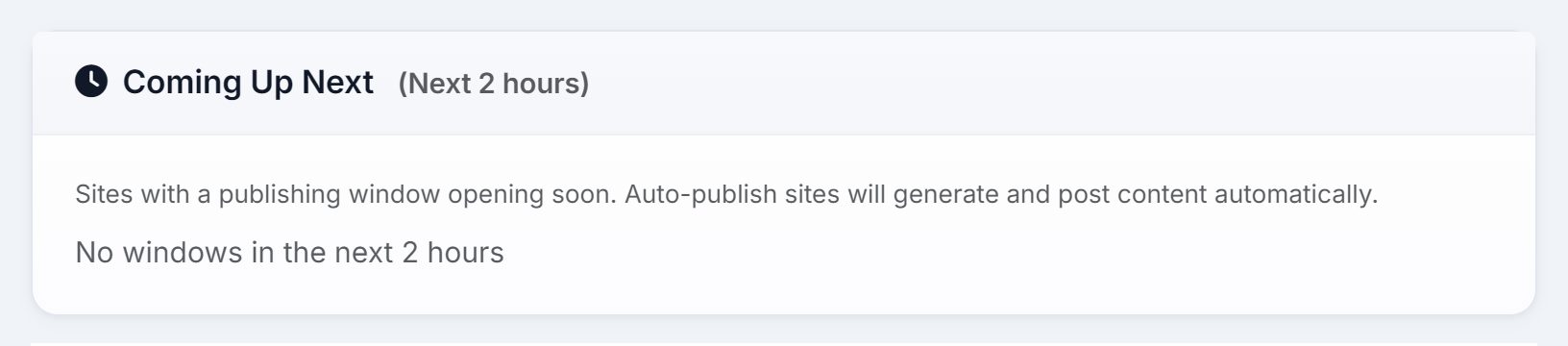
Coming Up Next lists sites whose window opens in the next two hours. Auto On means the article is written and published without anyone touching it. Auto Off means the window passes and nothing goes out. If a client is expecting a post and their row says Auto Off, you've found the problem before they did.
3. Read the week on the Timeline
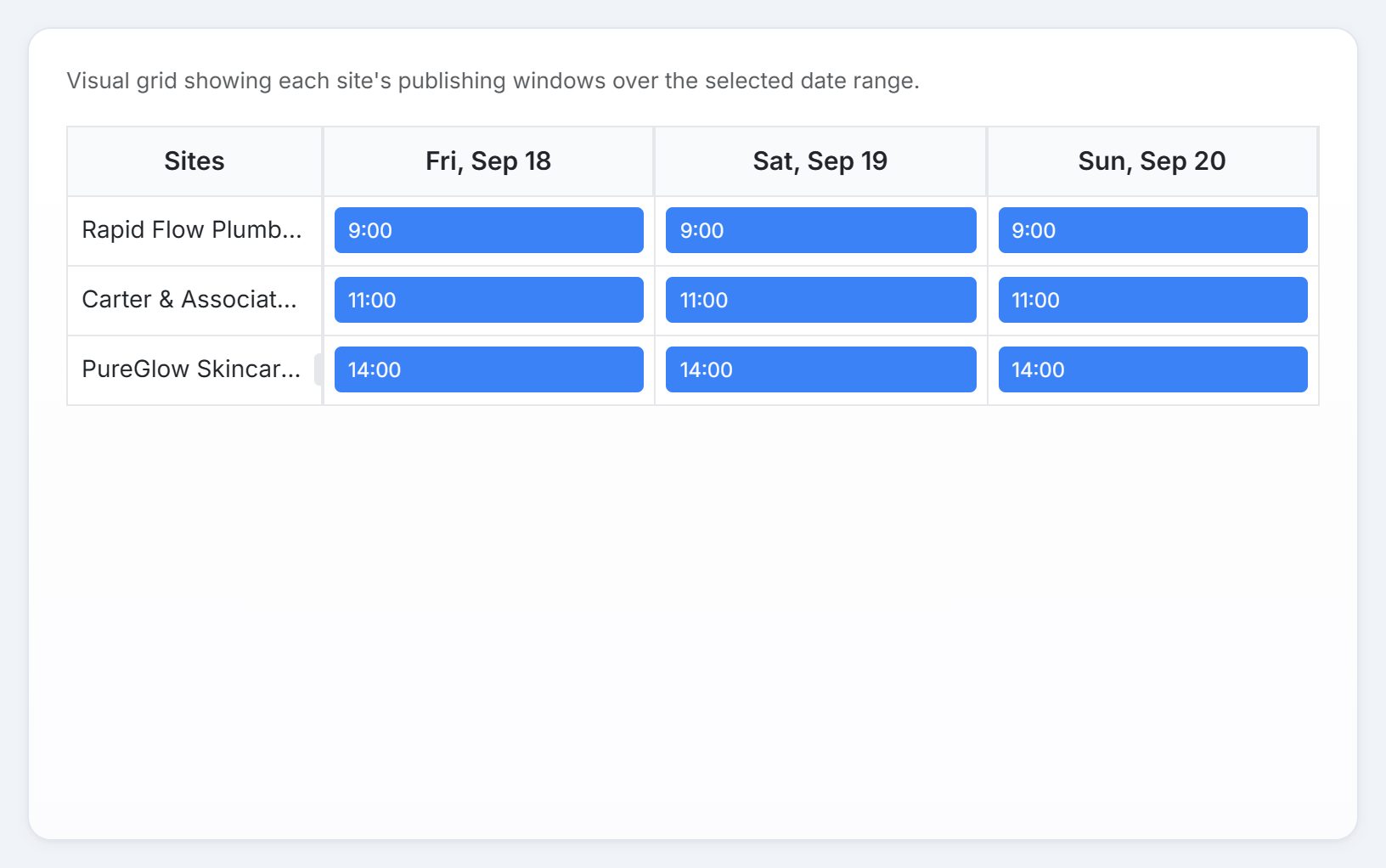
Each row is a client, each column a day, each block the time that site publishes. Sites with automation switched off are greyed out. Read down a column: blocks spread across the day are healthy, and blocks stacked at one hour are a pile-up.
Windows come from each site's own automation settings: how often it publishes and at what hour. To move one, open that site's Automations tab. Content Schedule is the view, not the switch.
4. Answer clients in their own time zone
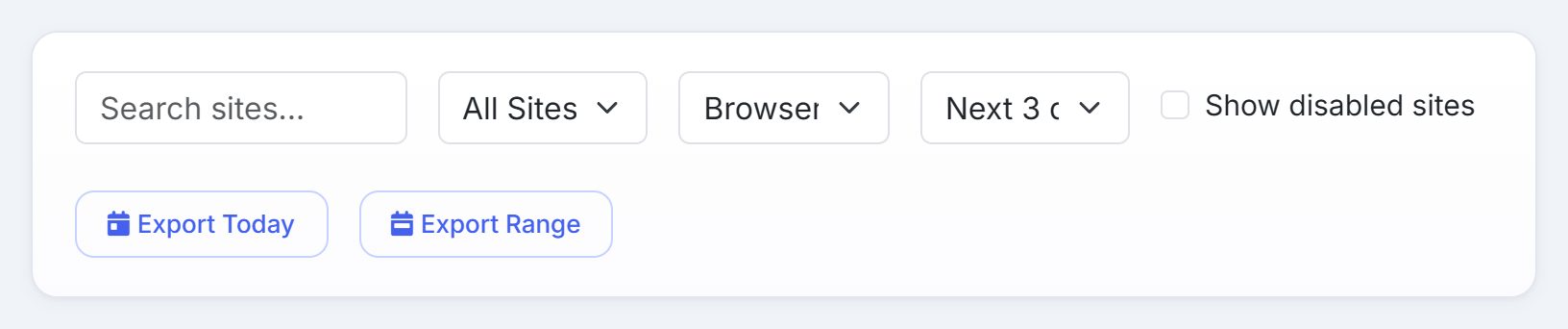
- Timezone: your browser's time, UTC, or any of the four US zones. Every time on the page moves with it.
- Range: today, the next three days, or the next seven.
- Site and search: narrow it to one client.
- Show disabled sites: include sites whose automation is off.
5. Put the schedule in a calendar
Export Today and Export Range download the windows as a calendar file (ICS) in the timezone you picked. It opens in Google Calendar, Outlook or Apple Calendar, so publishing sits beside your meetings.
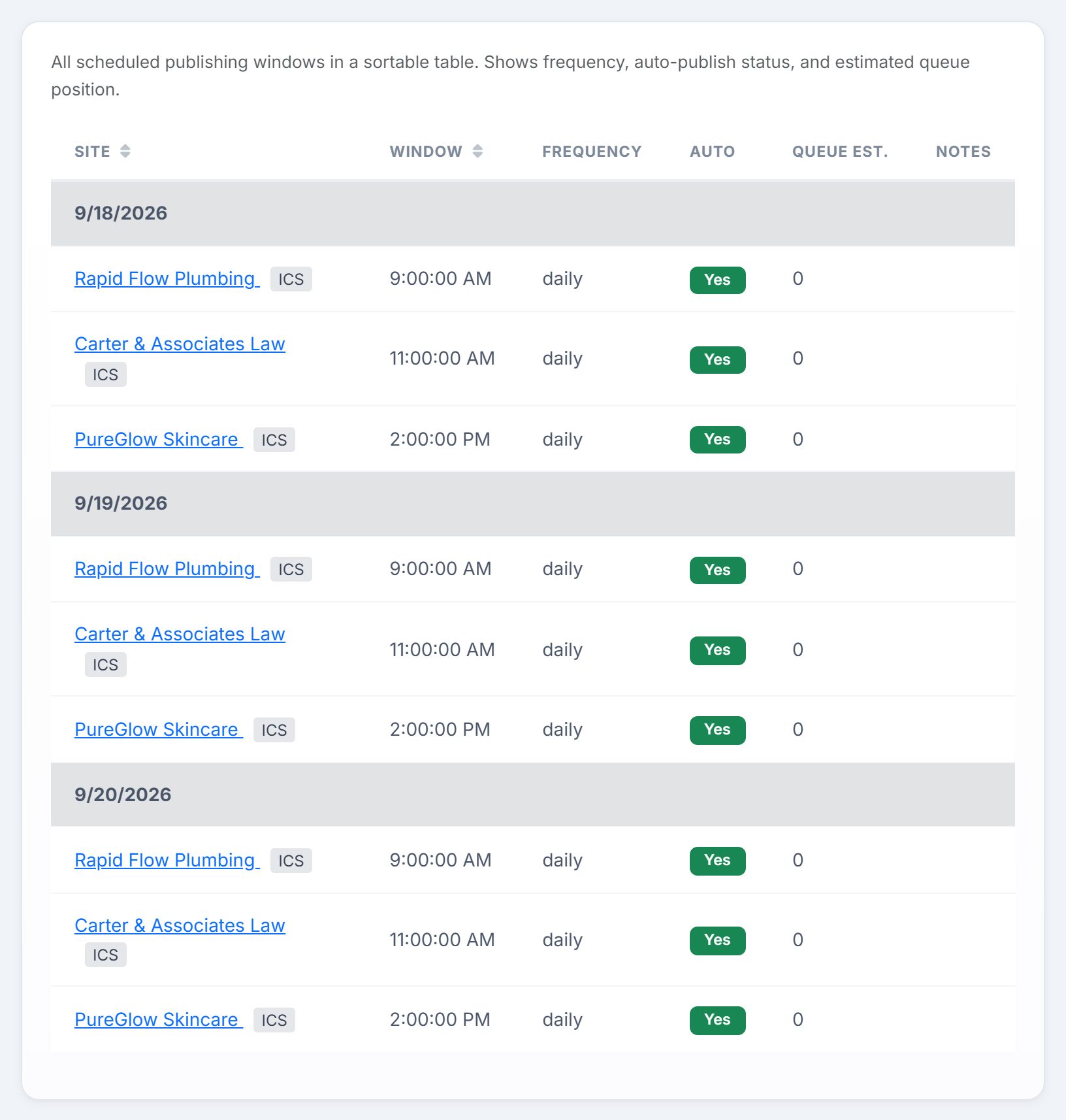
The List tab shows the same windows as a table, grouped by day. Each site has its own ICS link, so one client's schedule can go into a calendar on its own. Queue Est. shows how many jobs are expected ahead of that window when it opens.
6. Check capacity before you add clients
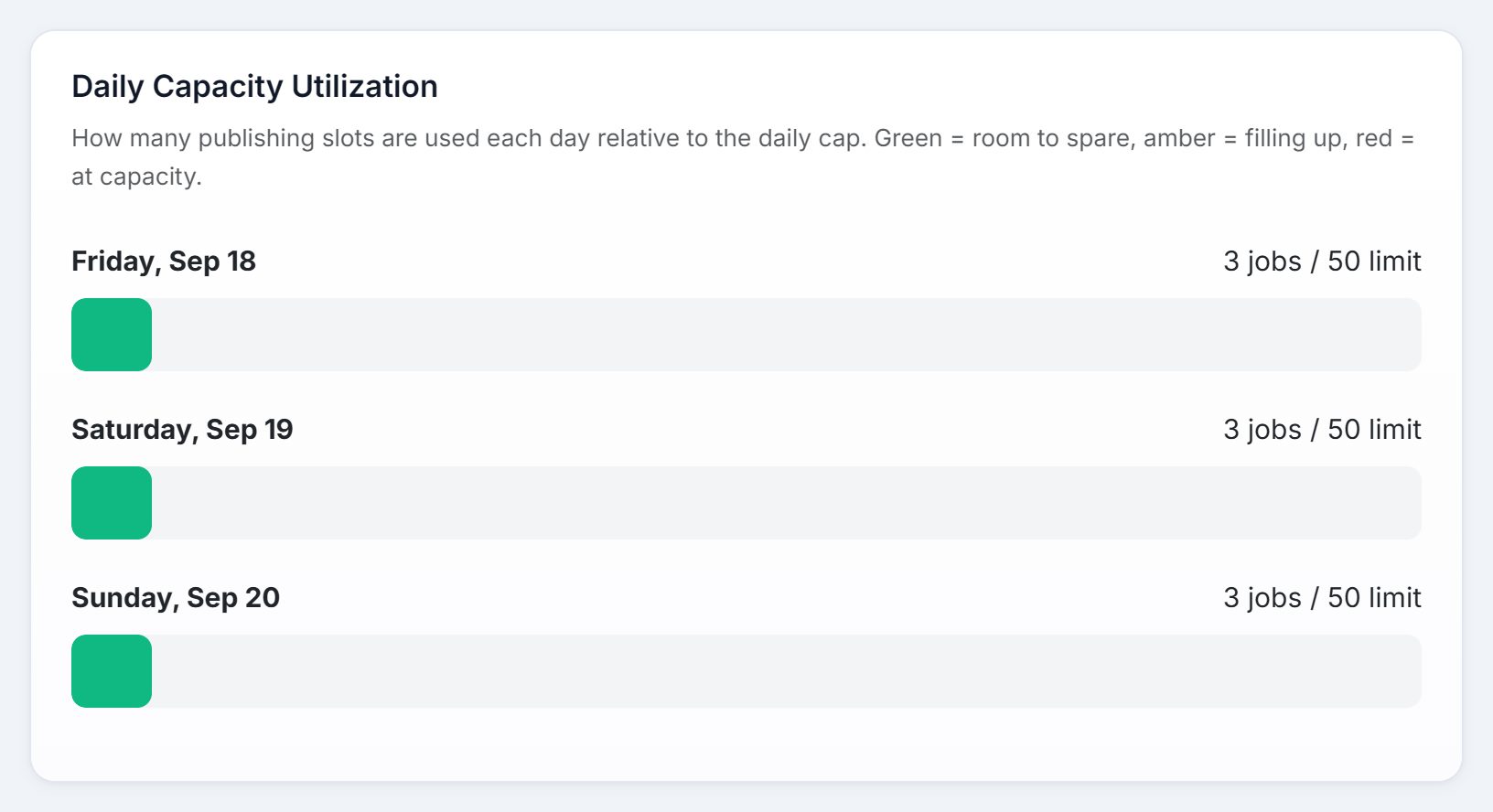
The Capacity tab shows one bar per day: the jobs that day uses against your daily cap. Green while there's room, amber as the day fills, red once it's at capacity.
Real-world example: the Monday pile-up
You run SEO for six local businesses. Four publish daily, two weekly, and you set them all up at the default hour without thinking about it.
- Monday morning, Rapid Flow Plumbing's owner emails: "Did this week's post go out?" You open Content Schedule, switch the timezone to his, and the List view shows his window at 20:00 last night with Auto on. The status strip shows no errors, and the post is on his blog. One minute, one answer.
- On the Timeline, you notice something else: all six clients sit at the same hour. Monday's column is a single stack, because both weekly sites publish on Monday too.
- You spread them out. On each site's Automations tab you move the windows to 9:00, 11:00, 13:00, 15:00 and so on. Next week's Timeline shows the blocks spread down each column.
- You're pitching two more clients, both wanting daily posts. You open Capacity. Every day is green, well under the cap. You can say yes without changing anything.
- Rapid Flow's owner gets his site's ICS link from the List view. His publishing dates now sit in his own calendar, and the "did it go out?" emails stop.
Key takeaways
- Content Schedule shows every client's publishing windows on one calendar, on every plan.
- Check the status strip first: OFFLINE means nothing publishes until it's back, and Errors above zero need a look.
- Auto Off in Coming Up Next means that window passes with nothing published.
- Windows are set on each site's Automations tab. Schedule shows them; it doesn't change them.
- The daily cap is shared by the whole account. Check Capacity before you add daily clients.
- Stagger publishing hours so jobs don't queue behind each other.
- Google has no ideal posting frequency. Steady, reviewed content beats a flood of pages made to rank.
Next up is Email Marketing, where the work you publish becomes your agency's own newsletter.