
Tutorial · Indexing
How to get Google to index your site: find and fix the pages it left out
A page Google hasn’t indexed can’t rank for anything. This tutorial takes you through the whole job in AlmaSEO: list every page Google has left out, read Google’s reason for each one, fix the cause, tell Google, and come back two weeks later to check it worked. No AlmaSEO account? Every step also shows the free way, with Google Search Console.
Before you start
- Search Console connected. Everything here reads Google’s own data about the site. Connect Google Search Console, Bing Webmaster Tools and IndexNow takes about fifteen minutes.
- A sitemap in Search Console. AlmaSEO checks the pages listed in the site’s sitemap, so the sitemap needs to be there. On the Search Console tab, the sitemaps list shows which ones Google has.
- Not every page should be indexed. Redirects, tag pages, thank-you pages and duplicates are often left out on purpose. The job is to find the pages that should be in Google and aren’t.
- On WordPress, the free plugin. The WordPress steps use the free AlmaSEO SEO Playground plugin, from the WordPress.org plugin directory.
- Doing it without AlmaSEO. The Without AlmaSEO notes show the same job in Google Search Console, one page at a time.
Step 1: See which pages are out
Open the site in AlmaSEO, go to its Search Console tab, then Technical. The Page Indexing card is at the top.
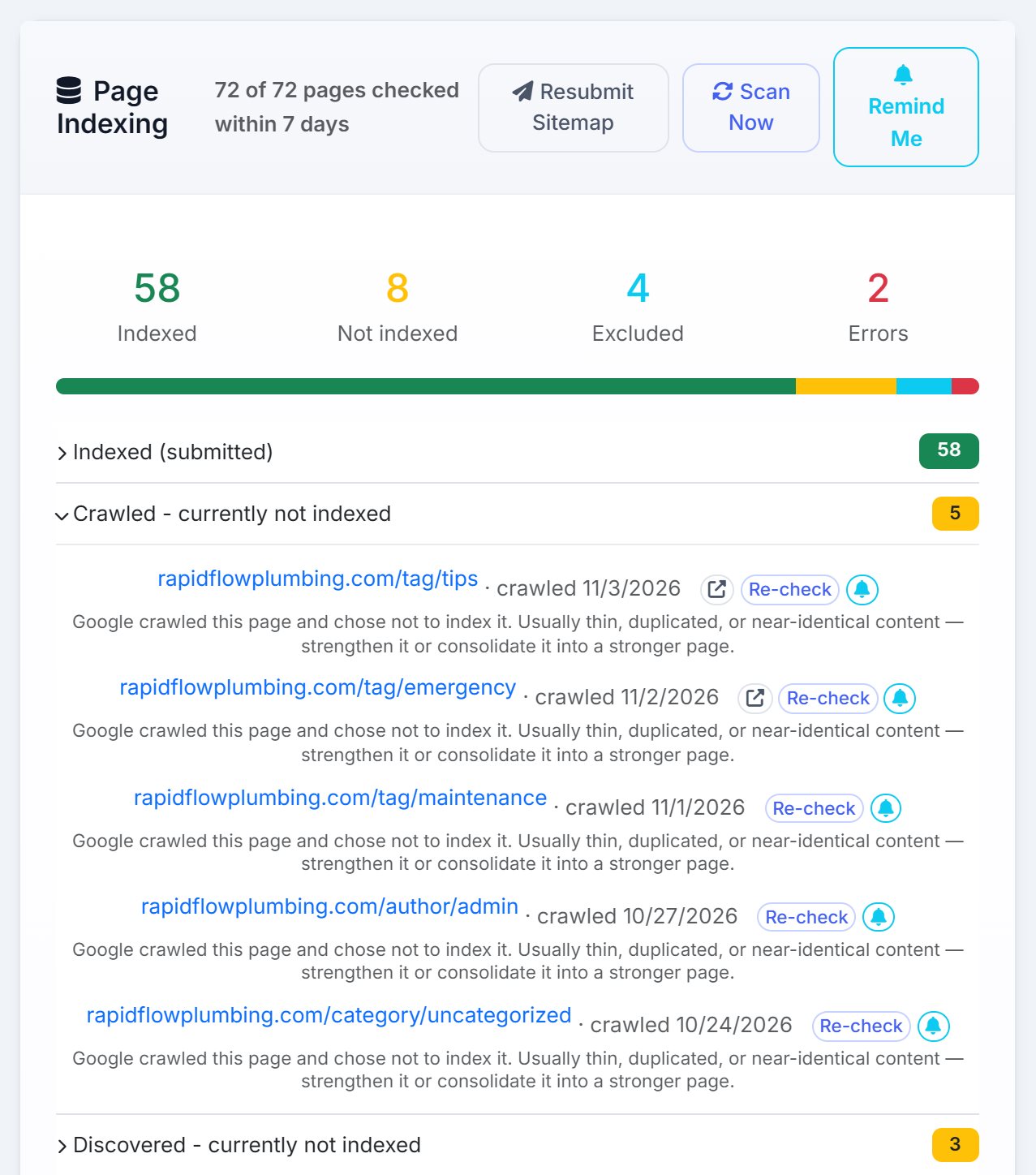
The four tiles add up the whole site: Indexed, Not indexed, Excluded and Errors. Below them is one row for each of Google’s states, with a count. Click a row to list its pages.
The line at the top says how fresh the numbers are, like 72 of 72 pages checked within 7 days. AlmaSEO checks each page with Google every night, up to 200 a night, oldest first. To check everything now, press Scan Now.
Step 2: Read Google’s reason
Every page in the list carries Google’s reason, in its words and then in plain ones. The reason decides the fix, so sort the list by reason before you change anything. These are the ones you’ll see most, the most common first:
- Discovered – currently not indexed
- Google knows the address but hasn’t visited yet. It hasn’t judged the page, because it hasn’t read it. This is about priority: the page needs more links pointing at it from pages Google already visits.
- Crawled – currently not indexed
- Google read the page and chose to leave it out. Usually the page is thin, or says much the same as another page. The fix is a better page, or merging it into a stronger one. Crawled, currently not indexed explains the six usual causes.
- URL is unknown to Google
- Google has never come across the address. Check it’s in the sitemap and that some other page links to it.
- Excluded by ‘noindex’ tag
- The page tells Google not to index it. Fine if that’s deliberate. If not, it’s the quickest fix on the list.
- Blocked by robots.txt
- The site’s robots.txt file stops Google from visiting the page.
- Not found (404), Soft 404 and server errors
- The page is missing, looks empty, or the server failed when Google called. A page that’s gone for good should come out of the sitemap, with a redirect to its replacement.
- Page with redirect, and Alternate page with proper canonical tag
- Nothing to fix. These pages send Google to another address, and Google indexes that one instead.
Step 3: Inspect one page
Before you fix a page, look at what Google saw. Each page in the list has Open in Search Console, which opens Google’s own report on it. Inside AlmaSEO, the URL Inspector further down the same tab gives the same answer: paste the address, press Inspect URL, and read the result.
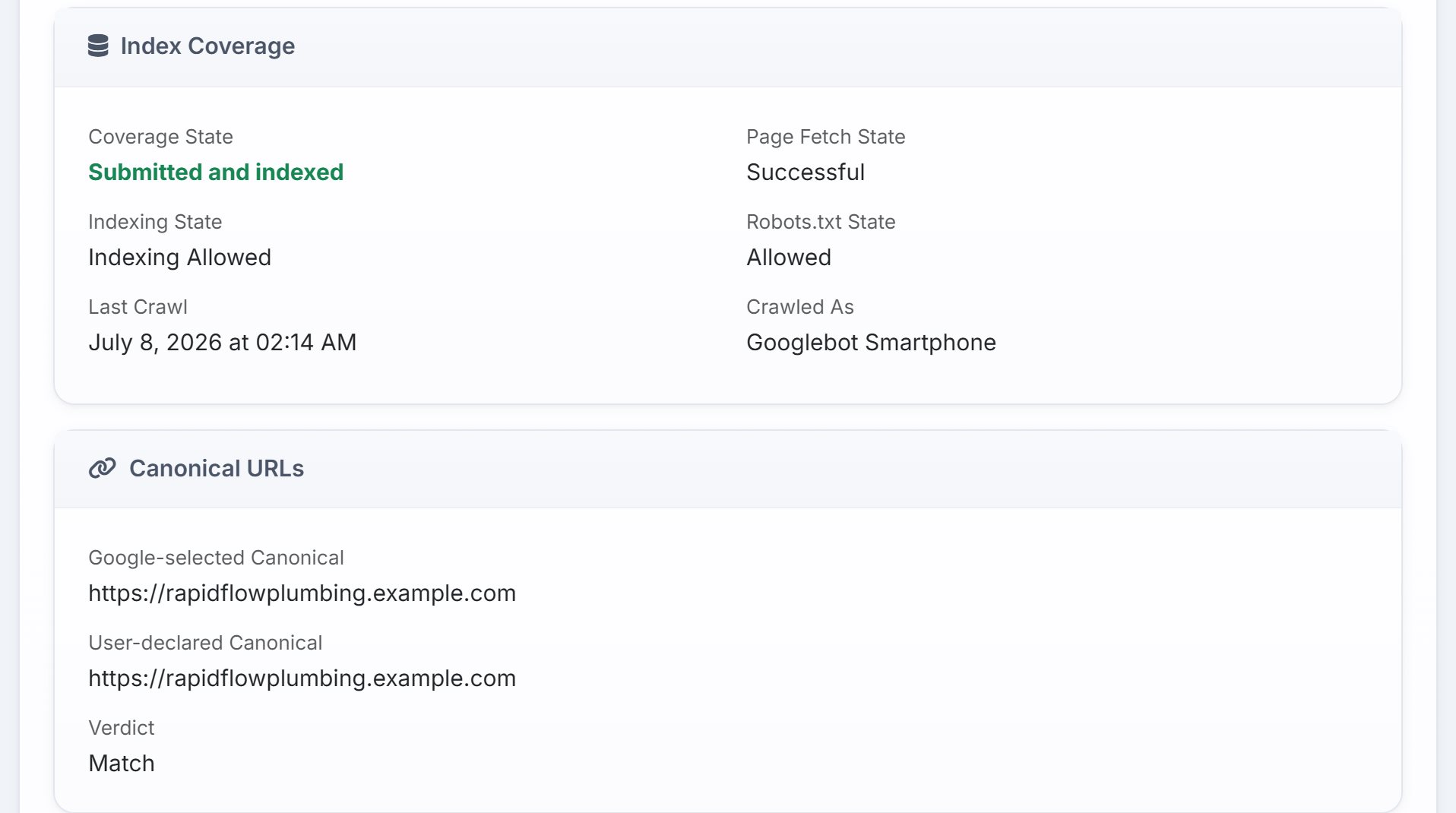
- Indexing State
- Anything other than Indexing Allowed means a noindex tag is in the way.
- Robots.txt State
- Allowed or blocked.
- Page Fetch State
- Whether Google could load the page at all.
- Last Crawl
- When Google last visited. If you changed the page after this date, Google hasn’t seen the change yet.
- Google-selected and User-declared Canonical
- If they differ, Google thinks another page is the main version, and indexes that one instead.
Step 4: Fix the cause
Work through the list one reason at a time.
Discovered, and URL unknown: give the page links
Link to the page from pages Google already visits often: the home page, a service page, a popular post, the menu. Use words that say what the page is about. Check it’s in the sitemap too. On a large site, a slow server also holds Google back, so check the site’s speed if hundreds of pages are waiting.
Crawled: make the page worth indexing
Ask what the page offers that no other page does, on this site or anyone else’s. Add what’s missing: real detail, the business’s own experience, photos, prices, answers to the questions customers ask. If the page says much the same as another page on the site, merge the two and redirect the weaker one. And some pages, like tag and author pages, are rarely worth indexing at all: set them to noindex and move on.
Noindex: remove the tag
If the page should be in Google, remove the noindex. It’s usually a page setting in the site’s editor or SEO plugin.
Blocked by robots.txt: open the door
Find the line in robots.txt that blocks the page and remove it, or narrow it so it only covers what it should.
404 and errors
Bring back a page that was deleted by mistake. If it’s gone for good, redirect its address to the closest page that still exists, and make sure the sitemap no longer lists it. For server errors, check with the host: Google will try again on its own once the site answers.
Step 5: Tell Google
Nobody can make Google index a page. You can make sure it knows the page has changed, and ask it to look again.
- Resubmit the sitemap. On the Page Indexing card, Resubmit Sitemap sends every sitemap the site has to Google again, which tells it something has changed.
- Ask Google to look at the page. Click Open in Search Console beside the page, then Google’s own Request indexing button there. Do this only for pages you’ve actually changed. Asking again for an unchanged page rarely helps.
- Tell Bing and the others too. For an article AlmaSEO wrote, its Search Engine Submission card has Resubmit to Bing and Resubmit to Other Engines, which goes out through IndexNow.
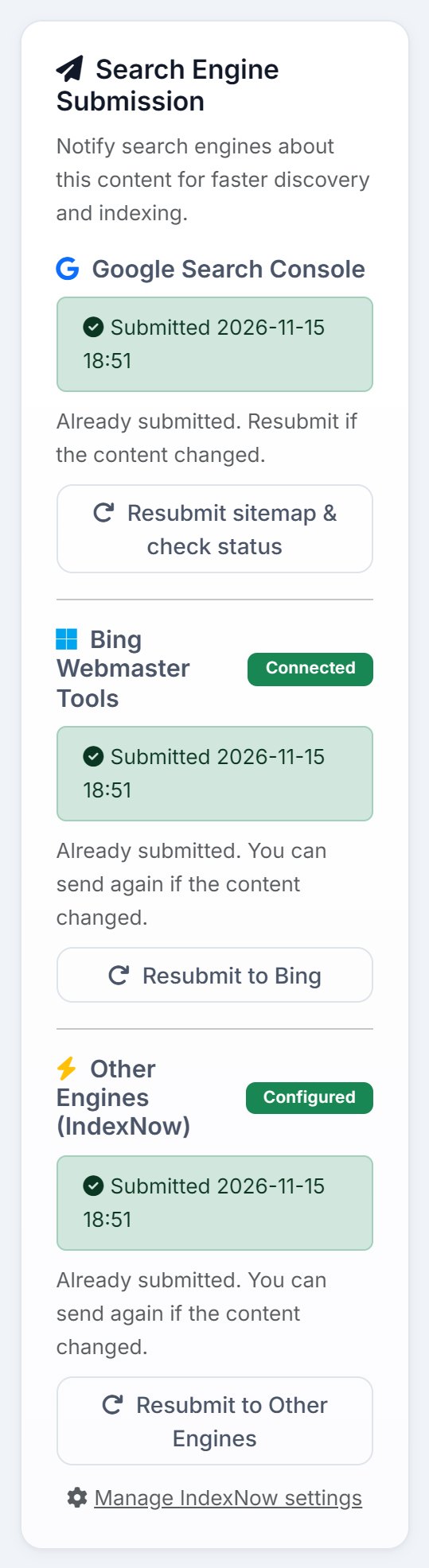
On an article’s page, Resubmit sitemap & check status does steps 1 and 2 in one go: it resubmits the sitemap, checks the article with Google, and opens it in Search Console, ready for you to click Request indexing.
Step 6: Set the reminder
Google takes days to weeks to come back, so the last job today is making sure you do too. In the page list, press the bell beside a page you’ve fixed. AlmaSEO opens Set Reminder with the page and its current status already filled in, two weeks out. For the whole site, Remind Me at the top of the Page Indexing card saves today’s indexed and not-indexed counts instead.
On an article’s page, the button is Remind me to re-check in 14 days.
Step 7: Two weeks later
When the reminder comes due, open Reminders (in the main sidebar, under Work). It shows the status you saved two weeks ago. Then check where things are now:
- On the Page Indexing card, press Re-check beside the page. AlmaSEO asks Google about it there and then, instead of waiting for the nightly check.
- If it now reads Submitted and indexed, you’re done. For an article, its badge on Content Performance turns green: Indexed.
- Compare the site’s indexed count with the one the reminder saved.
Then press Done on the reminder and answer Did the fix work?. If a page that was indexed drops out later, the Daily Briefing says so the next morning.
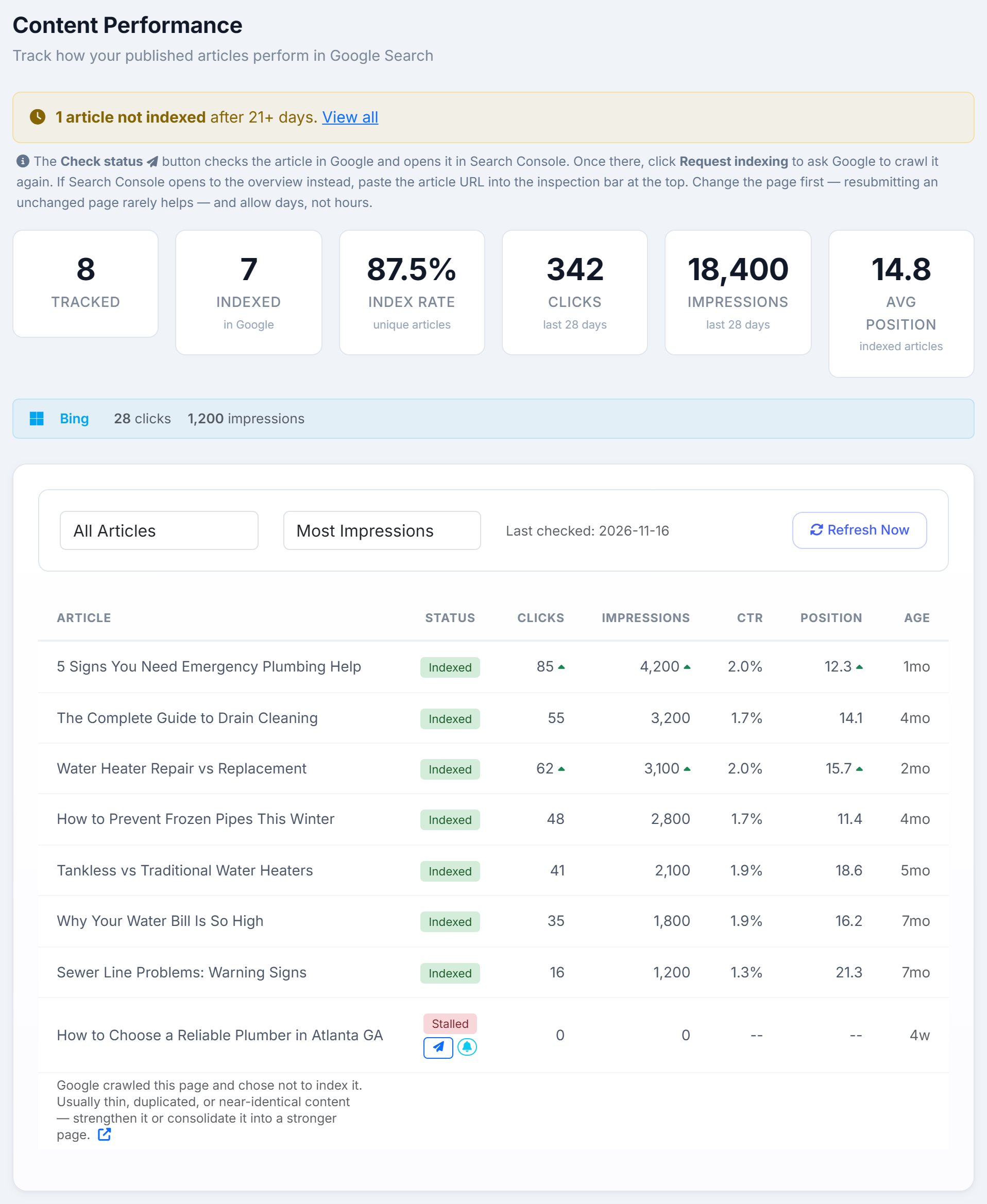
If it hasn’t worked yet
- It moved from Discovered to Crawled
- Progress: Google has now read the page. If it still left it out, the page itself is the problem. Go back to the Crawled fix in step 4.
- Still Crawled, currently not indexed
- Google read the new version and still passed. The page needs to be clearly better, or clearly different from your other pages. Look again at whether it should be merged. The six causes are worth reading here.
- Still Discovered after a month
- Google still hasn’t been. Add more links from your strongest pages, and check the site’s speed and server errors. On a big site, cutting low-value pages (thin tags, old archives) frees Google’s time for the ones that matter.
- The Last Crawl date hasn’t moved
- Google hasn’t been back since your fix. Snooze the reminder with 30d and check again, rather than requesting indexing again and again.
- The reason changed to something new
- A fix can uncover the next problem: a redirect, a canonical pointing elsewhere. Read the new reason and start again at step 2.