
Why this matters
Consistent content is one of the most common things clients pay an SEO agency for, and one of the easiest to fall behind on. Automation lets AlmaSEO write articles on a schedule and send them to a client's WordPress site, either as drafts for review or straight to live.
Used well, it keeps every client's site steadily growing without eating your week. Used carelessly, it fills a site with articles nobody read, which can hurt more than it helps. This lesson is about using it well.
The SEO concept: what Google thinks about AI content
Google's stance is clearer than most people think:
- Google judges content on whether it's helpful, not on how it was made. AI-written content isn't penalized for being AI-written.
- Mass-producing pages mainly to manipulate rankings is spam, whether a person or a machine wrote them. Google calls this scaled content abuse.
So the question isn't "is this AI?" It's "would a real customer of this business find this useful?" That's why this lesson keeps coming back to review, and why Draft mode is the default.
What helps automated content be genuinely useful: accurate business details (services, service areas, credentials), a clear audience, topics that answer real customer questions, and a human reading at least the first few articles before anything goes live automatically.
The SEO concept: don't make your pages compete
Keyword cannibalization happens when two or more pages on the same site target the same search. Google has to pick one, often switches between them, and neither ranks as well as one strong page would.
Automation makes this easy to do by accident: publish weekly for a year and you've got 52 articles, several of which probably overlap. AlmaSEO's similarity check guards against this. It compares every suggested topic against the site's published posts, topics already queued, drafts automation has written, and other topics in the same batch, then warns or blocks accordingly.
The SEO concept: how new pages get found
Publishing a page doesn't mean search engines know it exists.
- Google discovers new pages mainly through your XML sitemap and links from pages it already knows. Google doesn't offer a general "submit this URL" service for tools. You can nudge it by hand with URL Inspection → Request indexing in Search Console, which is worth doing for important pages. When a page gets crawled and still doesn't appear, that has its own diagnosis.
- IndexNow is a shared system that lets a site instantly tell Bing, Yandex, Seznam and Naver about new pages. Google doesn't use it. It still matters: Bing's index powers Microsoft Copilot and is one of the sources behind ChatGPT's search, so faster Bing indexing can mean showing up in AI answers sooner.
When automation auto-publishes an article to a site that has IndexNow set up (through the free SEO Playground plugin), AlmaSEO pings IndexNow for you. Drafts aren't submitted, because they aren't live.
Be patient: new articles typically take 2 to 4 weeks to show meaningful data in Search Console.
Walkthrough
Where: Automation in the left sidebar opens the Automation Center. Plans: Pro and Agency. Sites: WordPress only (automation needs the Connector to publish), so Other and Project sites don't appear here.
The Automation Center
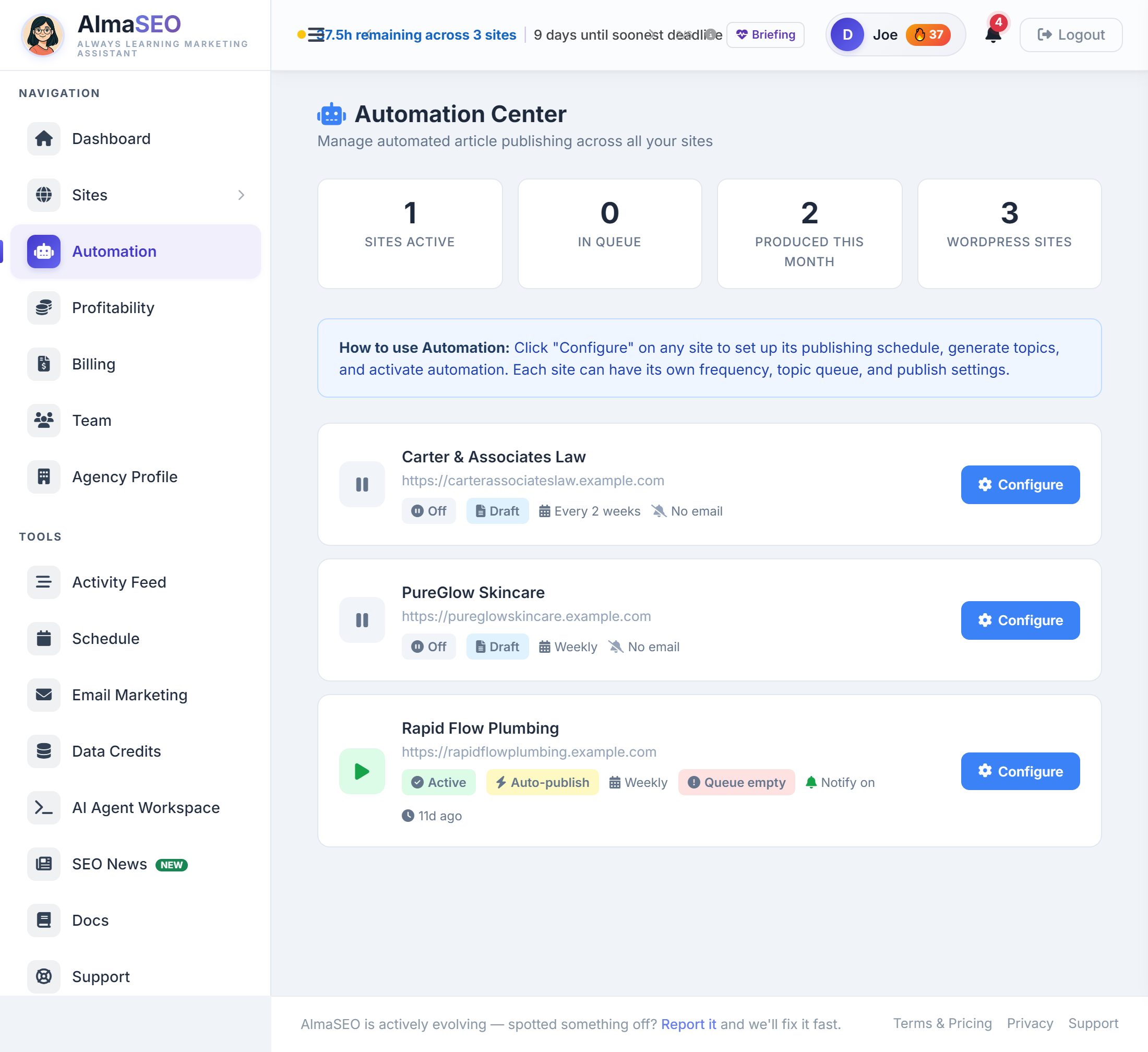
The overview across all your WordPress sites. It doesn't change settings itself; it shows you where things stand and sends you to the right place. The Automation page of the product guide documents every control; this lesson is about which settings keep you out of trouble.
| Stat | What it means |
|---|---|
| Sites Active | WordPress sites with automation switched on |
| In Queue | Articles waiting to be written, across all sites |
| Produced This Month | Articles automation finished since the 1st, including drafts |
| WordPress Sites | All your WordPress sites, automated or not |

Read the first two together. Active sites with an empty queue will publish nothing.
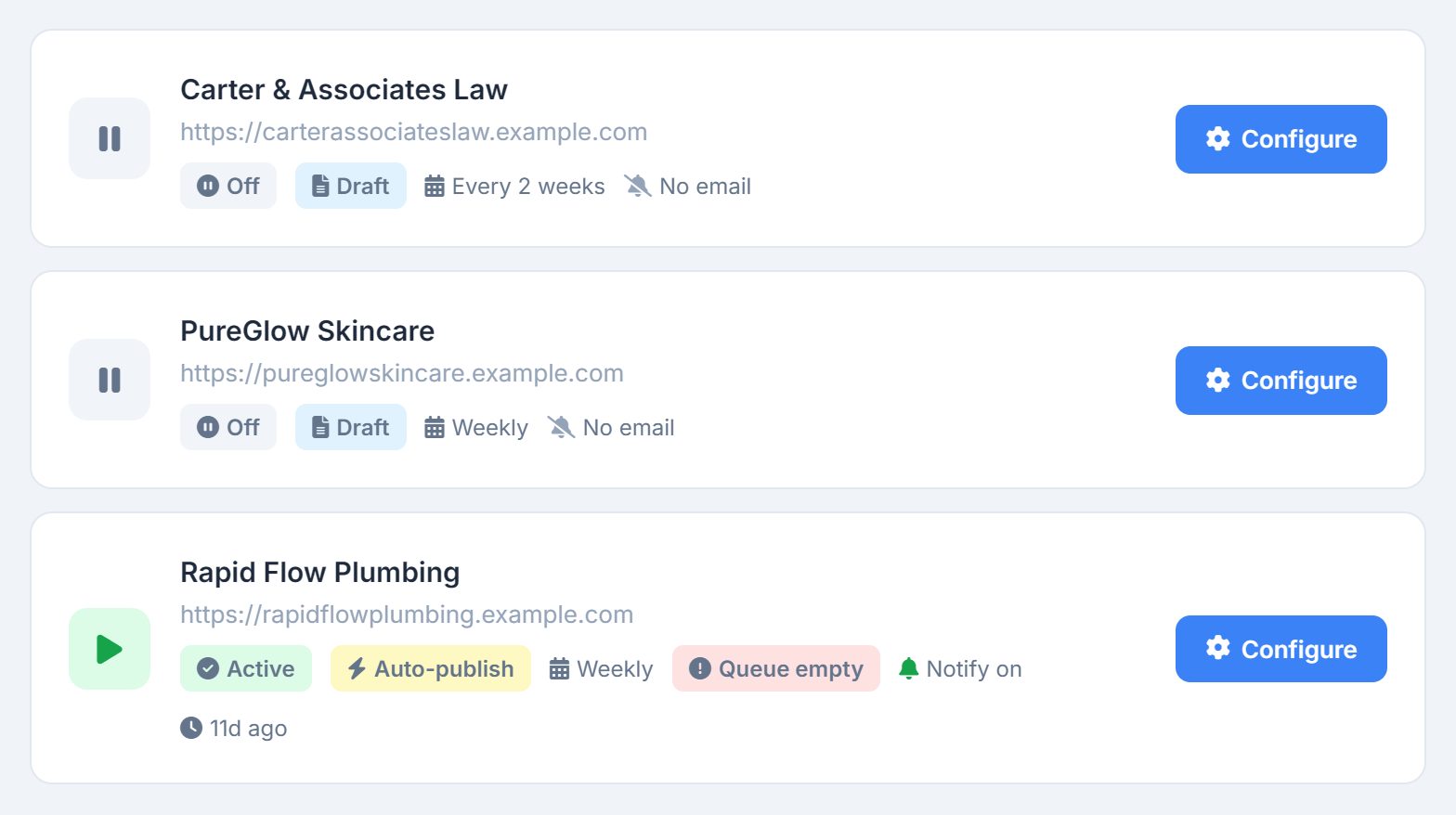
Below the stats, one row per site, with badges:
- Active or Off
- Auto-publish (goes live) or Draft (waits in WordPress for review)
- Frequency: Daily, 2x/week, Weekly, Every 2 weeks, or Monthly
- N queued or Queue empty
- Notify on or No email
- Last activity: when automation last finished a job
Configure opens that site's Automations tab, where everything is set up.
Setting up a site: three steps
Step 1: Schedule
- Posting frequency: Daily (weekdays only, about 5 a week), Twice a week, Weekly (the default), Every 2 weeks, or Monthly
- Start date: when to begin
- Publishing mode: Save as Draft (recommended) or Auto-Publish
- Notification emails: one or more addresses, with a Send Test button. These people hear when articles are ready, and if one fails.
- Daily limit: 1, 2 or 3. A safety cap on how many articles can go out in a single day.
Step 2: Topics
- Optionally open Content style preferences: target audience, tone of voice (Professional, Friendly & approachable, Authoritative & expert, or Casual & conversational), and guidance keywords.
- Click Generate Topics (15 to 45 seconds). You get up to 15 suggestions based on the site's business details and, if connected, its Search Console data.
- Each topic shows a similarity badge:
- Unique: no significant overlap
- Orange: some overlap (40–69%). Still selectable. Read it carefully.
- Red, "Skipped — too similar": 70% or more. Can't be selected.
- Topics at 88% or higher are left out of the list entirely.
- The badge tells you what it matched, such as a published post or a queued topic.
- Select topics, drag to set the order they'll be written in, or add your own.
- Click Save & Schedule Selected Topics. AlmaSEO runs one more duplicate check; if it flags something, you can confirm or skip it.
Step 3: Turn it on
Flip the master toggle. If the queue is empty, you'll get a warning: nothing runs until topics are scheduled.
Keeping an eye on it
- Publishing History: a list or calendar view of what's been produced and what's coming
- Article Performance: with Search Console connected, each automated article's position, impressions, clicks and click-through rate
- Low queue alert: a banner when 3 or fewer topics are left
- Failures: if an article fails three times, you get an in-app notification, an activity log entry, and an email to the notification address (or the account owner). Failed jobs appear in the queue, and Retry All sends them back through.
Real-world example: Bob's Gardening, month one to month three
Month one. You configure Bob's Gardening: Weekly, Draft mode, your email as the notification address. Target audience: "Homeowners in Greenville with established yards." You generate topics. "When to aerate your lawn in the Upstate" is unique. "Best time to aerate a lawn" comes back red: Bob already has a published post on that. You skip it and pick 8 others.
Weeks 1 to 4. Every Monday a draft lands in WordPress and you get an email. You read each one. Week two's draft recommends a fertilizer Bob doesn't sell, so you fix it before publishing. You add "we only use organic products" to the guidance keywords.
Month two. The drafts are consistently good. You switch the row to Auto-publish. Now each article goes live on schedule, and since Bob's site has IndexNow set up, Bing hears about it immediately. For the two articles you think matter most, you also run URL Inspection → Request indexing in Search Console.
Month three. The low queue banner appears. You generate a fresh batch. Article Performance shows the aeration article at position 9 with growing impressions. That one might deserve a refresh.
Total time: about 20 minutes a month, instead of writing 4 articles yourself.
Key takeaways
- Google judges content on helpfulness, not on whether AI wrote it. Unreviewed mass content is where the risk is.
- Start every new client in Draft mode with a notification email. Switch to Auto-publish only once you trust the output.
- Sites Active + empty queue = nothing publishing. Keep queues topped up.
- Respect the similarity badges. Red means the site already covers that topic.
- Produced This Month includes drafts, so it's not the same as what's live.
- On sites with IndexNow set up, auto-published articles are sent to Bing and friends right away. For Google, rely on the sitemap and links, and use URL Inspection for your most important pages.
Publishing on a schedule is only worth it if the retainer paying for it still makes money. That is the next lesson: Profitability.