
Why this matters
A retainer is a promise: this many hours of work, every month. Most agencies keep that promise by feel. The first week is quiet, the last week is a scramble, and somewhere in the middle one client gets forgotten until they email to ask what's going on.
The Activity Feed puts the whole agency on one page. At the top, AlmaSEO adds up every retainer and tells you how much is done, what today needs to look like, and which client needs you next. Underneath, every article, audit, automation and hour of logged work sits in one timeline, so "what did we do for them?" always has an answer.
The business concept: even pacing beats the end-of-month crunch
A 40-hour retainer isn't 40 hours on the 28th. It's roughly two hours every workday. Pacing is checking, every day, whether you're where an even pace says you should be.
Pacing does three things for you:
- Clients get steady work, not a burst before the invoice goes out.
- Problems show up early. Falling five hours behind on the 10th is easy to fix. Falling twenty behind on the 25th isn't.
- You choose who to work on from data instead of whoever emailed last.
A good habit: open the Activity Feed first thing, look at Today's Target and the top of the Client Priority Queue, and start there.
The people concept: a pace you can't keep isn't a plan
Hitting every retainer by working every weekend isn't a win. It's a debt, and it comes due as mistakes, missed details and, eventually, someone quitting. Agencies rarely lose clients to one bad month. They lose them to the slow slide after the team is worn out.
That's why the planner ends with Headspace, a burnout check. It reads the same logged hours and asks a different question: not "are we on track?" but "can we keep this up?"
Walkthrough
Where: Activity Feed, in the sidebar under Tools. Plans: Agency. On Pro, retainer tracking lives on the app's My Workload page instead (more on workload management).
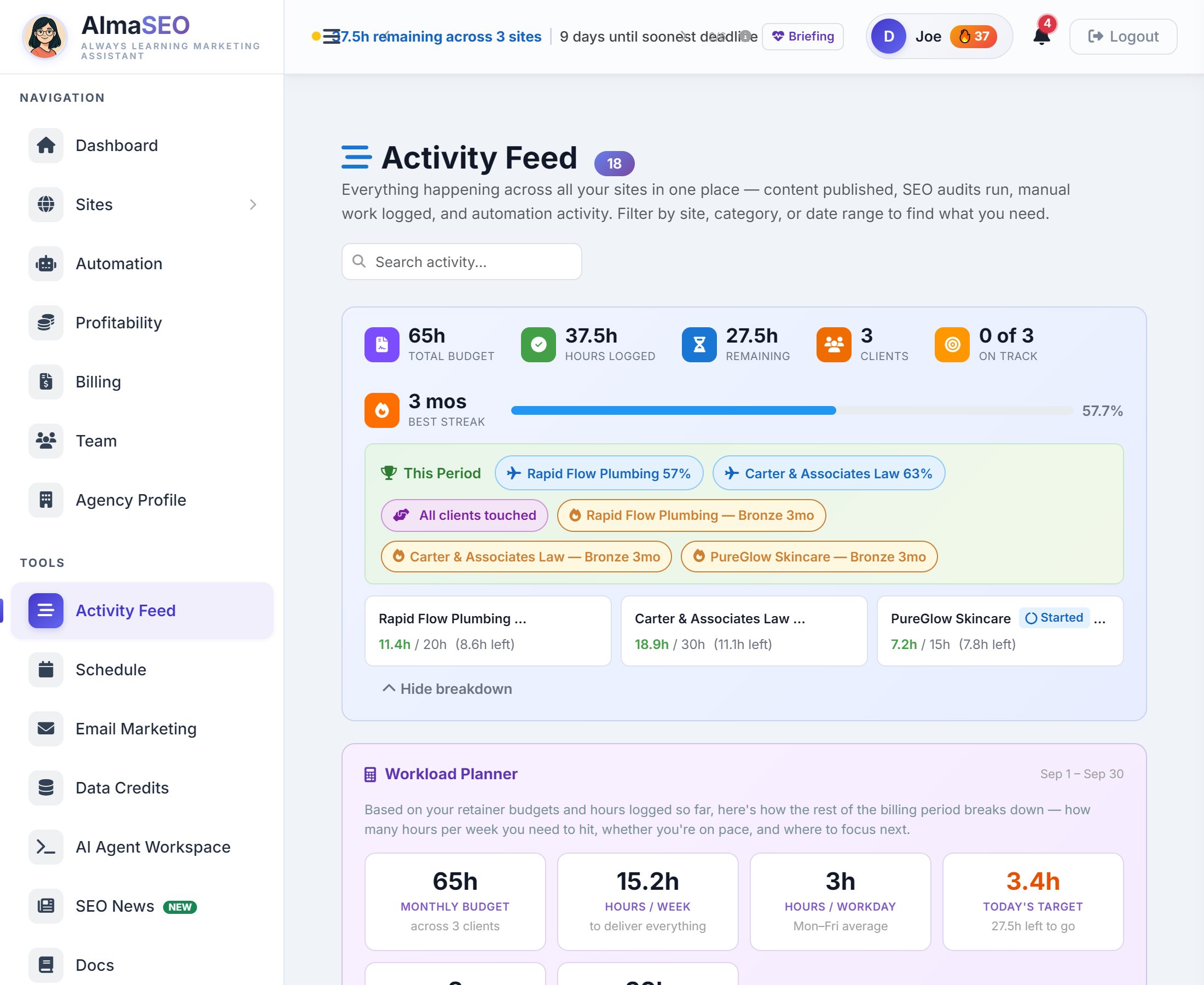
The retainer summary
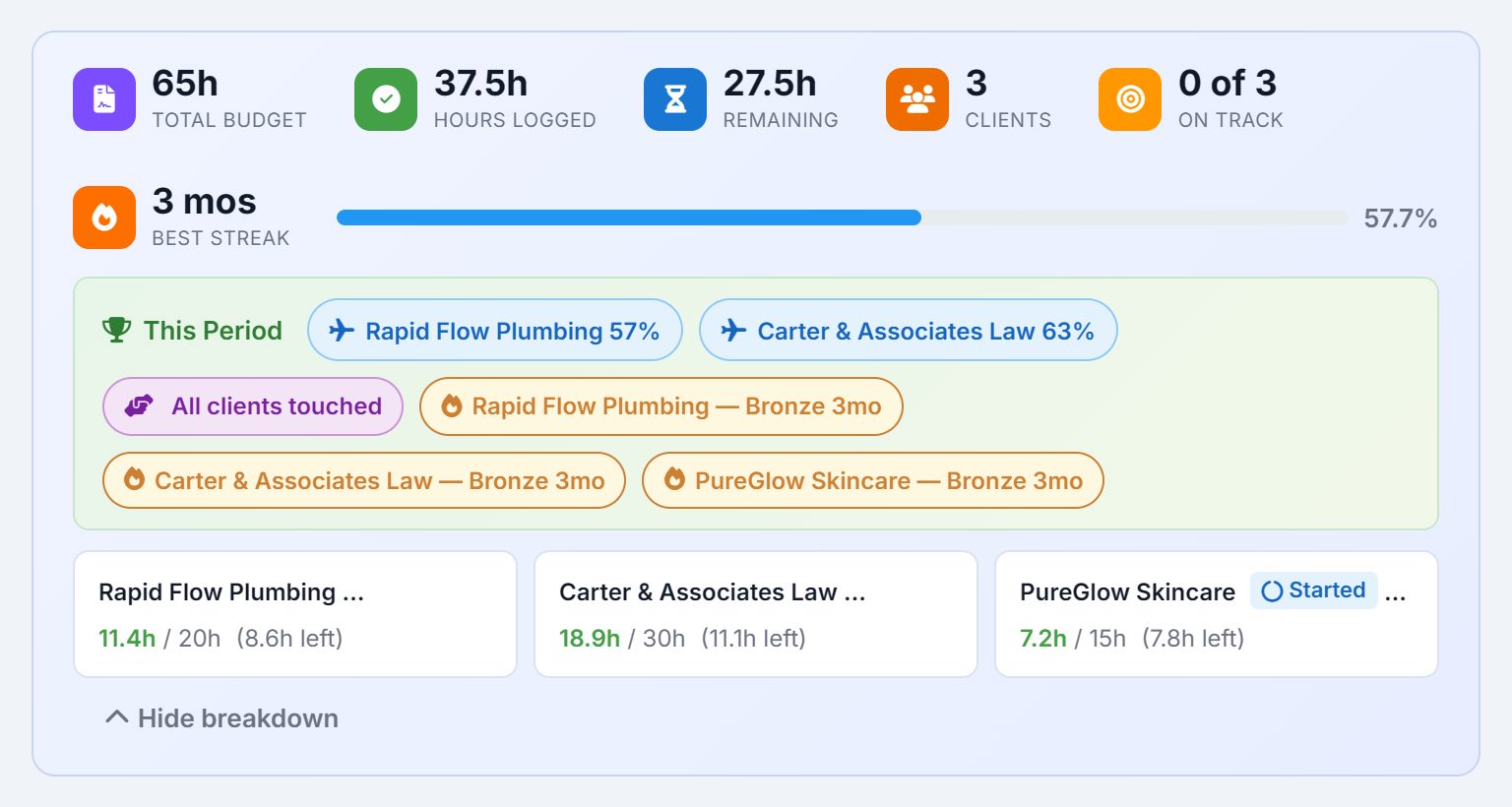
This bar appears once any client has retainer hours set. It adds every client's current billing period together:
- Total Budget, Hours Logged, Remaining: what your retainers sell this period, what's been logged, and what's left.
- On Track: how many clients have had at least the hours they were due by today.
- Best Streak: the longest run of periods in which a client got every hour it paid for.
This Period collects the wins as chips: clients met, a streak reaching Bronze (3 months), Silver (6) or Gold (a year), all clients touched. When every client's hours are met, a Perfect Month banner appears. Open Per-client breakdown to see each client's hours, streak and a badge: Not Started, Started, 50%+, Met or Over.
The Workload Planner
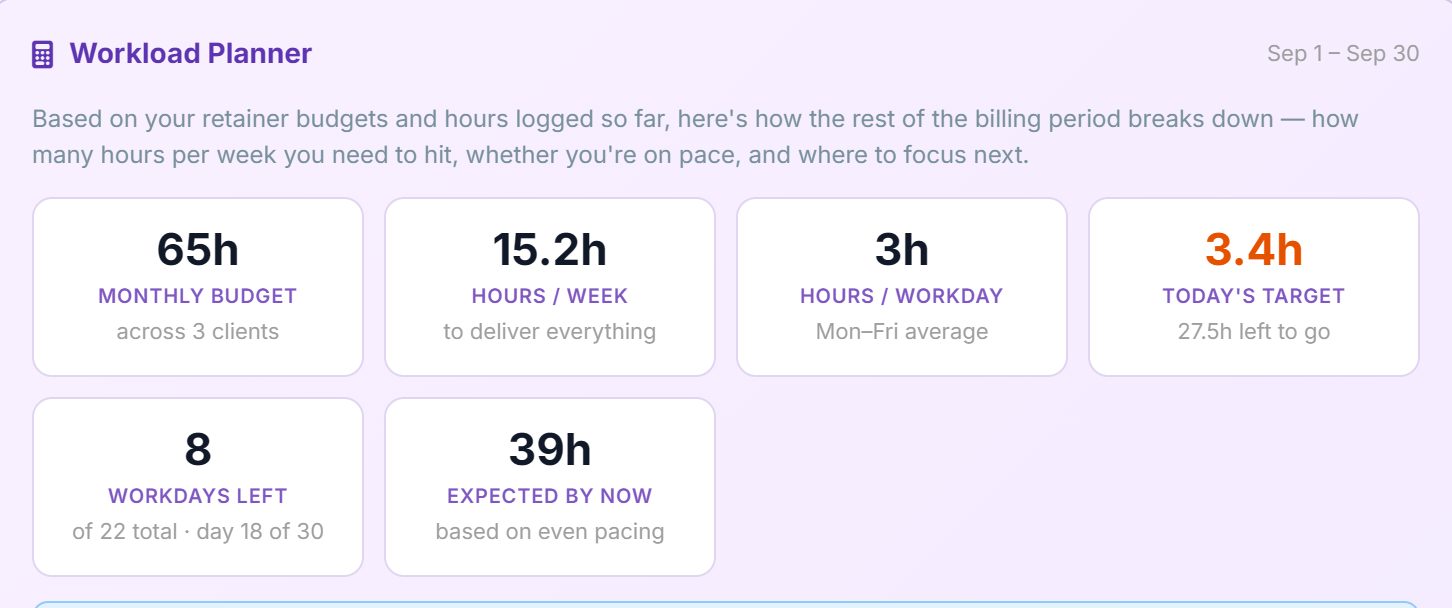
| Card | What it tells you |
|---|---|
| Monthly Budget | Every client's retainer hours together |
| Hours / Week, Hours / Workday | The even pace that delivers it all |
| Today's Target | Hours left ÷ workdays left. Green at or under the even pace, orange above it, red well above |
| Workdays Left | How many remain in the period |
| Expected by Now | What you'd have logged by today at an even pace |
Workdays are Monday to Friday, minus company holidays and booked time off.
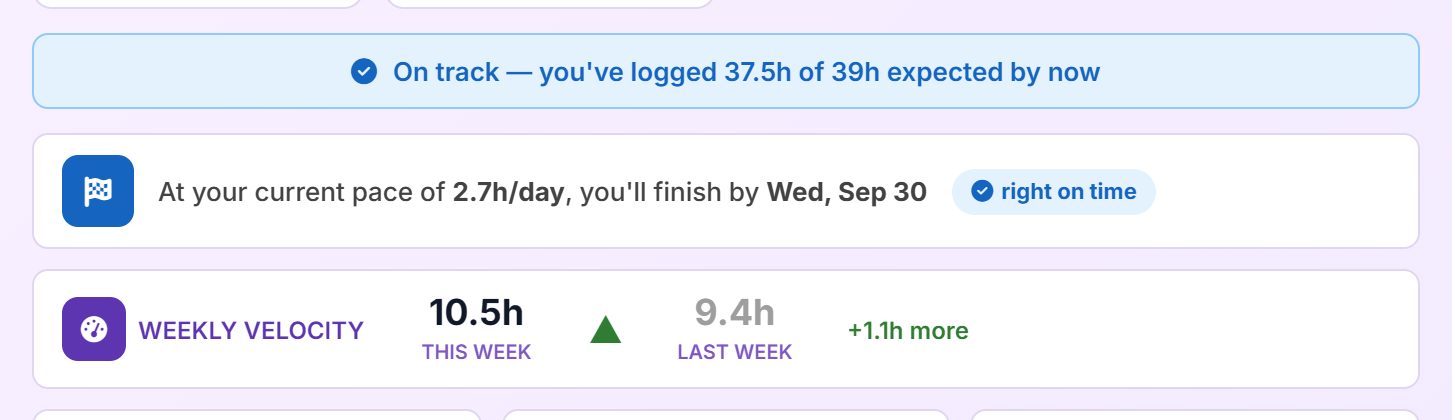
Three lines answer "are we OK?":
- The pace line: hours logged against hours expected. Within two hours is on track.
- Projected finish: the date you'll finish at your actual pace so far, marked early, on time or late.
- Weekly Velocity: this week's hours beside last week's.

The weekend what-if shows the daily target three ways: weekdays only, adding Saturdays, and adding whole weekends. Daily Work Rhythm shades one square per day by hours logged, so gaps and heavy stretches jump out.
The Client Priority Queue
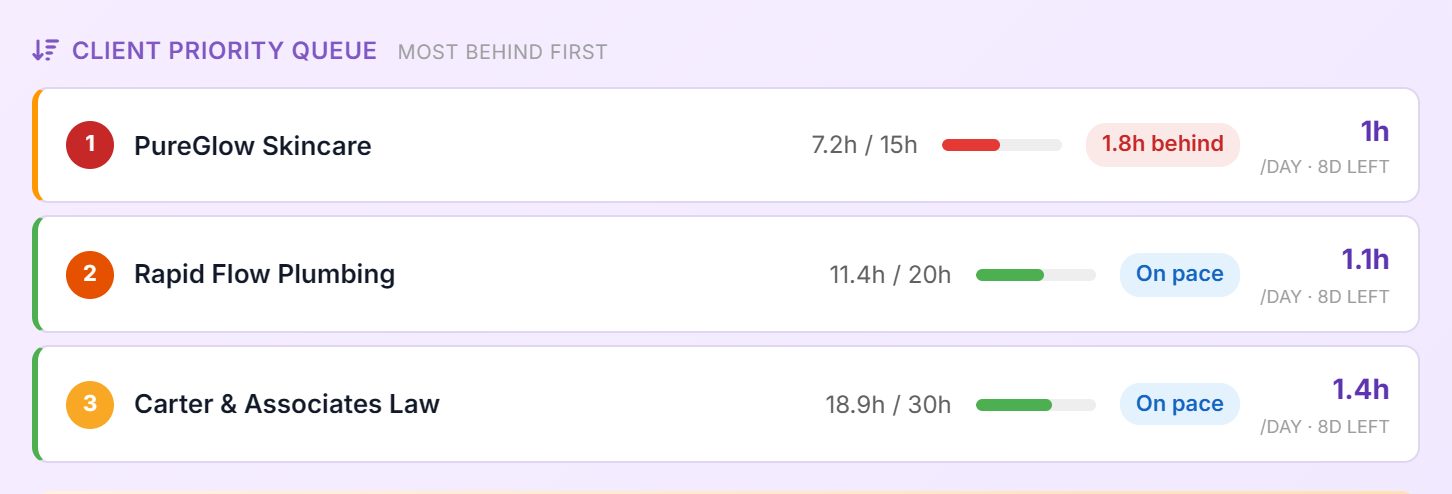
Clients are ranked by how far behind their own pace they are, most behind first. Each row shows hours against budget, a chip (behind, on pace, ahead or done), and the hours a day that client needs over its remaining workdays. Start at the top and work down.
Headspace
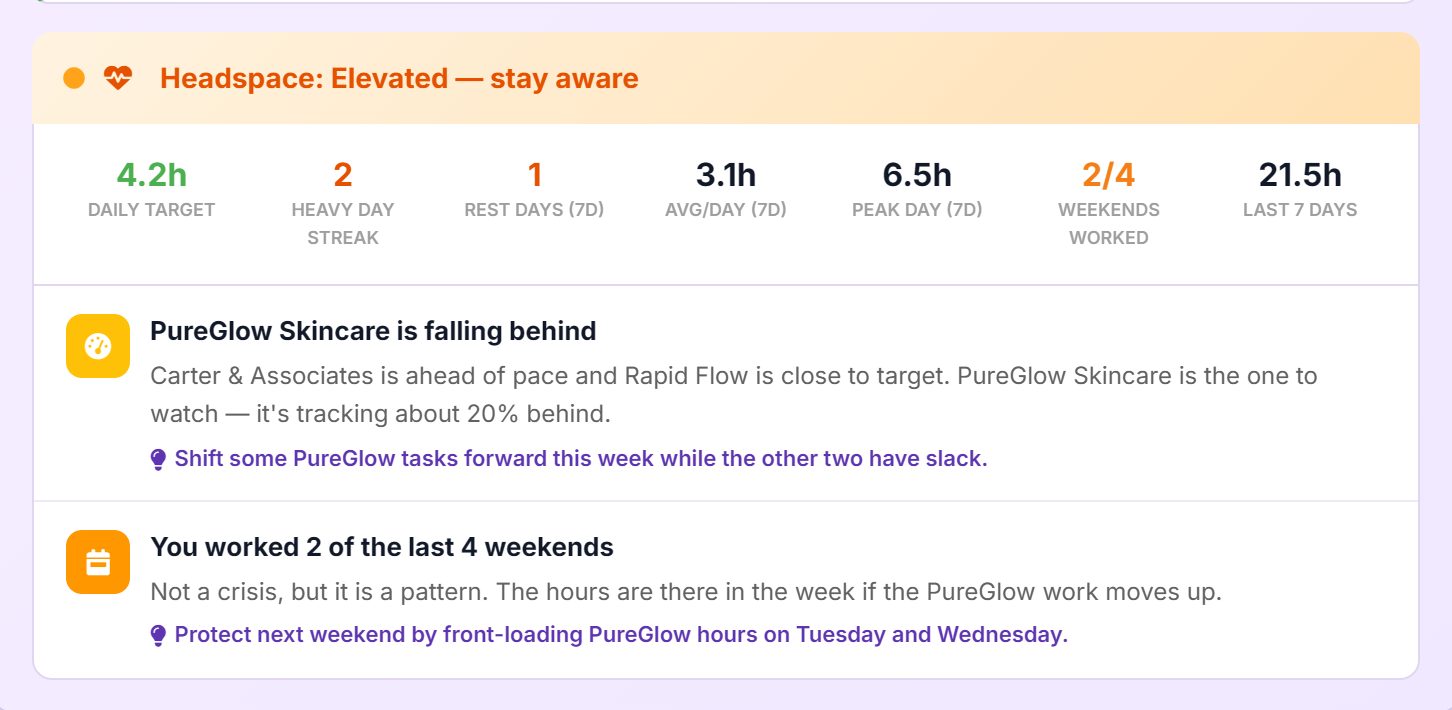
Headspace gives one of four levels: Healthy, Watch, Elevated or Critical. It watches heavy-day streaks (8+ hours), rest days and weekends worked, and it raises alerts with a practical suggestion: a catch-up crunch building, weekends being eaten, no rest day in a week. When nothing's wrong, it says You're in a sustainable groove.
The timeline
Below the planner, five cards count the last seven days: Content, Manual, Automation, SEO and Errors. Then comes the timeline itself, newest first and grouped by day. Each entry shows what happened, for which client, how it went, and where it came from: a person, Alma Chat, Automation or System.
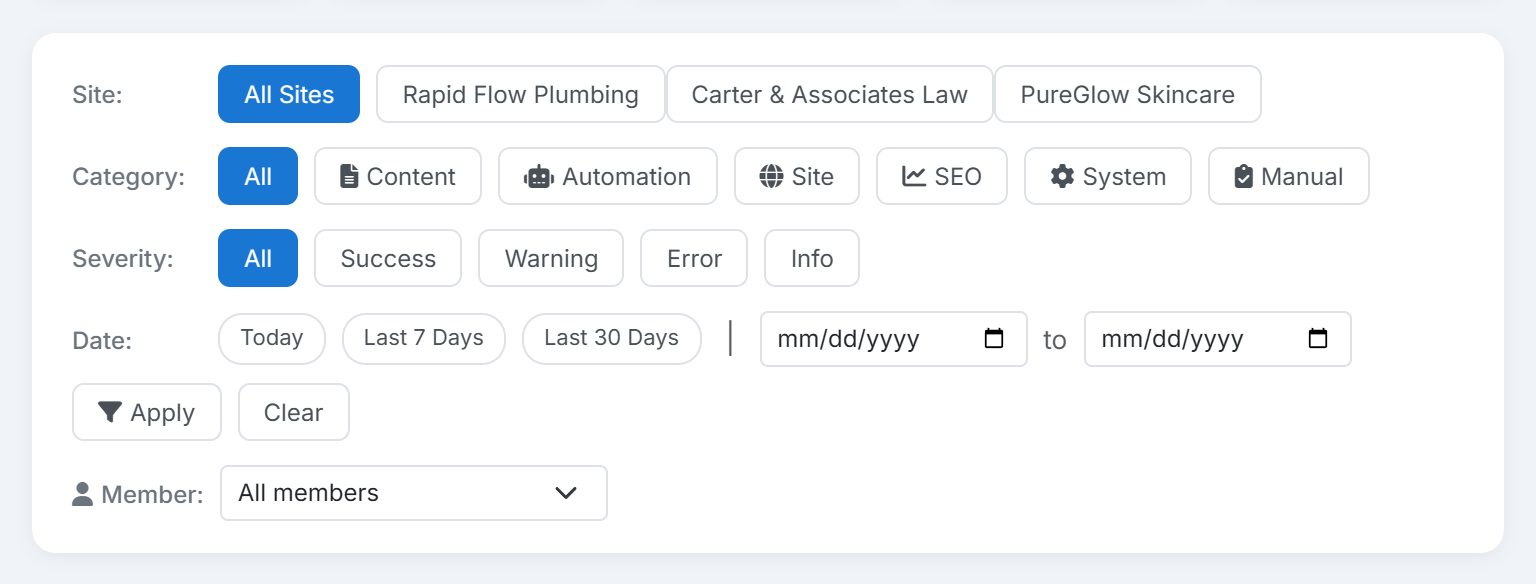
Filters combine: pick a Site, a Category, a Severity, a Date range or, on a team, a Member, and add a search on top. "Errors on one client this week" is three clicks.
Real-world example: the 12th of the month
You run a three-person agency with three retainer clients: Lakeside Mold Pros (20 hours), Bob's Gardening (10) and Carter Law (15). It's the 12th.
- Today's Target reads 3.4 hours, against an even pace of 2.6. Orange. You're behind.
- The Client Priority Queue puts Carter Law first: 3 hours logged of the 7 expected by now. Lakeside is on pace, and Bob's is ahead.
- The Errors card shows 1. Filtering to Error shows Bob's scheduled article failed to publish on Tuesday. You fix the connection before Bob's weekly check-in.
- Headspace reads Watch, with a note that you worked last Saturday. The what-if shows that adding Saturdays only saves 0.6 hours a day, so you keep weekends free and give Carter Law the first two hours of every morning this week instead.
- On the 30th, the retainer summary shows all three met. The Perfect Month banner is up, and filtering the timeline to Carter Law shows every piece of work behind it.
Key takeaways
- A retainer is paced daily, not delivered on the last day. Watch Today's Target against the even pace.
- The Client Priority Queue tells you who to work on next. Start at the top.
- Add holidays and time off so workdays, and every daily number, stay honest.
- Headspace is part of the plan. A pace you can't keep is a problem you've postponed.
- Check the Errors card every morning, and filter to Error to see what broke.
- Filter the timeline by site and date to answer "what did you do for us?" in seconds. That's proof of work.
Next up is Schedule, where the work in this timeline gets planned before it happens.