
Tutorial · Rankings and content
How to fix keyword cannibalization, step by step
Two of your client’s pages are chasing the same search, and neither ranks as well as one strong page would. This tutorial takes you through the whole fix in AlmaSEO: find every search where it’s really happening, decide which page keeps the search, merge, differentiate or link the others, and come back four weeks later to prove it worked. No AlmaSEO account? Every step also shows the free way to do it, with Google Search Console.
Before you start
- Search Console connected for the client. AlmaSEO finds cannibalization in your client’s own Google data. On the site’s Overview, the Connections card shows whether Search Console is connected, with a Connect link if it isn’t.
- Know when it’s not a problem. Two pages showing for one search is fine when both rank well and both get clicks. If you want the background first, what keyword cannibalization is, and when to leave it alone covers it.
- On WordPress, the free plugin. The WordPress steps below use the free AlmaSEO SEO Playground plugin, which you can install from the WordPress.org plugin directory. Everything else works on any site.
- Doing it without AlmaSEO. Look for the Without AlmaSEO notes. They show the free route through Google Search Console, which you need verified for the site. It’s the same job, done by hand, one search at a time.
Step 1: Run the checker
Open the client’s site in AlmaSEO. In the site’s menu, under SEO Intelligence, choose Cannibalization. Leave the range on Last 90 days and press Analyze.
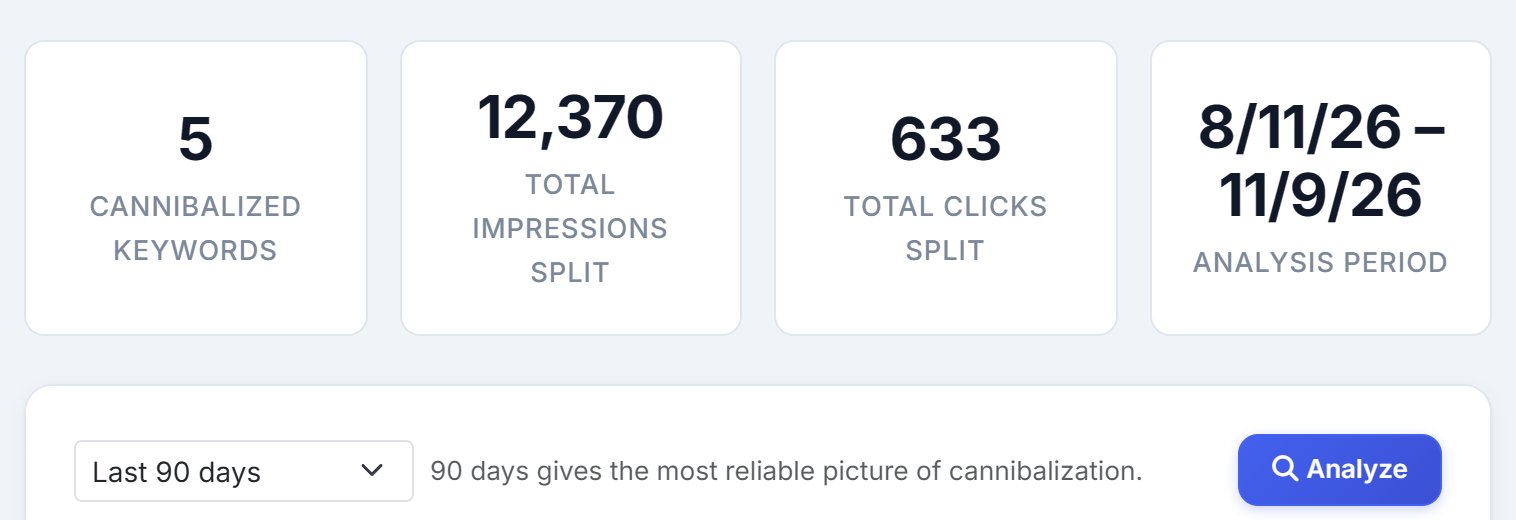
The four tiles tell you the size of the problem: Cannibalized Keywords, Total Impressions Split, Total Clicks Split and the Analysis Period. Underneath, AlmaSEO lists every search where two or more of the site’s pages are genuinely competing, the biggest first.
What counts as competing: both pages rank in the top 25 for the search, and each one gets a real share of its impressions (at least 20, and at least a tenth of the total). A page Google showed once at position 60 doesn’t count. AlmaSEO also leaves out the cases that look like cannibalization but aren’t:
- Searches for the client’s own name, where several of their pages should show.
- Sitelinks: the small links Google shows under a top result, which Search Console counts as separate pages.
- Pages that aren’t about the search at all, like a contact page that mentions the town.
- The same page in two languages, and location pages for different towns. Google shows each searcher the right one.
So a short list is normal. Many healthy sites have none at all.
Why 90 days: some conflicts come and go. Google shows one page for a few weeks, then the other. A shorter window can catch the site in a quiet spell and miss them.
Step 2: Read one conflict
Start at the top of the list. Each card is one search, the keyword being fought over. Click it to open it and see every page of the site that’s competing for it:
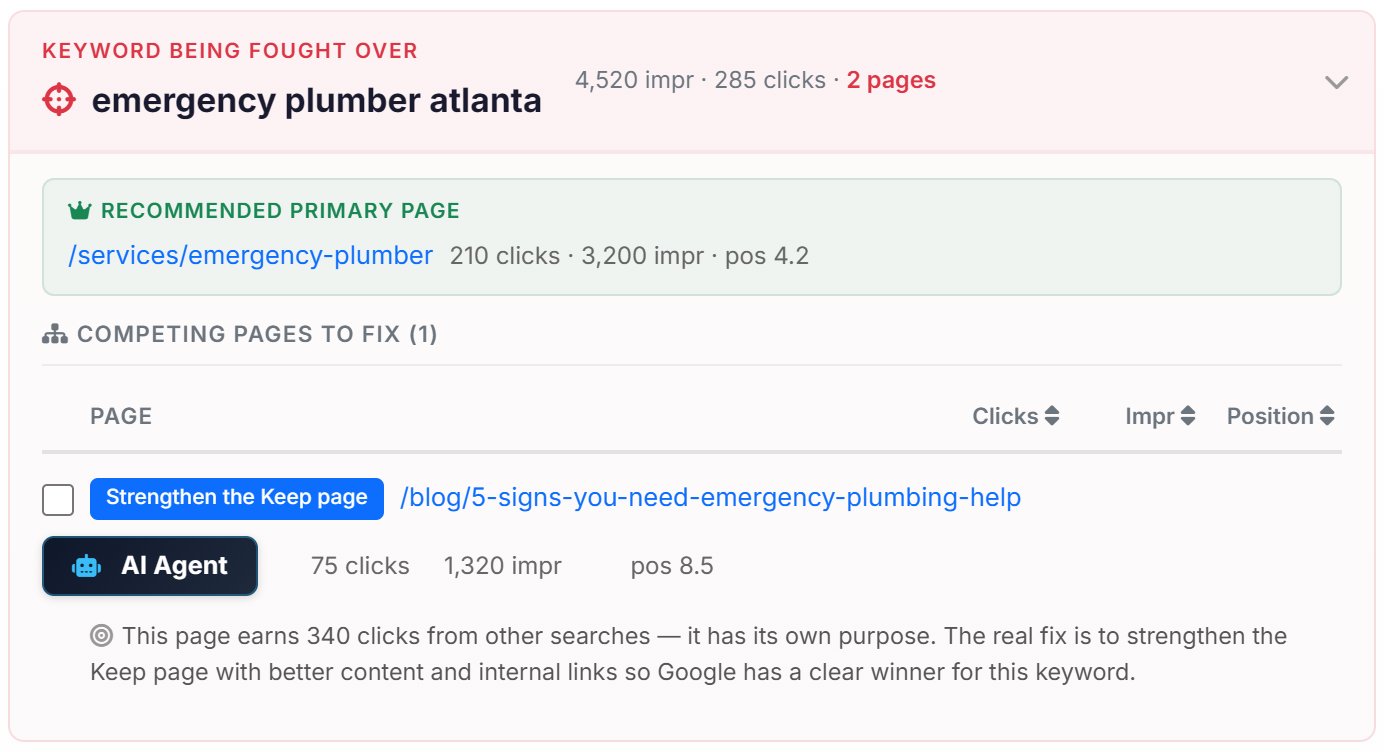
- Recommended primary page
- The page AlmaSEO suggests should own the search, with its clicks, impressions and position. The labels below call it the Keep page. With 10 or more clicks to go on, it’s the page with the most clicks. With fewer, a handful of clicks proves nothing, so AlmaSEO picks the page that’s most clearly about the search. A dedicated page always wins over the homepage.
- Competing pages to fix
- Every other page, with its clicks, impressions and position for this search. You can sort them by any of the three. A page close to the primary page’s numbers is a real rival; one far behind is a weak page trailing a strong one.
Each competing page gets a label, with a line underneath saying why:
- Consolidate or differentiate
- The same kind of page, on the same topic, getting few clicks for this search. If it says the same thing as the Keep page, merge it in. If it serves a different need, make that difference obvious.
- Review — both pages get clicks
- Both pages earn real clicks for this search. AlmaSEO won’t guess, because the right answer depends on what the pages say. Read them side by side.
- Strengthen the Keep page
- This page earns most of its clicks from other searches, so it has a job of its own. Leave it alone and make the Keep page the clear winner instead.
- Differentiate and link
- Two different kinds of page, a service page and a blog post say. Keep both, give them titles that only fit each one, and link the weaker one to the Keep page.
- Link to main page
- A sub-page that sits under the Keep page, like a cost guide under a service. That’s normal structure, not a duplicate. Just make sure it links up to the Keep page.
- No click data yet, and Not actionable
- Nothing to do. Either neither page has a click yet, so there’s no evidence either way, or the page is one that’s meant to show up, like a contact page.
These are suggestions because AlmaSEO is reading the search data, not the pages themselves. You make the call.
Step 3: Check before you change anything
Two quick checks keep you from merging away the wrong page.
Is the Keep page the one the client wants found? Usually AlmaSEO’s pick is the right one. But if it’s an old blog post and the other page is the service page that brings in enquiries, the business case can win. Keep the page the client needs to rank, and treat the other as the weaker one.
Does a page you’re about to merge earn traffic from anything else? Merging ends with a redirect, and a redirect sends everything that page earns to the Keep page, not just this one search. AlmaSEO already checks this, and labels a page with real traffic elsewhere Strengthen the Keep page rather than Consolidate. It’s still worth a look before you remove any page. If it ranks well for other searches, differentiate it instead of merging it.
It also helps to see which page Google already treats as the main one. In AlmaSEO, open Search Console › Technical, paste a URL into the URL Inspector and press Inspect URL. If the Google-selected Canonical is a different page from the User-declared Canonical, Google has picked a winner of its own. That’s worth knowing before you choose.
Step 4: Make the fix
Work through the pages on the card one at a time, using each label as your starting point.
Consolidate or differentiate
Open both pages. If they really serve different needs, treat the weaker one as Differentiate and link below. If they say the same thing, merge them:
- Copy anything useful from the weaker page into the Keep page: a paragraph it covers better, an FAQ, a good image.
- Redirect the weaker page’s address to the Keep page with a 301 (permanent) redirect. That passes its links and history on to the page you’re keeping.
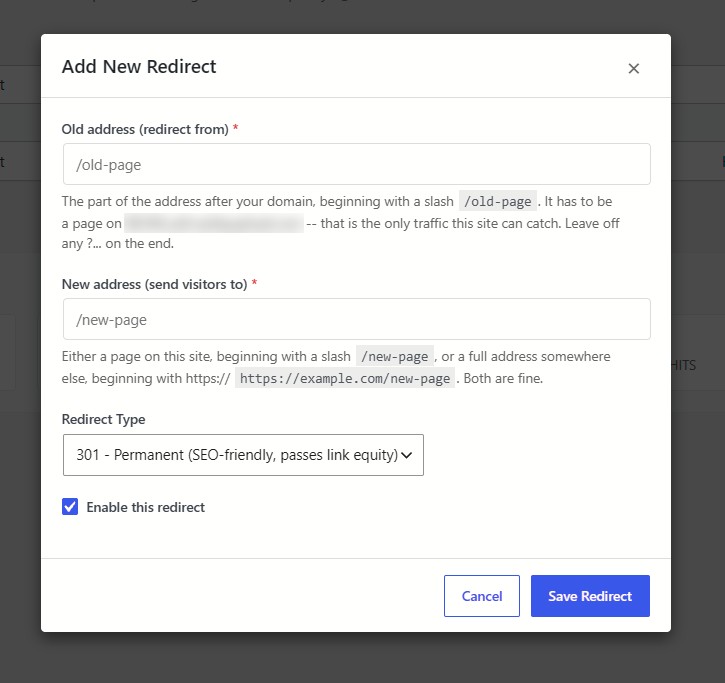
Not on WordPress? Add the redirect wherever the site’s redirects live: the host’s control panel, the server, or Cloudflare.
Differentiate and link
Both pages stay. The job is to make it obvious to Google which one is for this search.
- Rewrite the weaker page’s title and main heading around what it’s really for, the searches it already does well for, and away from the one it shares with the Keep page. A blog post answers a question; a service page sells the service.
- Add a link from it to the Keep page, using words close to the shared search.
Review — both pages get clicks
Open both pages side by side. If they answer the same question, merge them: the stronger content goes into the Keep page and the other redirects, as above. If they really serve different people, a guide and a pricing page say, make the difference obvious. Each page gets a title, main heading and opening paragraph that only fit it, and each links to the other.
Strengthen the Keep page
Leave the other page alone: it earns its clicks from other searches, and changing it would cost the client that traffic. Put the work into the Keep page instead.
- Make sure its title and main heading say plainly what the search asks for.
- Cover anything a searcher would expect that the page doesn’t yet answer. If the other page answers it better, that’s a hint.
- Add a link from the other page to the Keep page, using words close to the search, and point the rest of the site’s links at it too (Step 5).
Link to main page
The page is a sub-page of the Keep page, a cost guide under a service say, and that’s healthy structure. Make sure it links up to the Keep page, using words close to the search. Nothing else changes.
When a page has to stay live
Some pages can’t be redirected: a print version, a campaign landing page, a filtered listing. For those, a canonical tag tells Google which page is the main one, or noindex keeps the page out of search while visitors can still reach it. Neither passes on as much as a redirect, so use them only when a redirect is off the table.
Or hand it to the AI Agent Workspace
On Pro and Agency, the AI Agent button next to a competing page hands it to the AI Agent Workspace as a task. The task names the page, the search, the label and the Keep page. You review the change before anything happens on the site.
Step 5: Point your links at the Keep page
Your own links are one of the strongest hints you can give Google. Wherever the site links to a page about the shared search, the link should go to the Keep page. That includes menus, footers and related-post links. Links to a page you’ve just redirected still work, but they now take a detour.
Step 6: Check the fix went in
- Visit each old address in a browser. It should land on the Keep page, in one hop.
- In AlmaSEO, run Website Analysis › Full Site Crawl. It reports redirect chains (a redirect pointing at another redirect) and broken links, with the pages each one sits on.
Step 7: Set the reminder
Google takes weeks, not days, to recrawl the pages and settle on the Keep page, so the last job today is making sure you come back. Back on the card, tick the box at the start of the row for each page you’ve fixed, to mark it done; everyone on the account sees the tick. Then press Remind Me on that row.
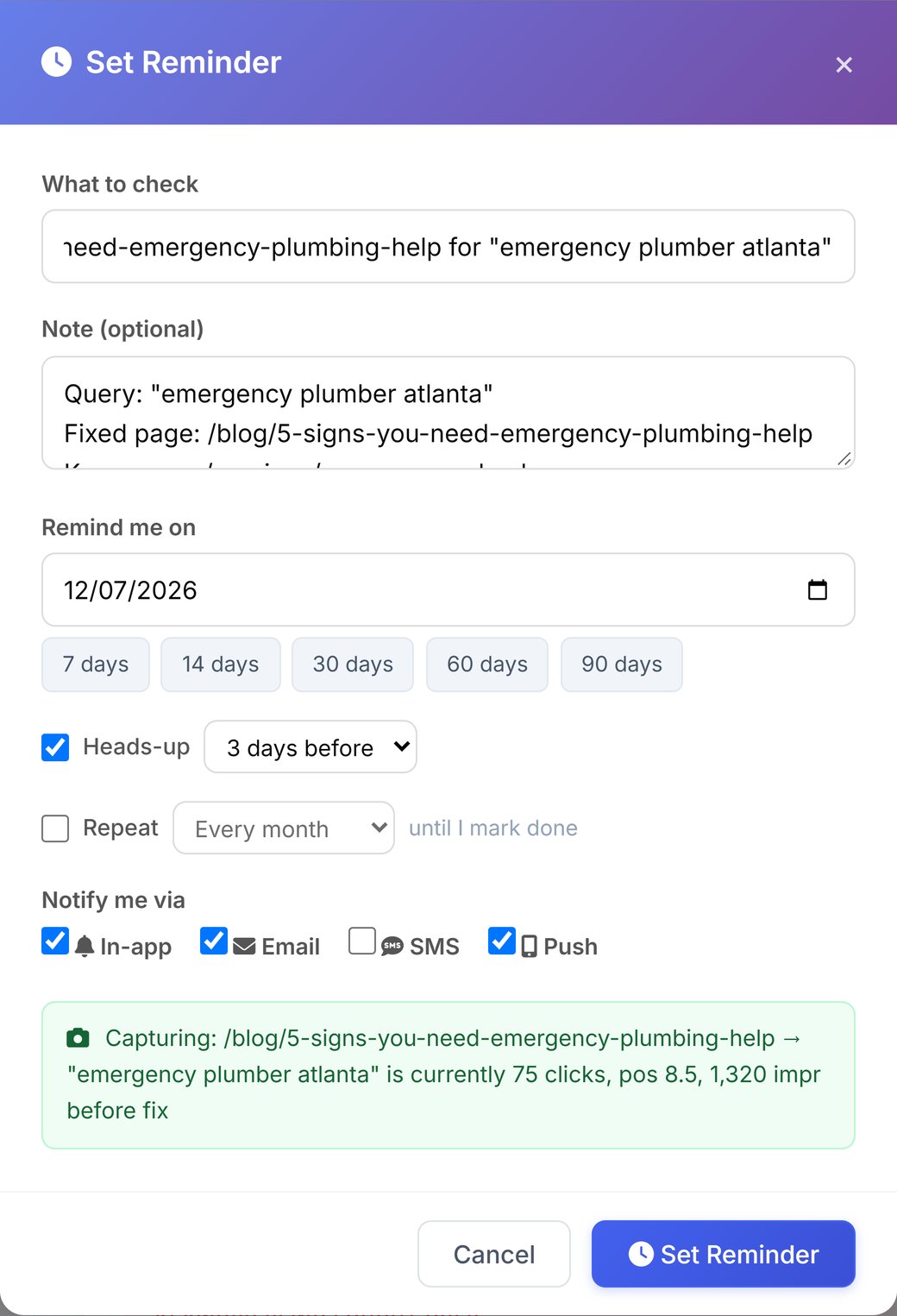
The Set Reminder window comes filled in. What to check reads “Verify fix:” with the page you fixed and the search. The note names the search, the fixed page and the Keep page, and the date is four weeks out. The checklist for a cannibalization fix is added to the reminder for you. AlmaSEO also saves the fixed page’s numbers for the search from before the fix: its clicks, position and impressions. In four weeks you’ll compare against real figures, not your memory.
Pick how you’d like to hear about it under Notify me via, and a Heads-up a few days early if you want time to plan for it.
Step 8: Four weeks later
When the reminder arrives, open Reminders (in the main sidebar, under Work). The Due Now tile at the top counts the ones that have come due; click it to list them. Each one carries the four checks to run:
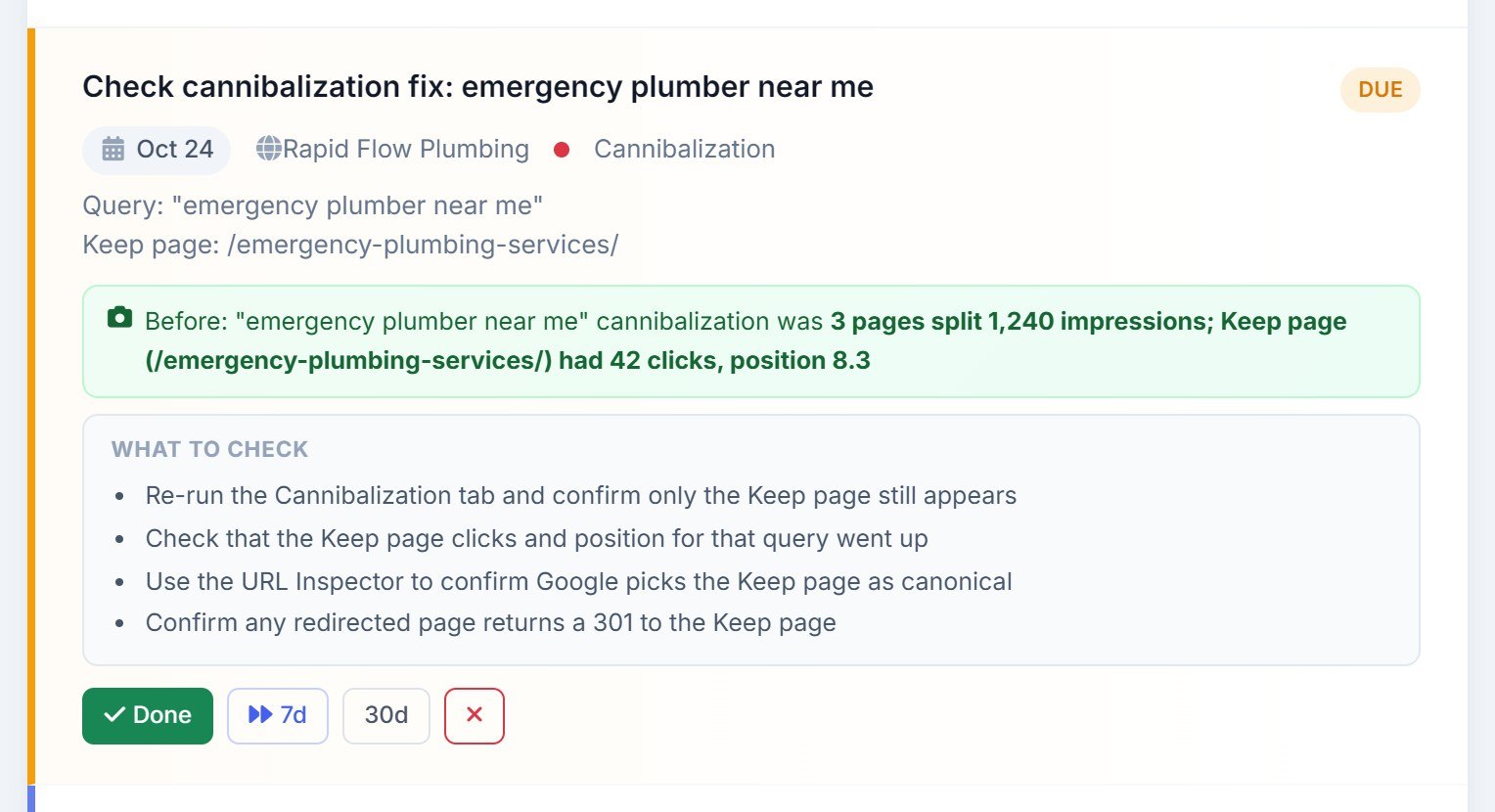
- Re-run Cannibalization and confirm the search has dropped off the list, or only the Keep page still appears for it. Set the range to Last 28 days for this one. A 90-day window still includes the weeks before your fix.
- Check the Keep page’s clicks and position for that search went up. The reminder saved the fixed page’s numbers from before the fix, so you can also see how far that page has dropped back.
- Inspect the Keep page in the URL Inspector and confirm Google now selects it as the canonical.
- Confirm the redirects still send each old address to the Keep page.
Then press Done. AlmaSEO asks Did the fix work?, and you answer Yes, resolved, Partially or No, needs more work. Across all your clients, those answers become a record of which fixes actually moved the numbers.
If it hasn’t worked yet
- Partially: both pages still show, but the Keep page is ahead
- Google is still settling. Look for internal links that still point at the other page, then press 30d on the reminder to snooze it for 30 days and check again.
- No, needs more work: nothing has changed
- Inspect the old address and make sure the redirect is really a 301. If you differentiated the page, check that its title and main heading truly moved away from the shared search. Sometimes the honest answer is that the two pages say the same thing, and they need merging rather than differentiating.
- A new conflict has appeared
- A redirect or a rewrite can push a page into a different search. Run the checker again. It’s the same job, one search down.