
Tutorial · Client reporting
How to create a monthly SEO report for clients, step by step
A good monthly SEO report answers three questions for the client: what happened, what you did about it, and what comes next. This tutorial builds one in AlmaSEO from the client’s own Google data, adds their goals and the work you did, sends it under your agency’s name, and then sets it to go out on the 1st of every month without you. No AlmaSEO account? Every step also shows the free way to do it, with Looker Studio and a Google Sheet.
Before you start
- Connect the client’s data. The report only shows what’s connected. Search Console is the minimum. Google Analytics and the Business Profile make it a much fuller report. On the site’s Overview, the Connections card shows what’s connected, with a Connect link for anything that isn’t.
- Set your agency’s branding once. The name and logo at the top of every report come from Client Billing › Settings. On Agency, Custom Email Domain on the same page sends reports from your own domain rather than AlmaSEO’s.
- Plans. The Report Builder is on Pro and Agency. The client portal in Step 8 is on every paid plan.
- Doing it without AlmaSEO. Look for the Without AlmaSEO notes. They build the same report in Looker Studio, Google’s free report tool, with Search Console and Google Analytics as data sources and a Google Sheet for everything else.
Step 1: Open the Report Builder
Open the client’s site in AlmaSEO. In the site’s menu, choose Activity/Logs/Reports, then click the Report Builder panel to open it. It works through four numbered steps: Performance Data, Work Items, Note to Client, and Preview & Send. The rest of this tutorial follows them in order, with two optional cards in between.
Why here: this tab is also the site’s work log. Everything you and AlmaSEO did on the site is already in it, so the report can show the work, not just the numbers.
Step 2: Pick the month and what to compare it with
In Performance Data, set Period to Last Month. That’s the whole calendar month just gone, which is what clients expect a monthly report to cover. If you bill on a different cycle, Last Billing lines the report up with your invoice instead.
Then choose Compare to:
- Previous period
- Last month against the month before. Best for steady sites and for showing the effect of recent work.
- Same period last year
- Last month against the same month a year ago. Use it for seasonal businesses: a plumber’s January always beats their July, and month-on-month would make a normal summer look like a crisis.
- No comparison
- Only for a brand-new client with no history worth comparing.
Step 3: Choose what goes in the report
Under the period, every connected source is listed with its own metrics ticked underneath. This is your monthly SEO report template: decide once what this client should see, and Step 9 saves it.
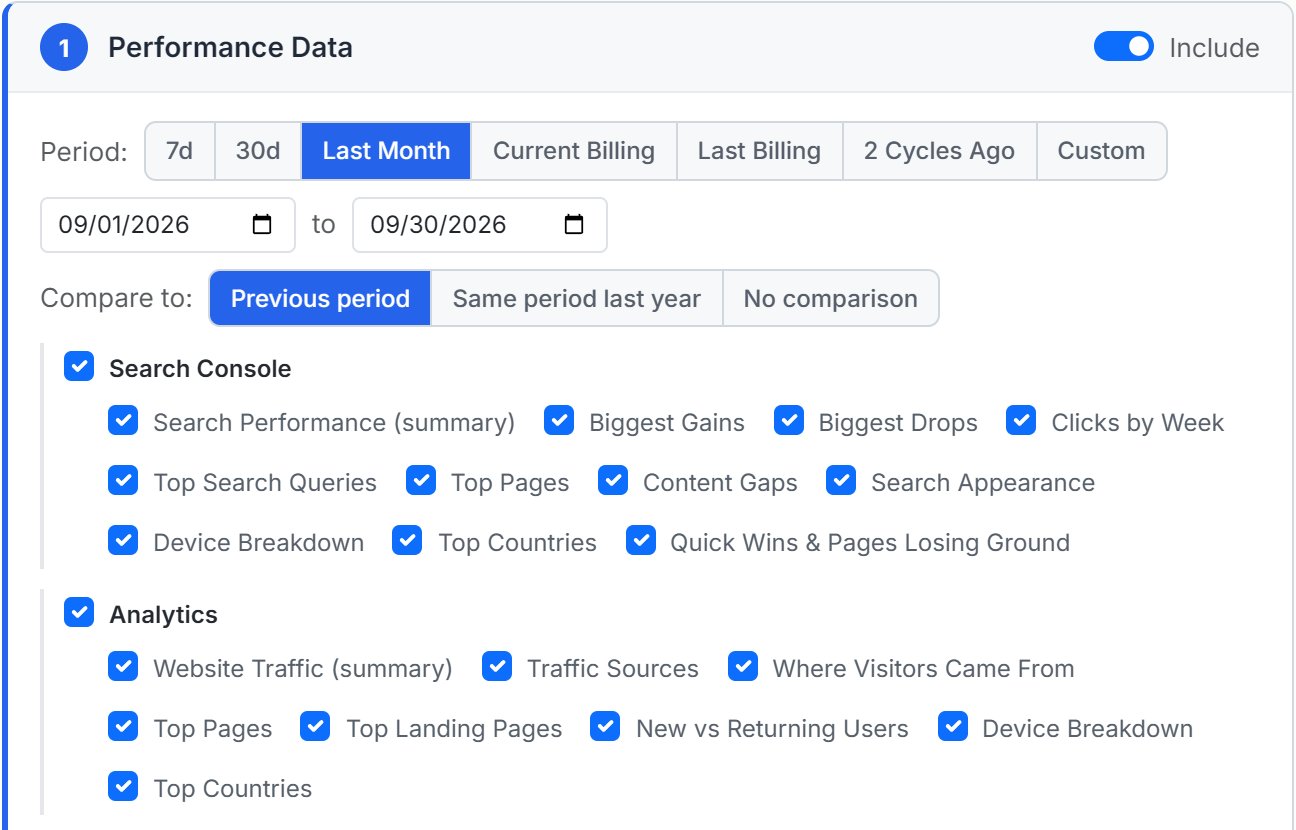
A solid monthly report for most clients has:
- Search Console
- Search Performance (summary) for clicks, impressions and position, then Biggest Gains, Top Search Queries and Top Pages. Add Biggest Drops when you want to explain one.
- Analytics
- Website Traffic (summary) and Traffic Sources, so the client sees what search is worth next to their other channels.
- Business Profile
- For local businesses: Visibility & Actions (summary) and Customer Actions. Calls and direction requests are the numbers a local owner actually cares about.
- Keyword Rankings and Local Rankings
- Where their target keywords stand, and how they rank around each location.
- Growth Metrics
- The site’s keywords and estimated traffic, quality scores, and how many articles went out. See the Growth Report.
- The rest, when they apply
- AI Overview Tracker and AI Prompt Tracking for clients who ask about AI search, Bing Webmaster, the Technical SEO Audit score, YouTube, Microsoft Clarity, and Google Ads if you run their ads. Google Ads is off by default.
Two switches at the bottom change the tone. Hide branded searches removes searches for the client’s own name, so the report shows the people who found them without already knowing them. It’s the honest measure of SEO, and worth leaving on. Highlight Reel hides every drop and negative comparison. Use it with care: a client who later finds a drop you left out stops trusting the report.
Step 4: Add goals and timeline notes
Numbers mean more against a target. Open the Monthly Goals card and set targets with the client: Organic Clicks, Impressions, Website Sessions, Conversions, Keywords in Top 10, GBP Phone Calls, GBP Directions or Articles Published. Each goal appears in the report and on the client portal as met or missed.
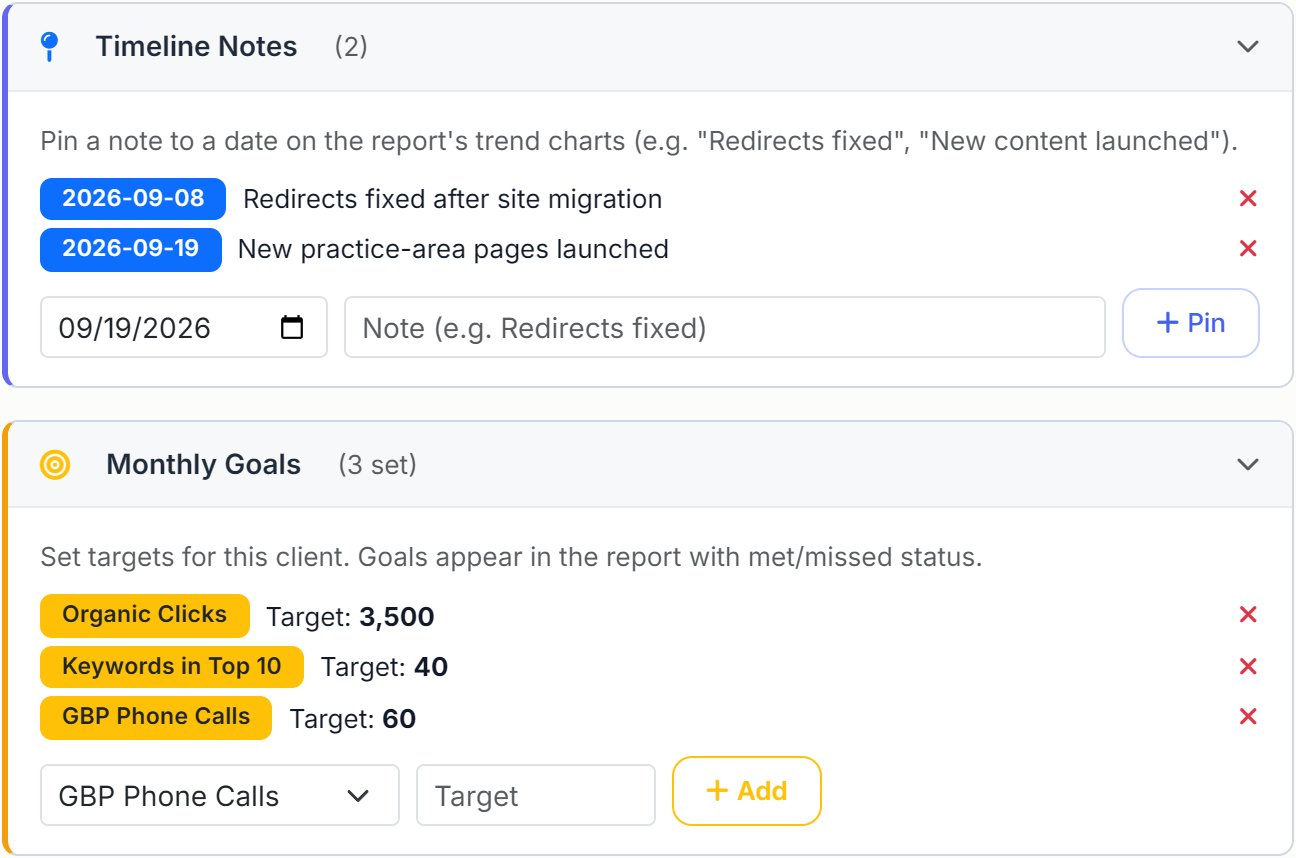
Then open Timeline Notes and Pin a short note to the day something happened: “Redirects fixed”, “New service pages live”, “Google core update”. The note sits on that date in the report’s trend charts, so the client sees the jump next to its cause. If you’ve just finished fixing keyword cannibalization, pin the day the redirects went in.
Step 5: Show the work you did
Clients pay for work, and a report of numbers alone hides it. In Work Items, choose Last Month to tick everything from the site’s log for that month: articles published, fixes made, tasks completed. Untick anything the client doesn’t need to see, or scroll down to the activity timeline to pick items one by one.
Under Include, tick Content Published to list the month’s articles, and Retainer Usage to show hours used against the retainer, if you track one. Hide hours and Hide dates keep the detail out when the client only wants the list.
Step 6: Write the note to the client
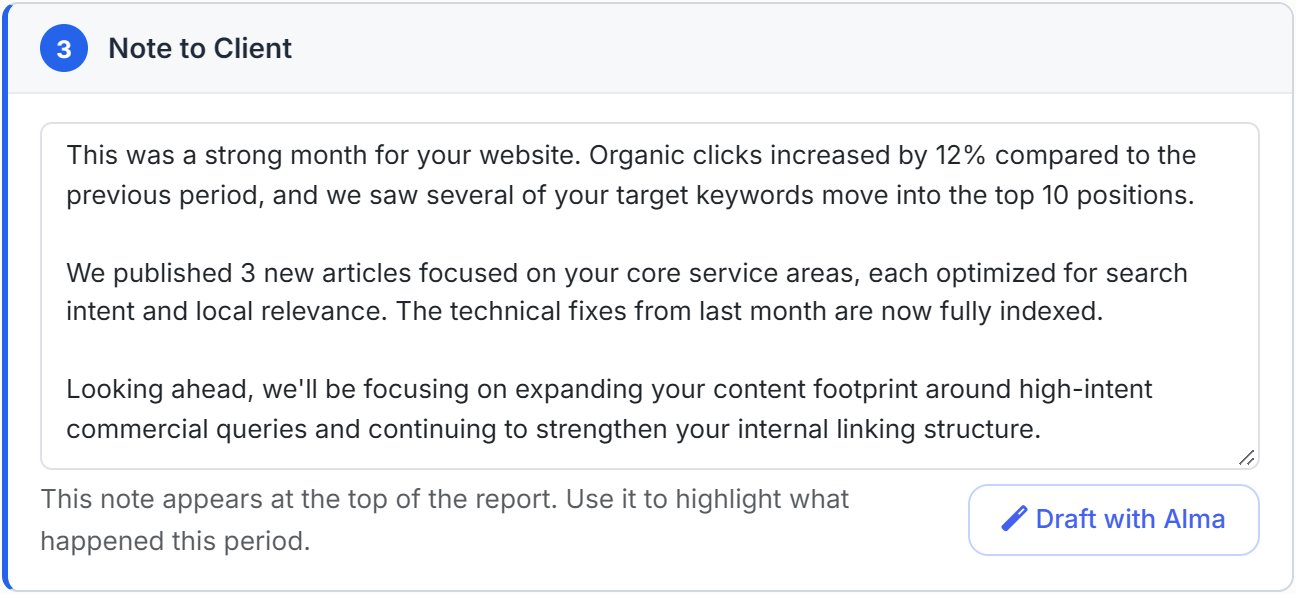
The note is the first thing the client reads, and often the only thing. Three or four sentences: what happened, why, and what you’re doing next. Type it into Note to Client.
Or press Draft with Alma. Alma, AlmaSEO’s built-in assistant, reads the same numbers the report shows and writes a first draft into the box. Read it and edit it before you send: it’s your name on the report, and Alma doesn’t know about the phone call where the client asked about their new location.
Step 7: Preview and send
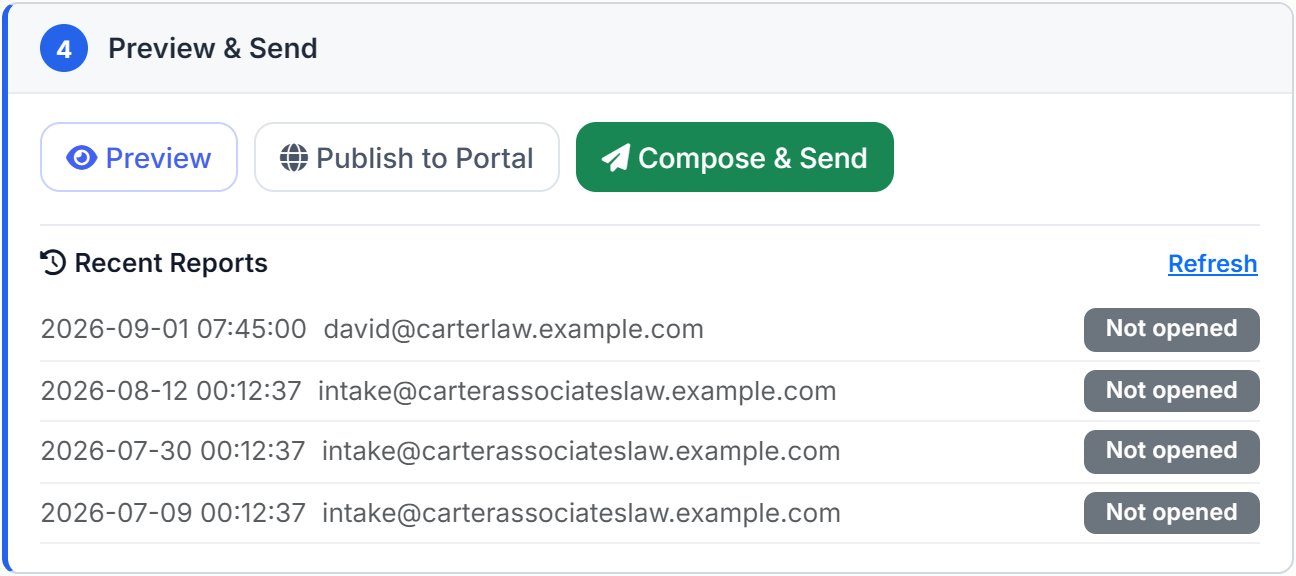
In Preview & Send, press Preview to see the report exactly as the client will. Check that every section has numbers and that the note reads well. Then press Compose & Send.
The Compose & Send Report window takes the Recipient Email, your Sender Name, an optional Reply-To, CC / BCC for anyone else at the client, and the Subject. Leave Also publish to client portal ticked; Step 8 explains why. Download PDF saves the same report as a file, for clients who want an attachment or a printout. Then press Send Report.
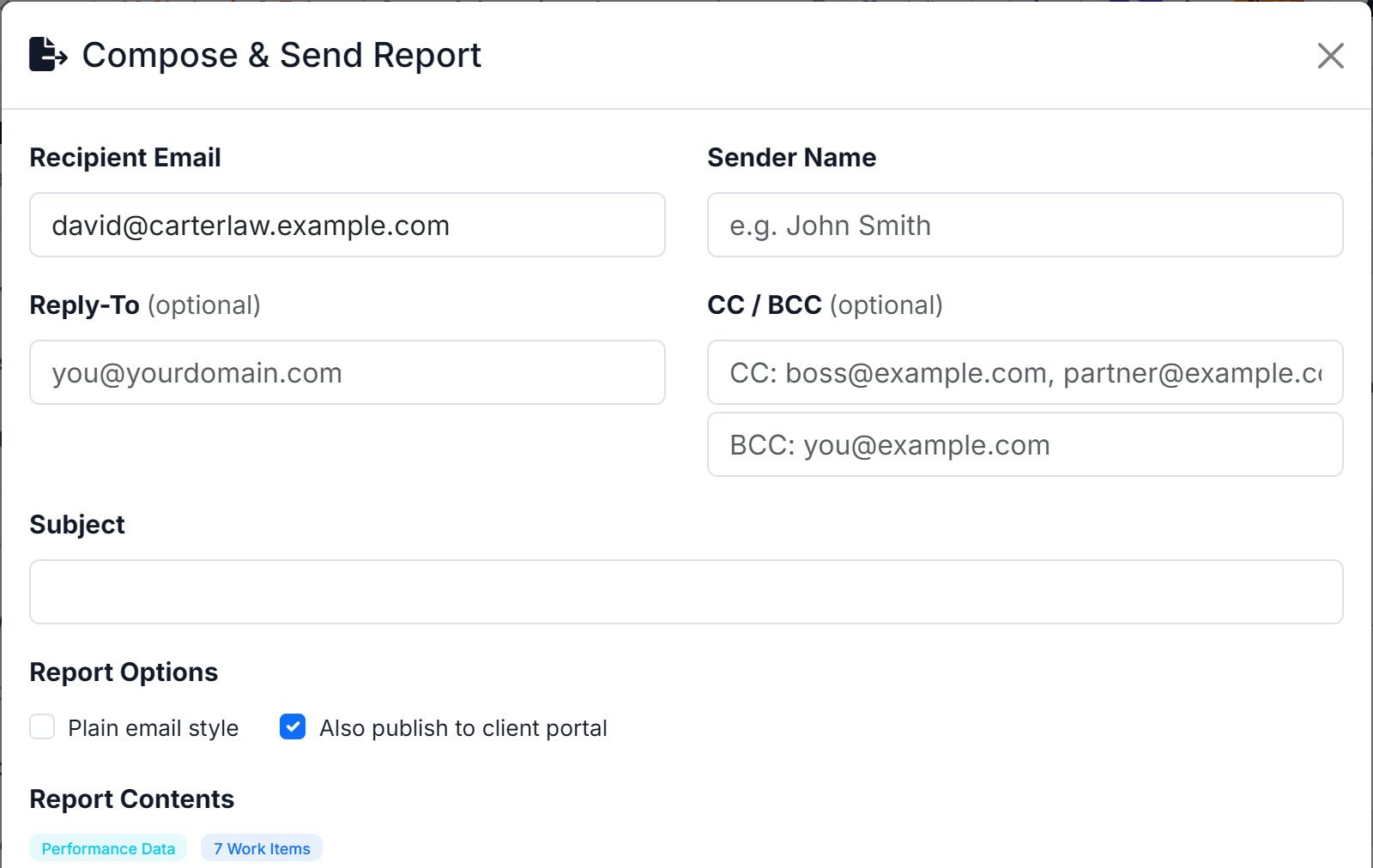
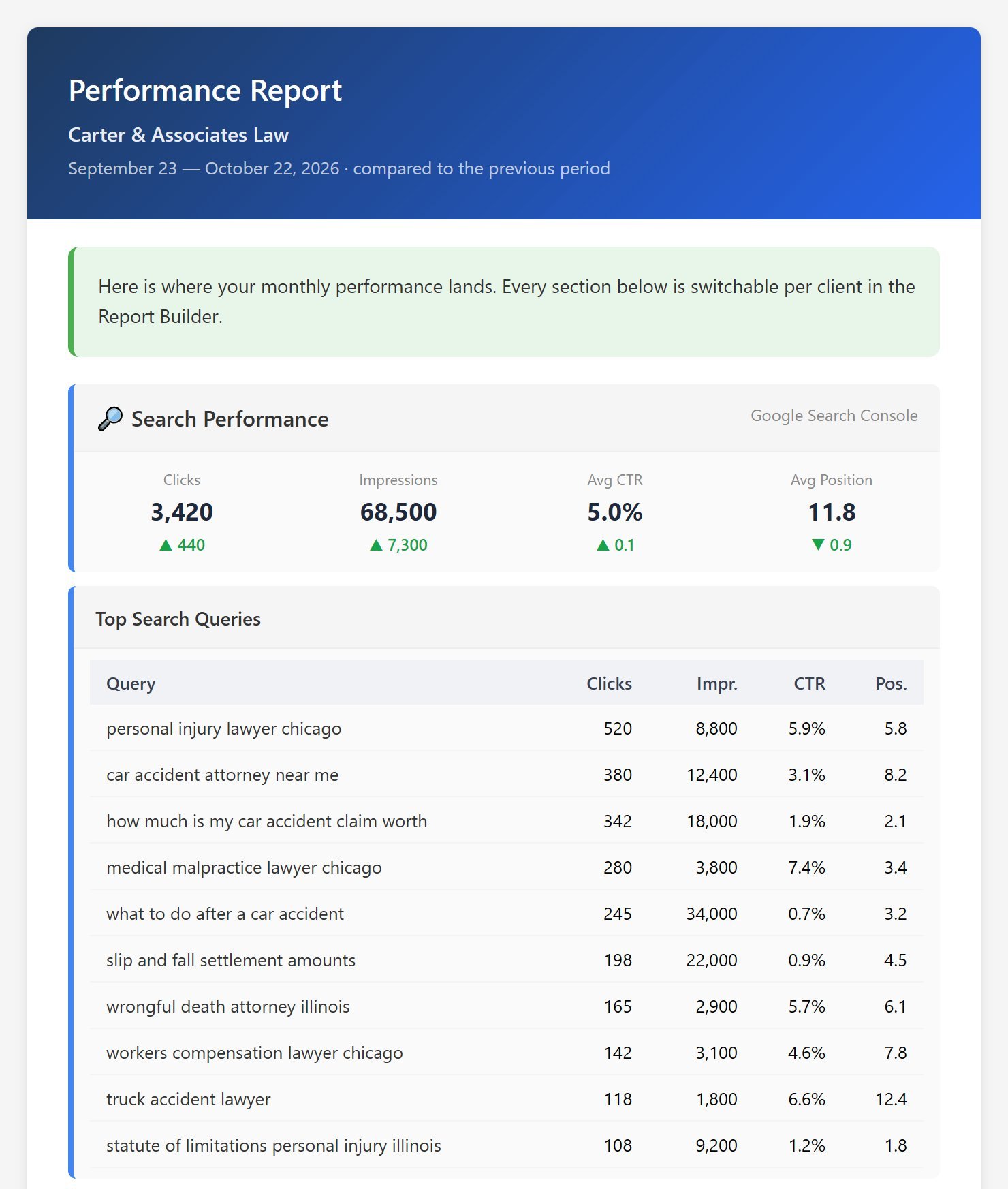
Every report email carries a View this report online link to the client portal copy. If the email can’t be delivered, AlmaSEO tells you there and then rather than reporting it sent.
Step 8: Put it on the client portal
An email gets read once. The client portal keeps every report you’ve sent in one place, under your branding, and tells you whether the client read it.
At the top of the same tab, the Client Portal card has a Generate client link button. Send the link to the client once. It needs no login, and you can revoke it any time. If the client prefers a password, Client Login Credentials sets one, and they sign in at /portal/login.
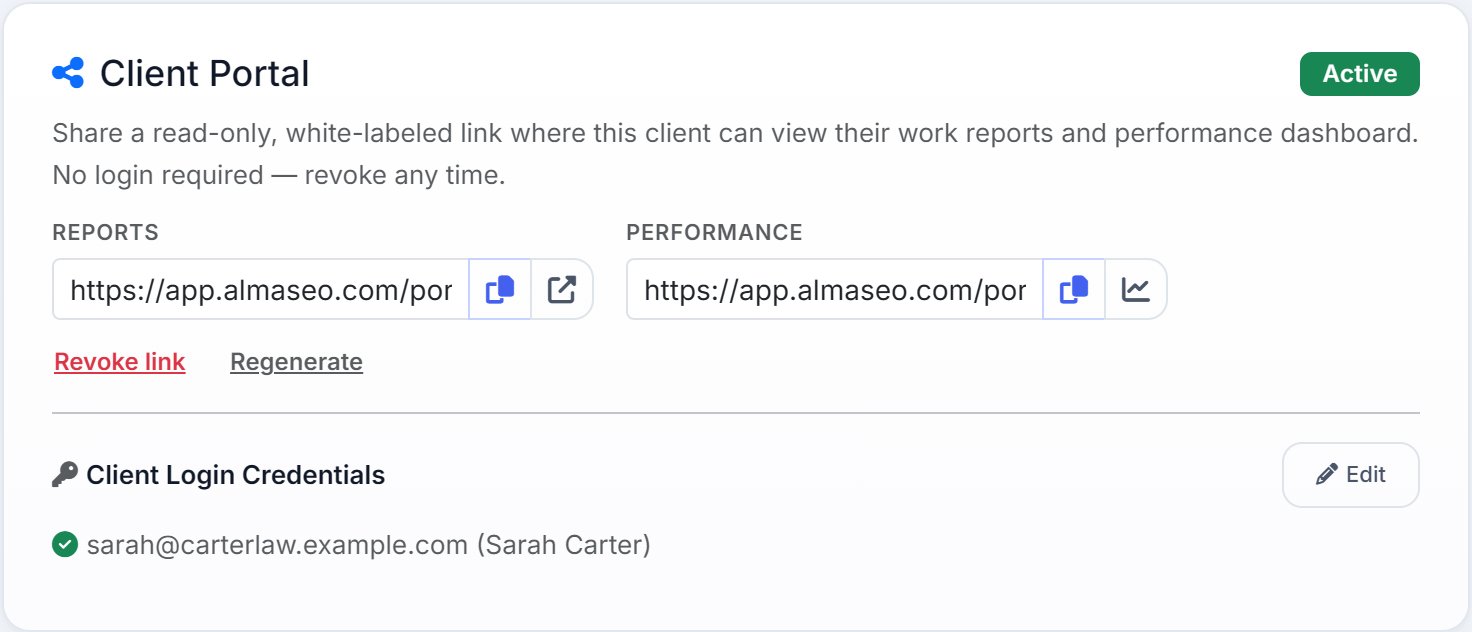
On the portal, the client sees the report with their goals, and an Approve this report box where they can approve it or leave a comment. Back in AlmaSEO, Recent Reports under Preview & Send shows each report’s status: Opened with the date the client viewed it, Approved, Comment (hover to read it) or Not opened. A client who hasn’t opened three reports in a row is a conversation to have before renewal, not after.
Step 9: Save the template and make it automatic
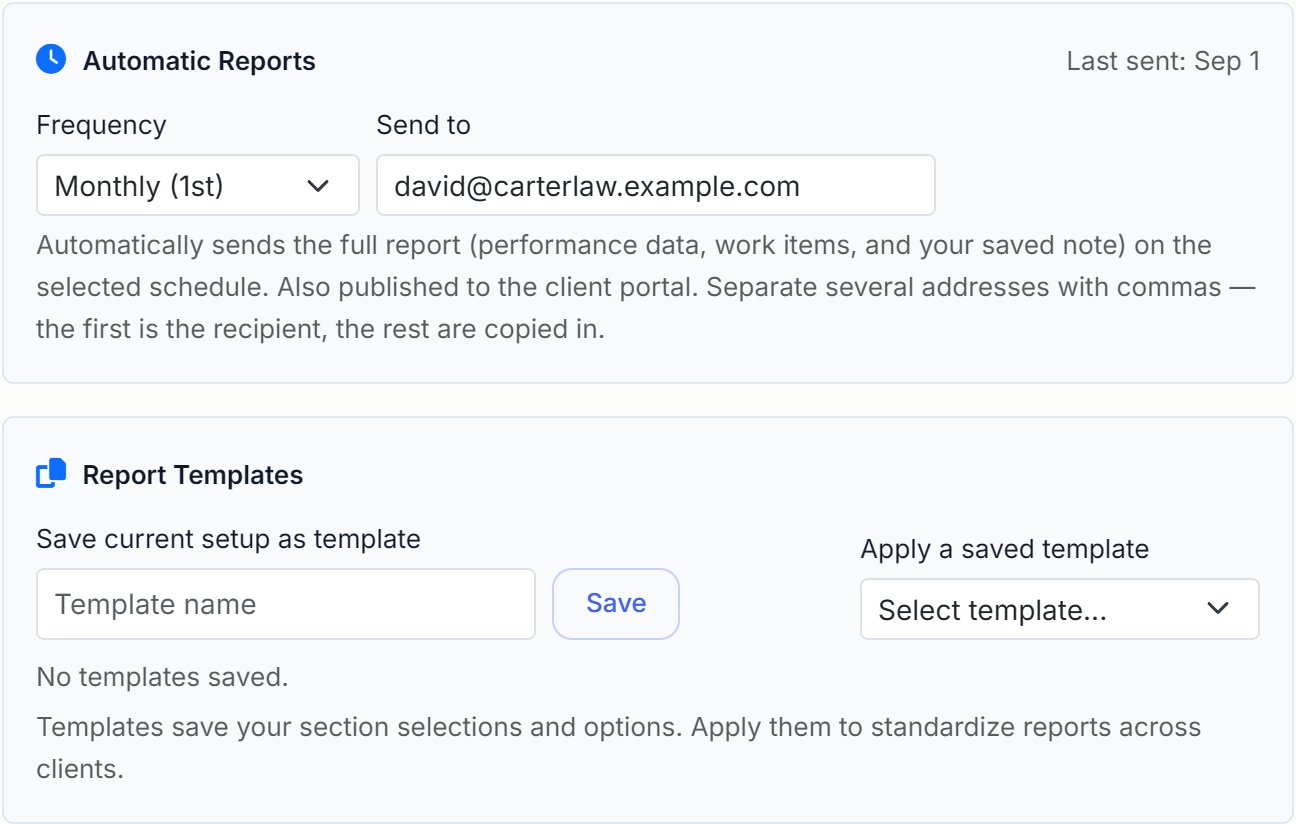
You only build a report once. Under Report Templates, type a name in Save current setup as template and press Save. The template keeps your sections and options. For the next client, Apply a saved template sets up the same report in one step, so every client gets your standard report.
Then, in Automatic Reports, set Frequency to Monthly (1st) and put the client’s address in Send to. Separate several addresses with commas. On the 1st of each month, AlmaSEO builds the report for the calendar month just gone, with this client’s saved sections and note, sends it under your branding and publishes it to the portal. Weekly (Monday) and Every 2 weeks are there for clients who want more.
Your note is sent once and then cleared, so next month’s report doesn’t repeat this month’s news. Write the new note before the 1st, or the report goes out with the numbers alone. If a send fails, AlmaSEO tries again on each of the next two mornings, then tells you. The failed report shows as Failed in Recent Reports, with a Resend button.
Step 10: Set the reminder
An automatic report still needs you once a month: for the note, and to read how the month went before the client does. After you send a report, AlmaSEO shows Report sent! with a Remind me on button for the 1st of next month. Press it.
The Set Reminder window comes filled in: Send next month’s client report, with who it went to in the note, repeating every 30 days. Add a Heads-up a few days early, so you can write the note before the automatic send goes out, and choose how to hear about it under Notify me via.
Step 11: Next month, check it landed
When the reminder comes up, open Reminders (in the main sidebar, under Work) and go back to the client’s Report Builder:
- Check Recent Reports. Did last month’s report get Opened or Approved? Read any Comment and answer it.
- Check the goals. Missed two months running? Either the target was wrong or the plan is. Agree a new one with the client, or change the work.
- Pin anything that happened in Timeline Notes, while you still remember the date.
- Write the note for this month’s report, or press Draft with Alma and edit it.
Then press Done on the reminder. It comes back next month on its own.
If something’s off
- A section is missing from the report
- Its source isn’t connected, or it has no data for the month. Check the site’s Connections card on the Overview. YouTube also needs its own tab opened once before the report can use it.
- The numbers don’t match Search Console
- Check the period first. Last Month is the calendar month, while Search Console’s default is the last three months. Then check Hide branded searches, which removes searches for the client’s name.
- A report shows as Failed
- Hover over the badge to read why. Usually it’s a mistyped address. Fix it and press Resend.
- The client never opens it
- Ask whether email is the right place. Some clients would rather see the portal link in a monthly call, or get a shorter report. Untick sections until it fits on one screen.